Last updated: 11 September 2026
A WiFi QR code lets customers, guests and visitors connect to your wireless network by scanning a QR code instead of manually typing the WiFi name and password.
For restaurants, cafés, clinics, hotels, homestays, coworking spaces, offices and event venues, it solves one very common question:
Klik VIP has a dedicated WiFi QR Code generator. More importantly, you are not limited to a plain black-and-white QR code — you can choose from many themes, adjust the style and colours, add a frame, and apply your own branding.
↓
Scan
↓
Phone Reads Network Details
↓
Connect to Guest WiFi
↓
No Manual Password Typing
What Is a WiFi QR Code?
A WiFi QR code stores wireless-network information in a format that compatible phones can read.
Normally, a customer needs to know:
Security: Your actual network security type
Password: Your guest WiFi password
With a WiFi QR code, that information can be encoded into the QR instead. The visitor scans the code and follows the connection prompt shown by their device.
Why Use a WiFi QR Code for Your Business?
Customers do not need to manually type a long password.
Staff do not have to repeat the WiFi password throughout the day.
A scan reduces mistakes caused by similar-looking characters.
A branded WiFi display looks more professional than a handwritten password.

How to Create a WiFi QR Code With Klik VIP
Klik VIP has a dedicated WiFi QR-code type, so you do not need to manually build the WiFi QR format yourself.
Step 1: Open the QR Code Creator
Log in to your Klik VIP account and go to:
Step 2: Select WiFi
Klik VIP supports several QR-code types. Select the WiFi option.
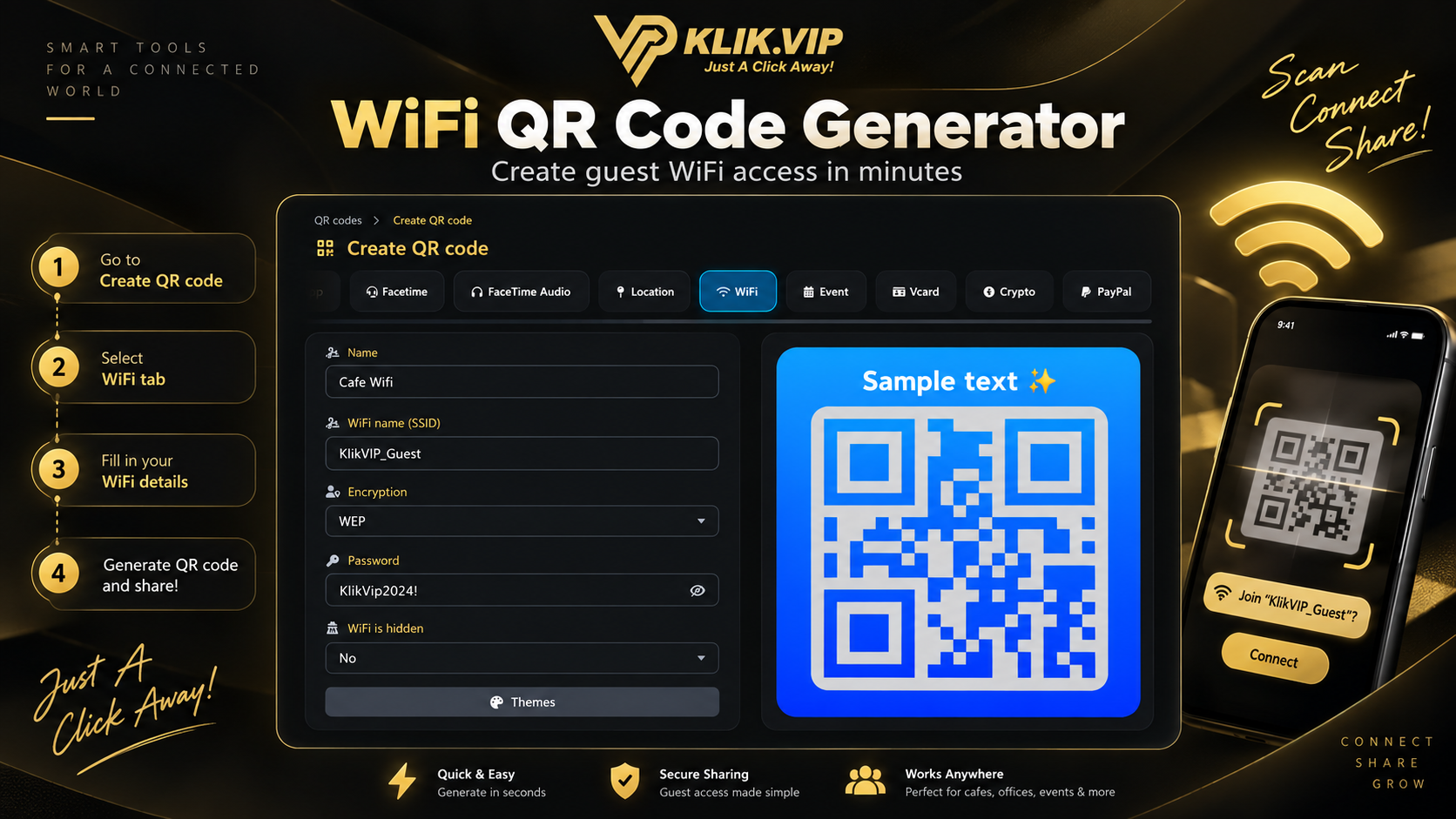
Step 3: Enter Your WiFi Details
The current Klik VIP WiFi QR form provides fields for:
- Name — your internal name for this QR code
- WiFi name (SSID) — the actual wireless-network name
- Encryption — match the security configuration of your WiFi network
- Password — the WiFi password
- WiFi is hidden — specify whether the network SSID is hidden
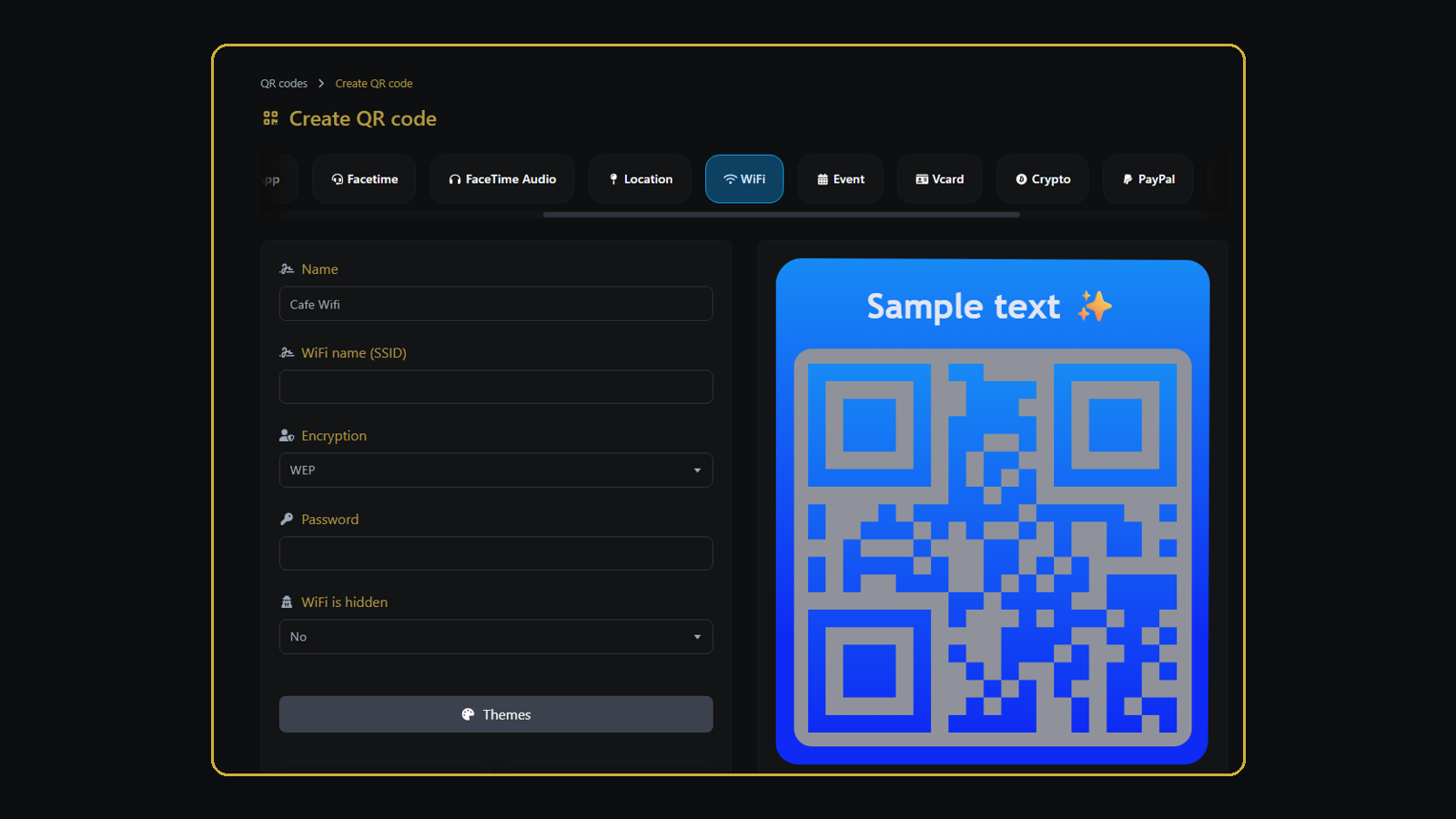
Choose the encryption setting that matches your actual WiFi network. Do not weaken your network security just to create a QR code. If your router supports modern WPA2 or WPA3 security, use the appropriate configuration for your network.
Step 4: Preview the QR Code
As you enter the WiFi information, Klik VIP shows a QR-code preview beside the form.
Before continuing, verify that:
- The SSID is correct
- The password is correct
- The encryption type matches the network
- The hidden-network setting is correct
Now Make the WiFi QR Code Look Like Your Brand
This is where Klik VIP becomes much more interesting than a basic QR-code generator.
You do not have to settle for a generic black-and-white QR code. Klik VIP provides a large selection of ready-made themes plus additional design controls.
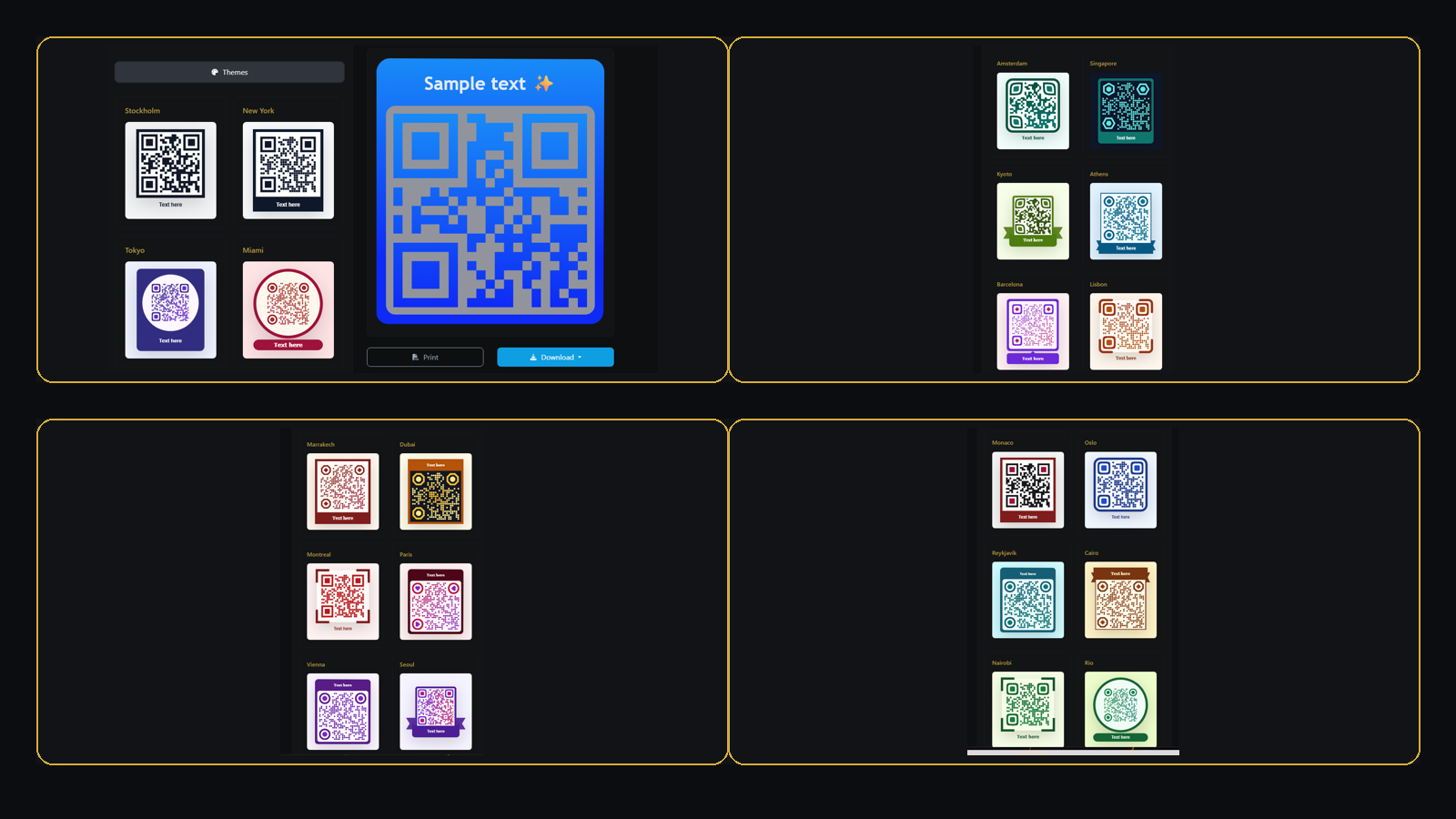
Choose From Many Ready-Made Themes
The QR theme gallery includes many different visual approaches. Examples currently visible in the platform include themes such as:
There are many more available inside the platform, so you can choose a design that better suits a café, clinic, hotel, retail store, corporate office or event.
Customise the Style
The Style section lets you change the visual treatment of the QR itself rather than using only the traditional square pattern.
Change the Colours
Use the Colors section to make the QR fit more naturally with your brand identity.
Add a Frame and Call to Action
Frames help explain what the QR code actually does.
Instead of showing customers a QR code with no context, use messaging such as:
Add Your Business Logo to the QR Code
Another useful Klik VIP feature is Branding.
Instead of displaying an anonymous QR code, you can add your business logo or branding so customers immediately recognise who the QR code belongs to.

↓
Choose Theme
↓
Apply Brand Colours
↓
Add Your Logo
↓
Add Frame + CTA
↓
Professional Guest WiFi QR
Why This Matters for a Business
A WiFi QR code is functional, but it is also something customers see inside your premises.
If you display it on a restaurant table, clinic counter, hotel room, reception desk or customer waiting area, it becomes part of the customer experience.
With Klik VIP, the QR code can look like part of your brand rather than an unrelated technical sticker.
Basic WiFi QR Code vs Klik VIP WiFi QR Code
| Feature | Basic Generator | Klik VIP |
|---|---|---|
| WiFi QR creation | ✅ | ✅ |
| Ready-made themes | Limited | ✅ Many choices |
| QR styles | Limited | ✅ |
| Custom colours | Varies | ✅ |
| Frames / CTA | Varies | ✅ |
| Logo / Branding | Often limited | ✅ |
| Print / Download | Varies | ✅ |
Test Before You Print
Do not skip this step.
After creating the WiFi QR code, test it using the same type of device your customers are likely to use.
If possible, test using several phones.
Confirm that:
- The QR code scans easily
- The correct WiFi network appears
- The password works
- The phone can successfully connect
- Your logo or design does not interfere with scanning
- The QR remains readable at the intended printed size
Use Guest WiFi — Not Your Internal Business Network
Convenience should not come at the expense of network security.
If customers are going to scan a publicly displayed WiFi QR code, consider using a separate guest WiFi network.
POS • Printers • Computers • Internal Devices
≠
Guest Network
Customers • Visitors • Guests
Your router, access point or network administrator determines how guest-network isolation works.
Do not publicly display credentials for a network containing sensitive business systems unless it has been intentionally configured for guest access.
Where Should You Display a WiFi QR Code?
Restaurants and Cafés
Place it on the table or counter:
[ QR CODE ]
Scan to Connect
Clinics
Display it in the waiting area so patients do not need to ask the reception team for the password.
Hotels and Homestays
Good locations include:
- Room desk
- Guest information card
- Near the television
- Reception
Coworking Spaces and Offices
Place guest-network QR codes in meeting rooms, common areas or reception.
Events and Exhibitions
WiFi QR codes can also be displayed on:
- Registration counters
- Event tables
- Presentation screens
- Event signage
Does a WiFi QR Code Track Scans?
A dedicated WiFi QR code is different from a URL QR code.
Its main purpose is to give a compatible device the information required to connect to WiFi.
A direct WiFi QR is designed for connectivity, not traditional web-click analytics.
If you need campaign analytics, a URL-based QR campaign is a different workflow.
Learn more:
What Is Link Tracking? How Businesses Track Clicks and Campaign Performance
What Happens If You Change the WiFi Password?
The network information is encoded into the WiFi QR code.
If you change the network name, password or relevant WiFi settings, the old QR code may contain outdated information.
Create a new WiFi QR code, test it, and replace any old printed versions.
Common WiFi QR Code Mistakes
1. Wrong SSID
The WiFi name must match the actual network.
2. Wrong Password
Always test before printing.
3. Choosing the Wrong Security Type
Match the QR configuration to the network's actual security settings.
4. Over-Designing the QR Code
Branding is useful, but scan reliability is more important.
5. Printing It Too Small
Test from the distance customers will actually scan it.
6. No Call to Action
Tell people exactly what the QR is for:
Explore More QR Code Ideas
If you are new to QR codes:
What Is a QR Code? How Businesses Use QR Codes for Marketing
For more offline marketing ideas:
15 QR Code Marketing Ideas for Small Businesses
You may also be interested in:
How to Create a Google Review QR Code for Your Business
Final Thoughts
A WiFi QR code solves a small problem that customers encounter repeatedly.
Instead of asking for the password, typing it manually and potentially entering it incorrectly, customers can scan and connect.
Klik VIP takes the idea further by giving businesses many themes, styles, colours, frames and branding options — including the ability to make the QR code look like part of your business identity.
Create the QR code, match it to your brand, test it carefully and display it where customers actually need WiFi access.
Create Your WiFi QR Code With Klik VIP
Create a guest WiFi QR code, customise the theme, add your branding and make it easier for customers to connect.
Create Your Klik VIP AccountFollow the step-by-step dashboard instructions in the Klik VIP User Guide.
Create a QR CodeFrequently Asked Questions
What is a WiFi QR code?
A WiFi QR code contains wireless-network information that compatible devices can read to simplify the connection process.
What information do I need?
The current Klik VIP WiFi QR form includes the QR name, WiFi name or SSID, encryption setting, password and hidden-network option.
Should I use guest WiFi for customers?
For many businesses, separating visitor access from sensitive internal systems is preferable. Configure your actual network according to your networking equipment and security requirements.
What happens when I change my WiFi password?
If the network information changes, create and test a new QR code and replace outdated printed copies.
Editorial note: This guide is based on the Klik VIP WiFi QR Code interface reviewed in September 2026. Available themes, fields and design controls may change over time. WiFi network security and configuration are managed through your own networking equipment.