What can the QR Code tool do?
The Klik VIP QR Code tool provides one builder for several QR code types. The type selector shown in the interface includes:
Common types
Text, URL, Phone, SMS, Email, WhatsApp, Facetime and FaceTime Audio.
Location & connectivity
Location and WiFi.
Events & contact details
Event and Vcard.
Payments & digital assets
Crypto, PayPal, UPI Payment, EPC Payment and PIX Payment.
1. Open QR codes
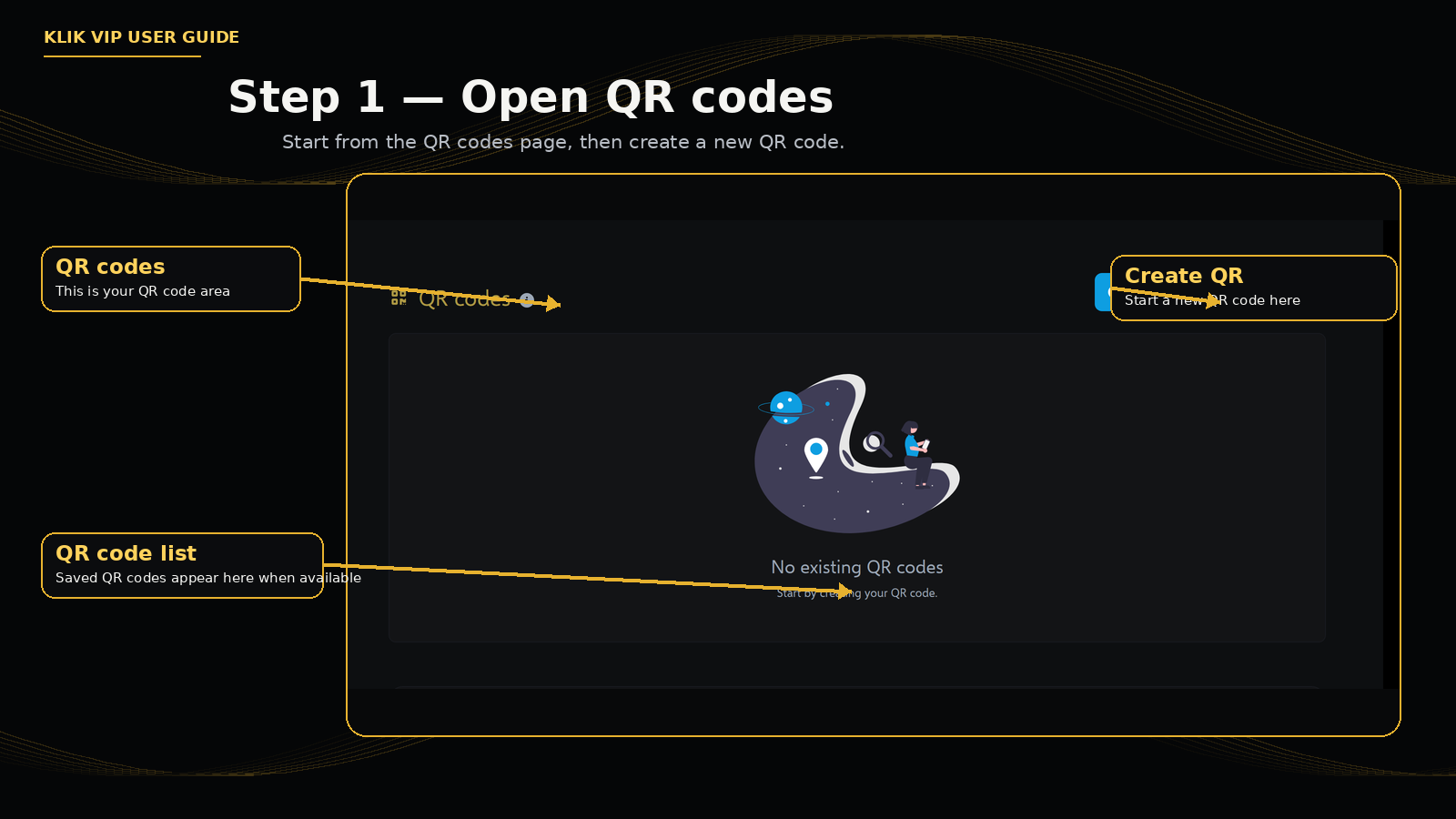
Open QR codes from Klik VIP. Your saved QR codes appear on this page. Click Create QR to start a new QR code.
2. Choose a QR type and enter its details
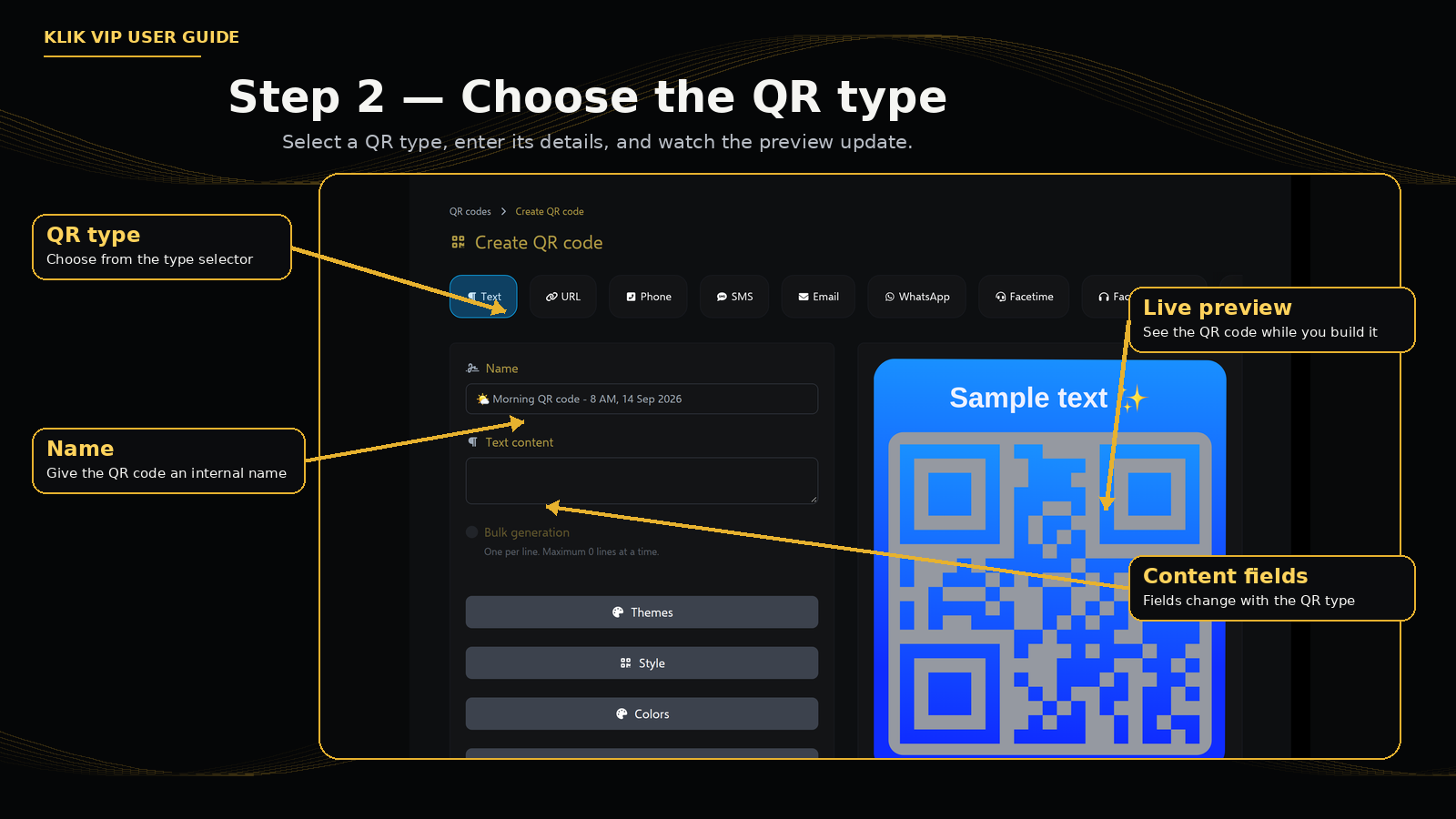
The QR builder starts with a type selector. Select the type that matches what you want the QR code to contain. The form fields below change according to the selected QR type.
3. Customize the QR code
The builder includes several design controls. Open only the sections you need while watching the QR preview.
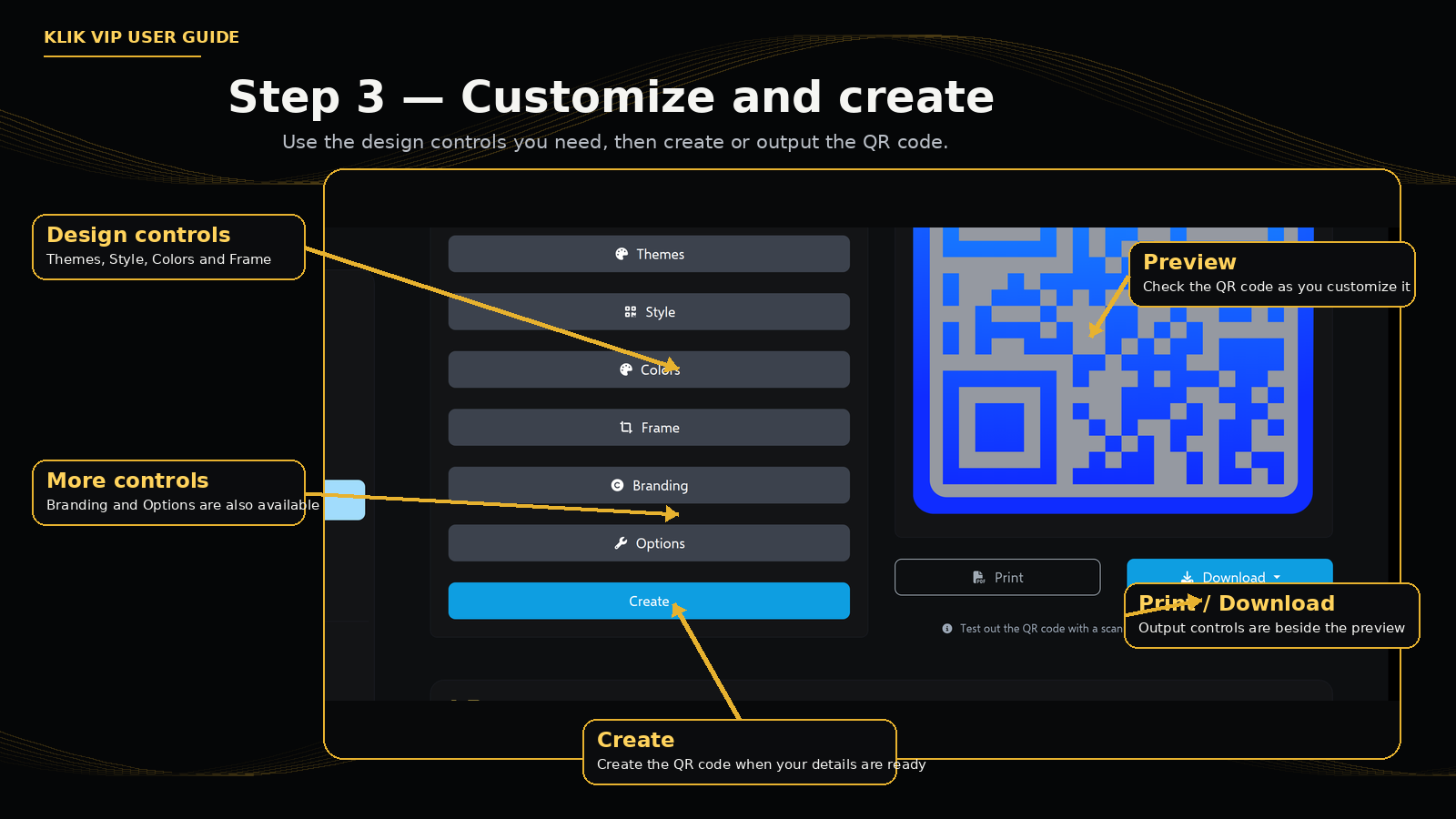
Themes
Theme controls are available in the QR builder.
Style
Open Style when you want to review the available styling options.
Colors
Color controls are available for QR customization.
Frame
The builder includes a Frame section.
Branding
A Branding section is available in the builder.
Options
Additional QR options are available under Options.
The same screen also shows Create, Print and Download controls. Use the action that matches what you need.
4. Example: Create a WiFi QR code
When WiFi is selected, the builder shows WiFi-specific fields.
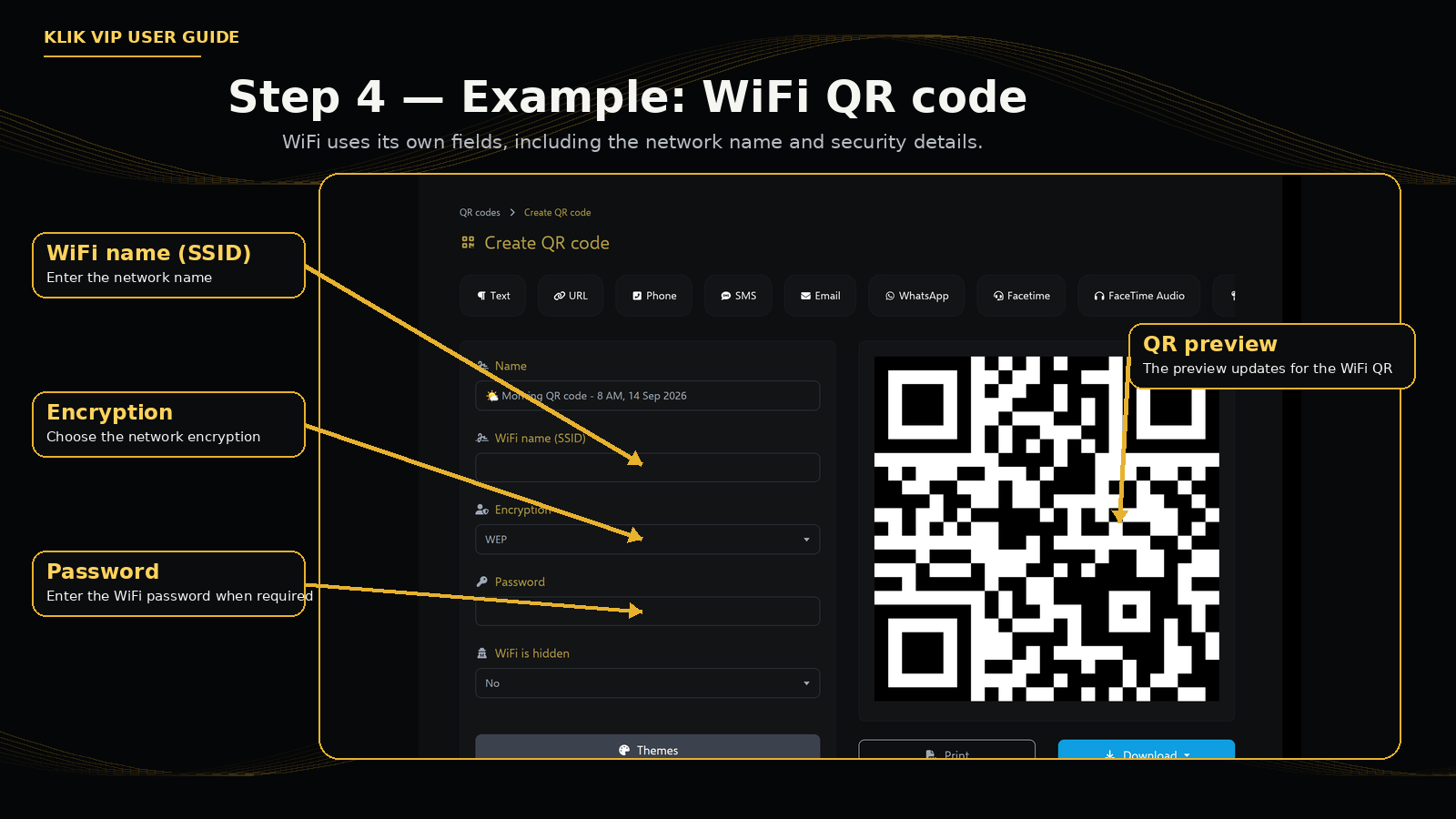
WiFi name (SSID)
Enter the WiFi network name.
Encryption
Select the available encryption option that matches the network.
Password
Enter the network password when required.
WiFi is hidden
Set whether the network is hidden.
5. Other QR types use different fields
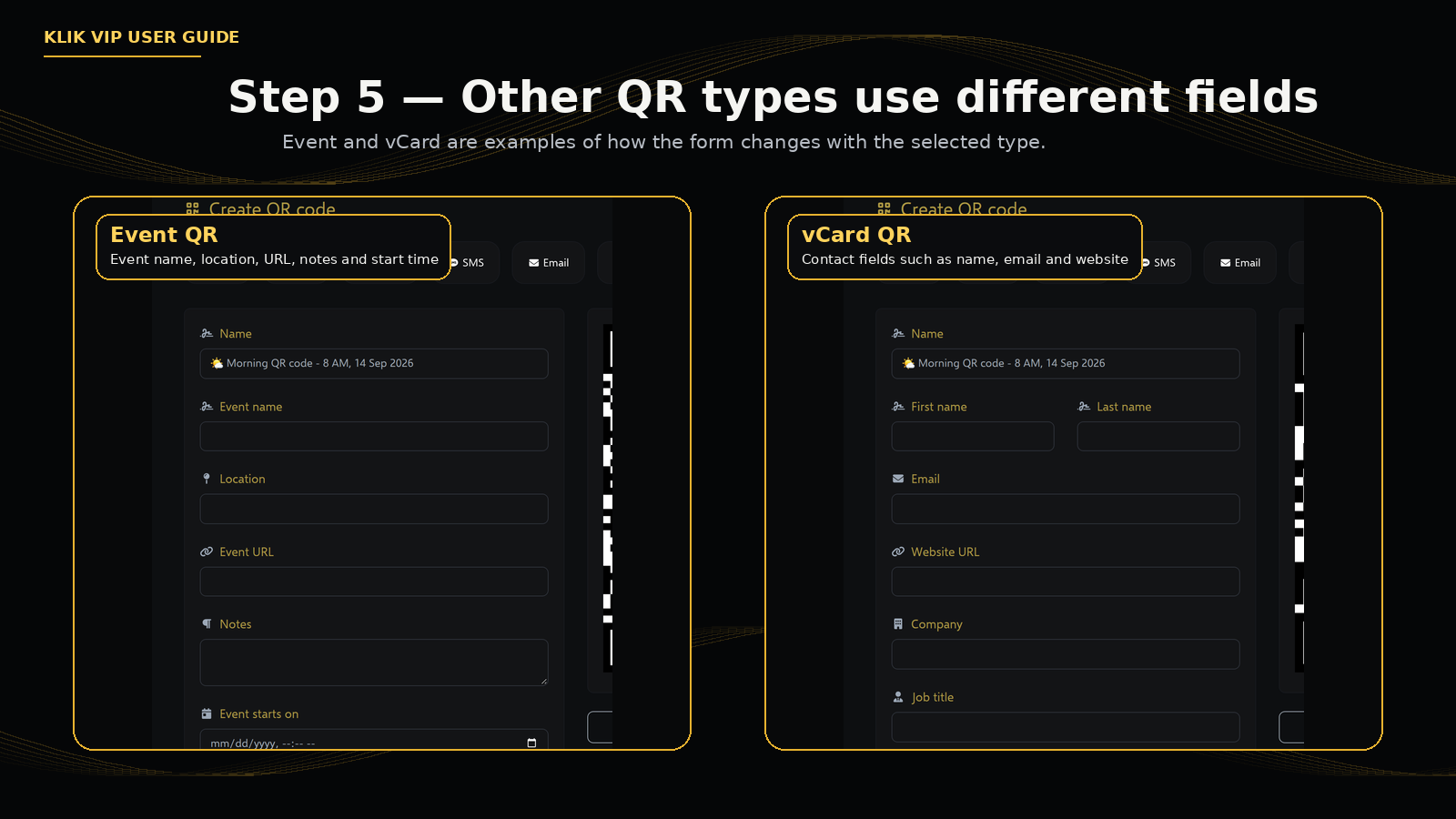
The form adapts to the QR type. Event and Vcard are two examples:
Event
The Event example shows Event name and Event starts on, with optional Location, Event URL and Notes fields.
Vcard
The vCard example shows contact fields including First name, Last name, Email, Website URL, Company and Job title.
Location
The Location form uses Latitude and Longitude.
PayPal
The PayPal form shows fields including PayPal email, Product title, Currency code and Price, with a Type option.
Crypto
The Crypto form includes Coin, Address and Amount fields.
Other available types
Text, URL, Phone, SMS, Email, WhatsApp, Facetime, FaceTime Audio, UPI Payment, EPC Payment and PIX Payment are also available in the QR type selector.
6. Tips & troubleshooting
Tips
- Choose the QR type before entering the details.
- Use a clear internal Name so you can recognize the QR code later.
- Check the live preview while customizing the design.
- Keep enough contrast between the QR code and its background so scanners can read it reliably.
- Test the QR code with a real scanner before using it in production or printing large quantities.
Troubleshooting
- The fields do not match what you need: check that the correct QR type is selected.
- The QR code does not scan reliably: simplify the design if needed and test again with a real scanner.
- You need a WiFi, Event, vCard, Location, PayPal or Crypto QR: select that specific type so Klik VIP displays the appropriate fields.
- You need to print or save the QR: use the Print or Download controls shown beside the preview.