1. Open the Dashboard
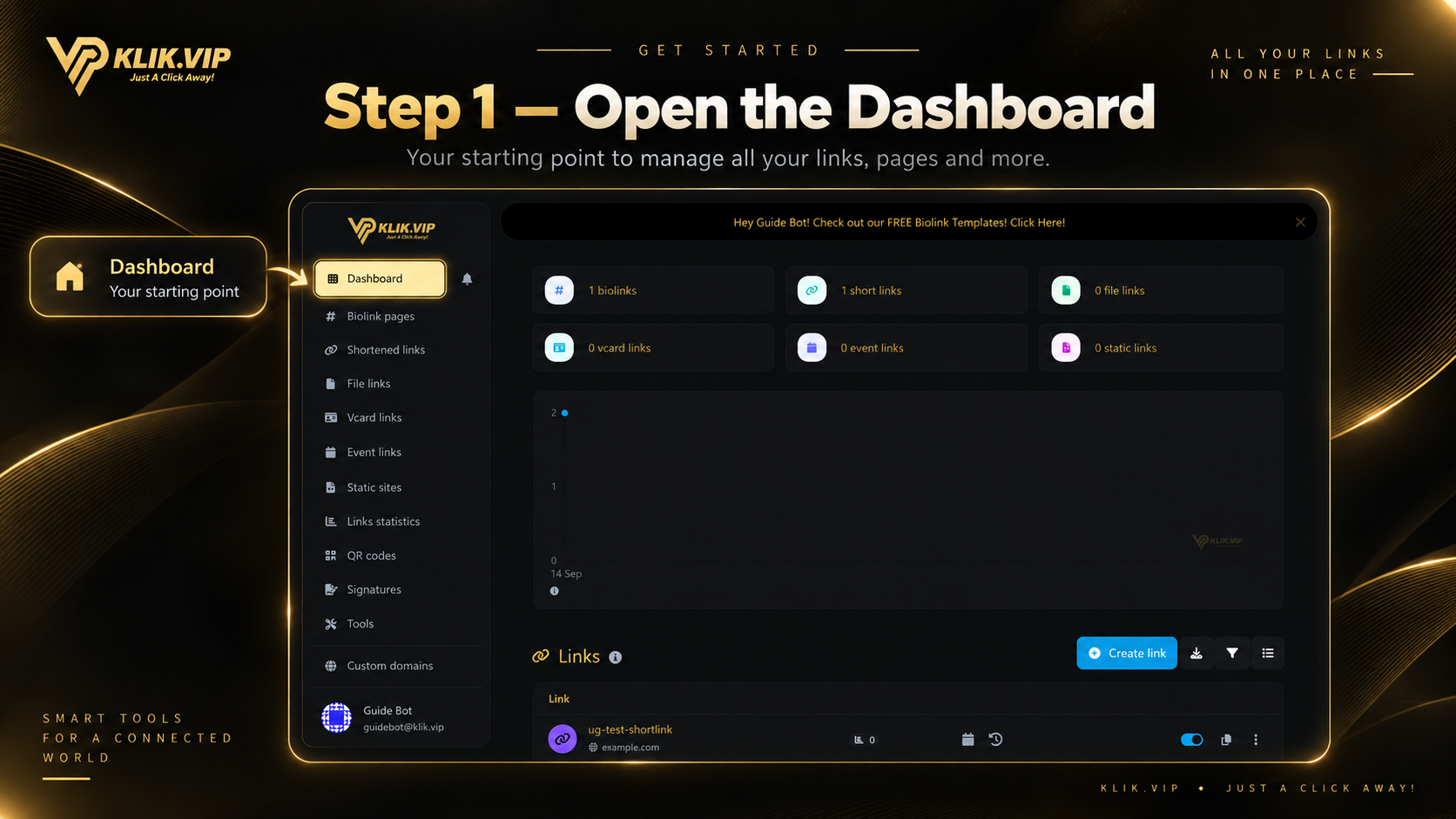
After signing in, the Dashboard gives you an overview of your Klik VIP account and quick access to the areas you use most.
2. Understand your link summary
At the top of the Dashboard, Klik VIP shows a quick count of the main link types in your account. These counters help you see what you have already created at a glance.
3. Explore Klik VIP features
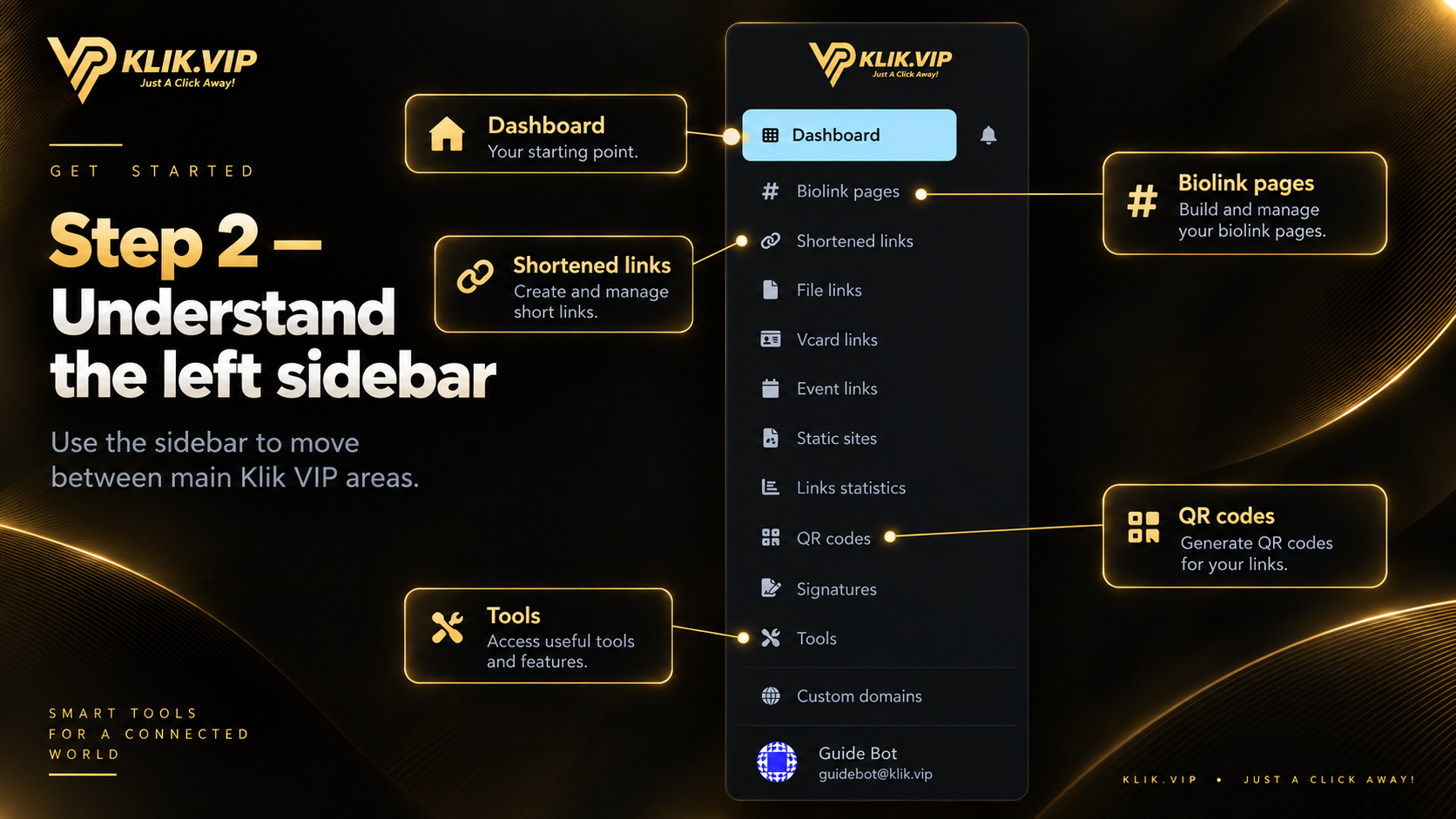
The left sidebar is the main navigation for Klik VIP. The visual below highlights several common areas; the full directory underneath explains the main features available from the Dashboard.
Biolink pages
Build a mobile-friendly page that brings multiple links and content blocks together under one URL.
Shortened links
Create a shorter Klik VIP link that sends visitors to a single destination URL.
File links
Create a shareable link for a file through Klik VIP.
Vcard links
Create and share contact information through a dedicated vCard link.
Event links
Create a dedicated link for event information.
Static sites
Upload and publish a static website through Klik VIP.
QR codes
Create customizable QR codes. Klik VIP includes QR types for URLs, WiFi, WhatsApp, locations, events, vCards and supported payment formats.
Signatures
Create and manage signatures inside Klik VIP.
Links statistics
Review traffic and visitor statistics for your Klik VIP links using the available analytics views and filters.
Projects
Create projects to organize related Klik VIP items under a named group.
Data
Review data entries collected inside Klik VIP when supported features generate data.
Custom domains
Connect your own domain or subdomain for use with Klik VIP.
Pixels
Create tracking integrations for supported platforms including Facebook, Google Analytics, Google Tag Manager, LinkedIn, Pinterest, X, Quora, TikTok and Snapchat.
Notification handlers
Configure supported notification destinations such as Email, Webhook, Slack, Discord, Telegram, Microsoft Teams, X, Google Chat, internal notifications and push notifications.
Splash pages
Create an intermediate page that can include a logo, title, description, secondary button, auto redirect and countdown timer before visitors continue.
Online tools
Access built-in utilities including DNS Lookup, SSL Lookup, WhatsApp Link Generator and Image Optimizer.
Payment processors
Add and manage payment processor configurations for supported Klik VIP payment workflows.
Sales
Review payment and sales records and the available sales statistics when transaction data exists.
4. Start creating a link
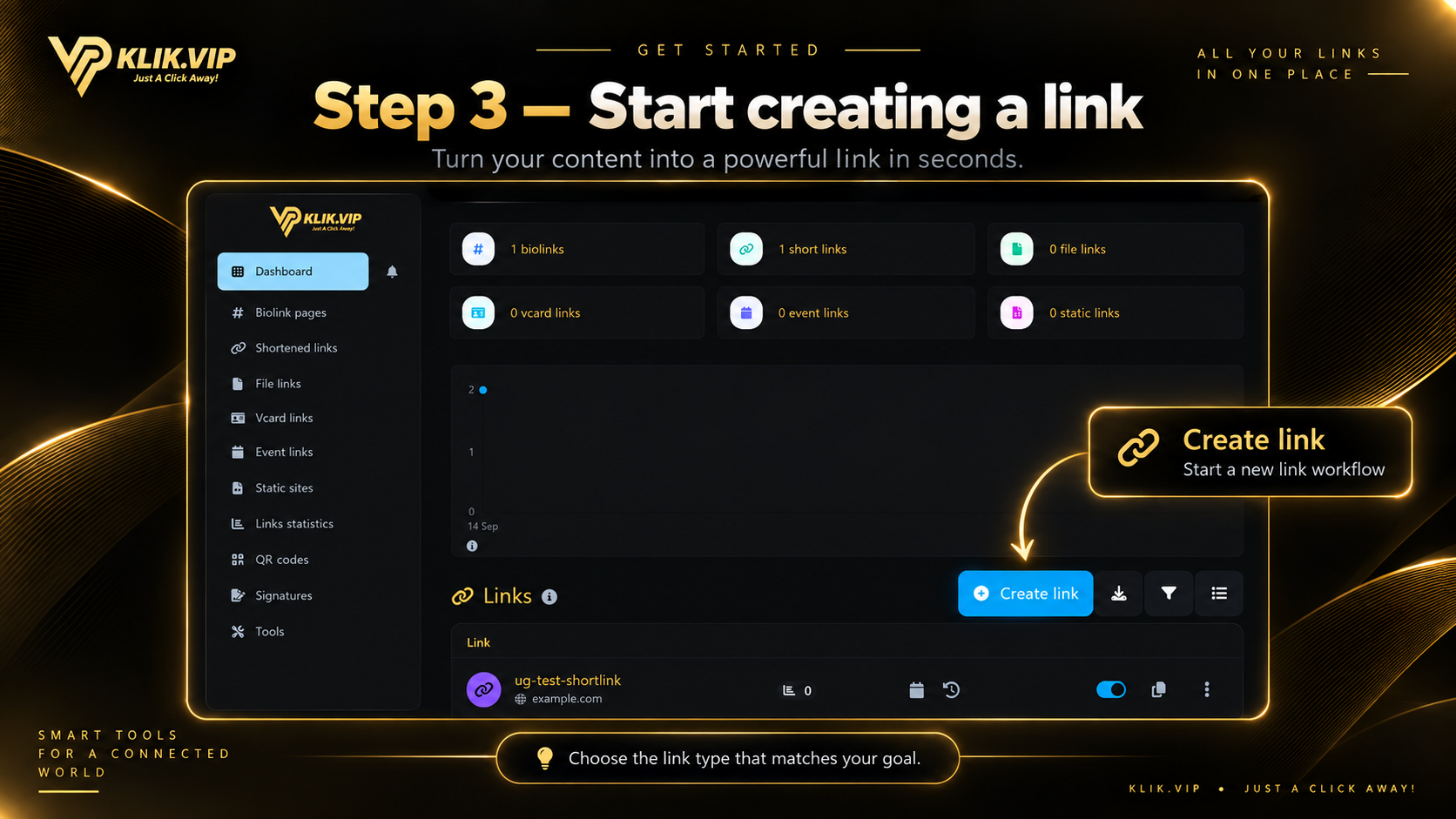
When you are ready to create something new, click Create link from the Dashboard. Then choose the link type that matches what you want to build.
5. Tips & troubleshooting
- Start from the sidebar when you already know which Klik VIP feature you need.
- Use Projects to keep related items organized.
- Use Links statistics when you want to review link performance.
- The Dashboard is for quick access and overview; detailed settings live inside each feature.
- Sidebar not visible: on a smaller screen, open the navigation menu.
- No statistics yet: analytics need traffic before meaningful data appears.
- Not sure which feature to use: start with the descriptions in the feature directory above, then open the dedicated guide when available.
6. Where to go next
These dedicated guides will take you deeper into the most common Klik VIP workflows.