What is a Shortened link?
A Shortened link creates a shorter Klik VIP URL that redirects visitors to a destination URL. It is useful when you want one shareable link for one destination without building a full Biolink page.
One short URL
Use a compact Klik VIP URL instead of sharing a long destination URL.
Custom short path
Choose the short path shown after your selected Klik VIP domain, or leave it empty when the form allows automatic generation.
Optional settings
The creation form includes optional sections such as App linking, Pixels, Temporary URL, Targeting, UTM Parameters, Protection, SEO, Cloaking, HTTP Status and Advanced.
Statistics
Open the link Statistics area to review the available traffic reports for that short link.
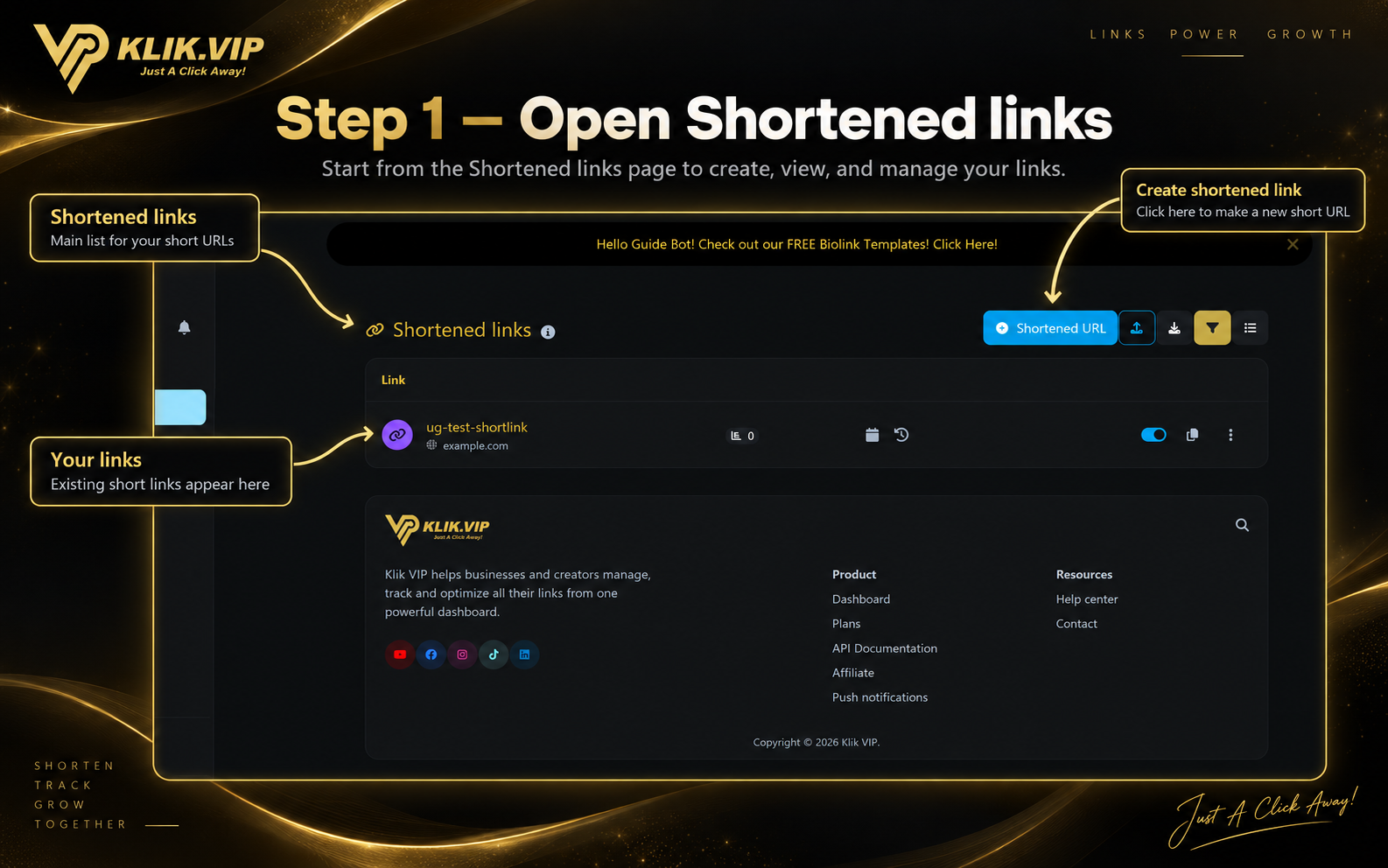
1. Open Shortened links
Open Shortened links to see the short URLs already in your account. Existing short links appear in the list, and the Shortened URL button starts a new one.
2. Create a shortened link
Click Shortened URL to open the creation form. The main fields shown are Destination URL and Short URL.
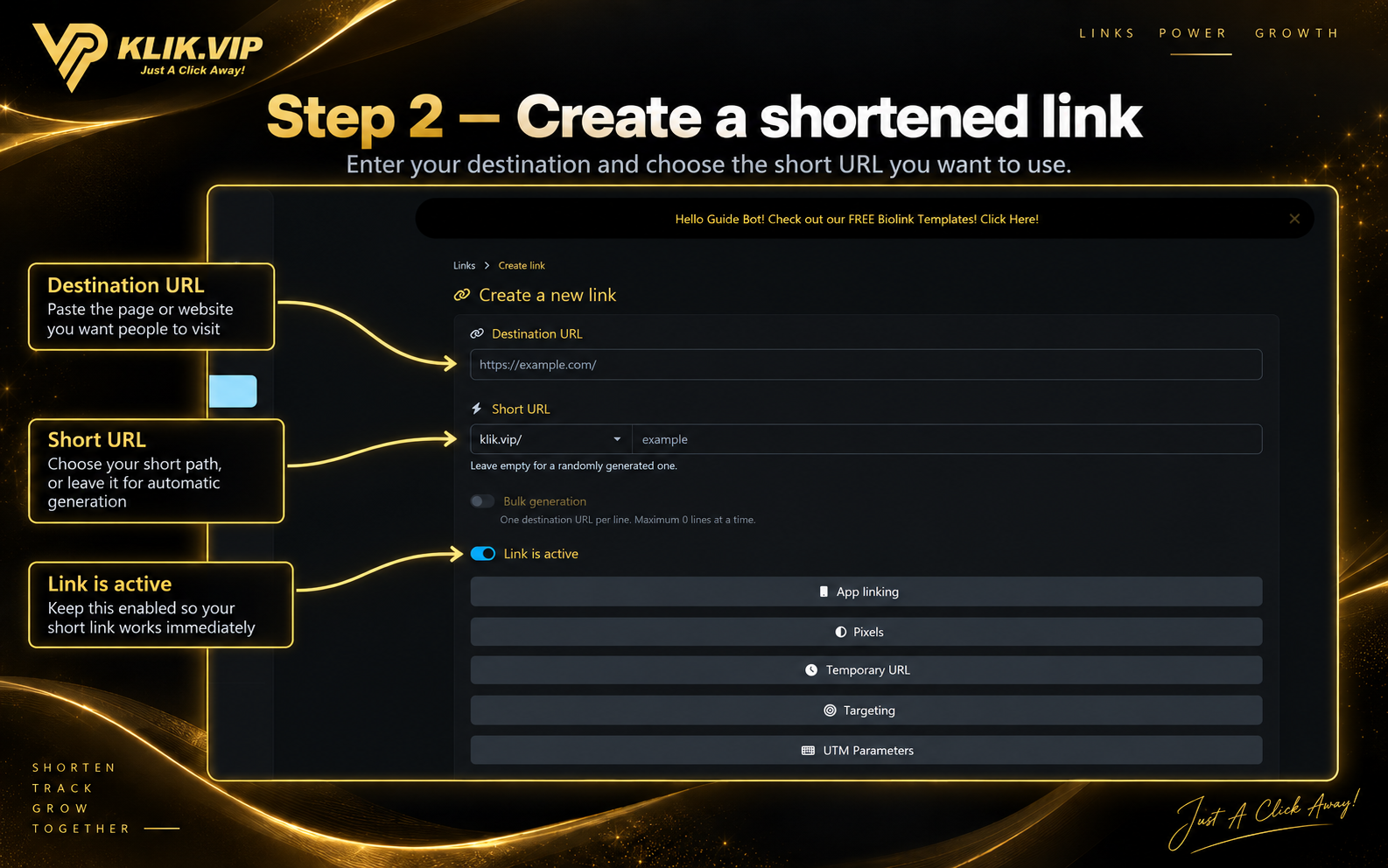
Destination URL
Enter the page or website the short link should send visitors to.
Short URL
Select the available domain and enter your preferred short path. The form also states that the path may be left empty for automatic generation.
Bulk generation
A Bulk generation option is visible in the creation form. Use it only when your plan and account configuration support the workflow you need.
Link is active
Keep the link active when you want it to work immediately after creation.
3. Explore optional link settings
Below the main fields, Klik VIP provides additional settings you can open when they are relevant to your use case.
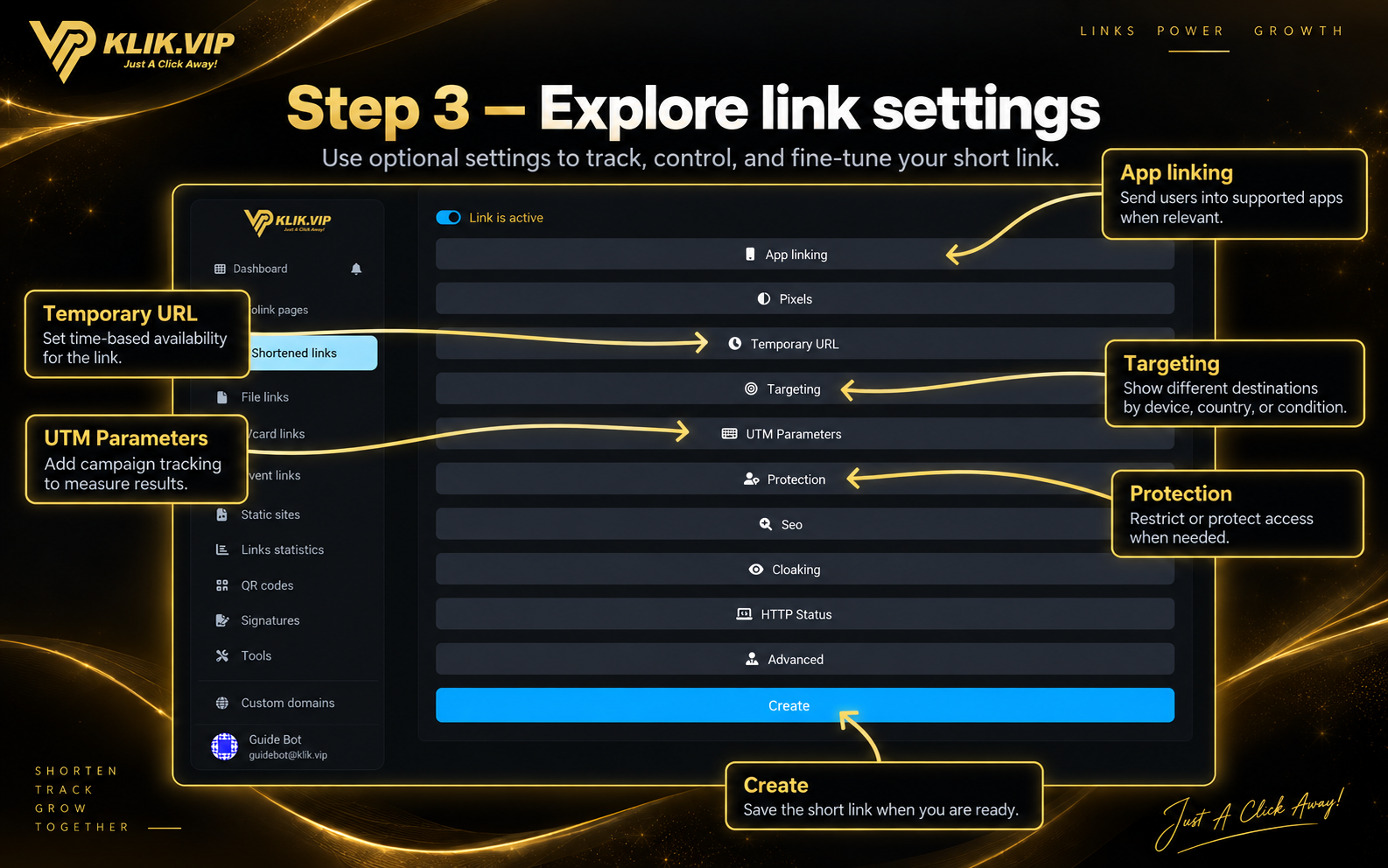
Sections visible in the creation workflow include:
App linking
Optional App linking configuration.
Pixels
Optional tracking-pixel configuration for the link.
Temporary URL
Optional temporary-URL configuration.
Targeting
Optional targeting configuration.
UTM Parameters
Optional UTM configuration for campaign tracking.
Protection
Optional protection settings.
SEO
Optional SEO settings.
Cloaking
Optional cloaking settings.
HTTP Status
Optional HTTP-status configuration.
Advanced
Additional advanced link settings.
When the required fields are ready, use the Create button at the bottom of the form.
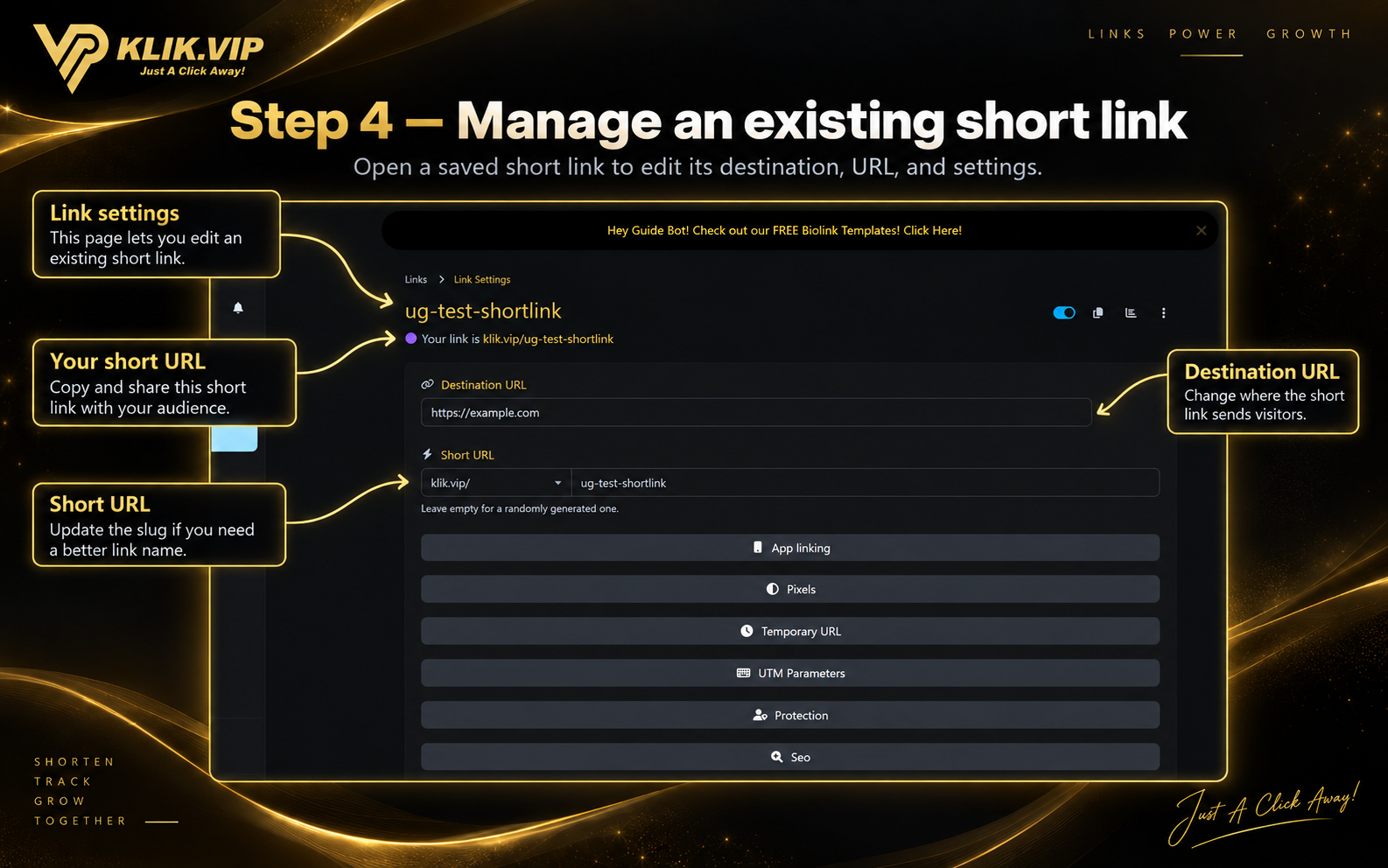
4. Manage an existing short link
Open a saved short link to return to its Link Settings page. The edit screen shows the public short URL together with the Destination URL, Short URL and the available optional settings.
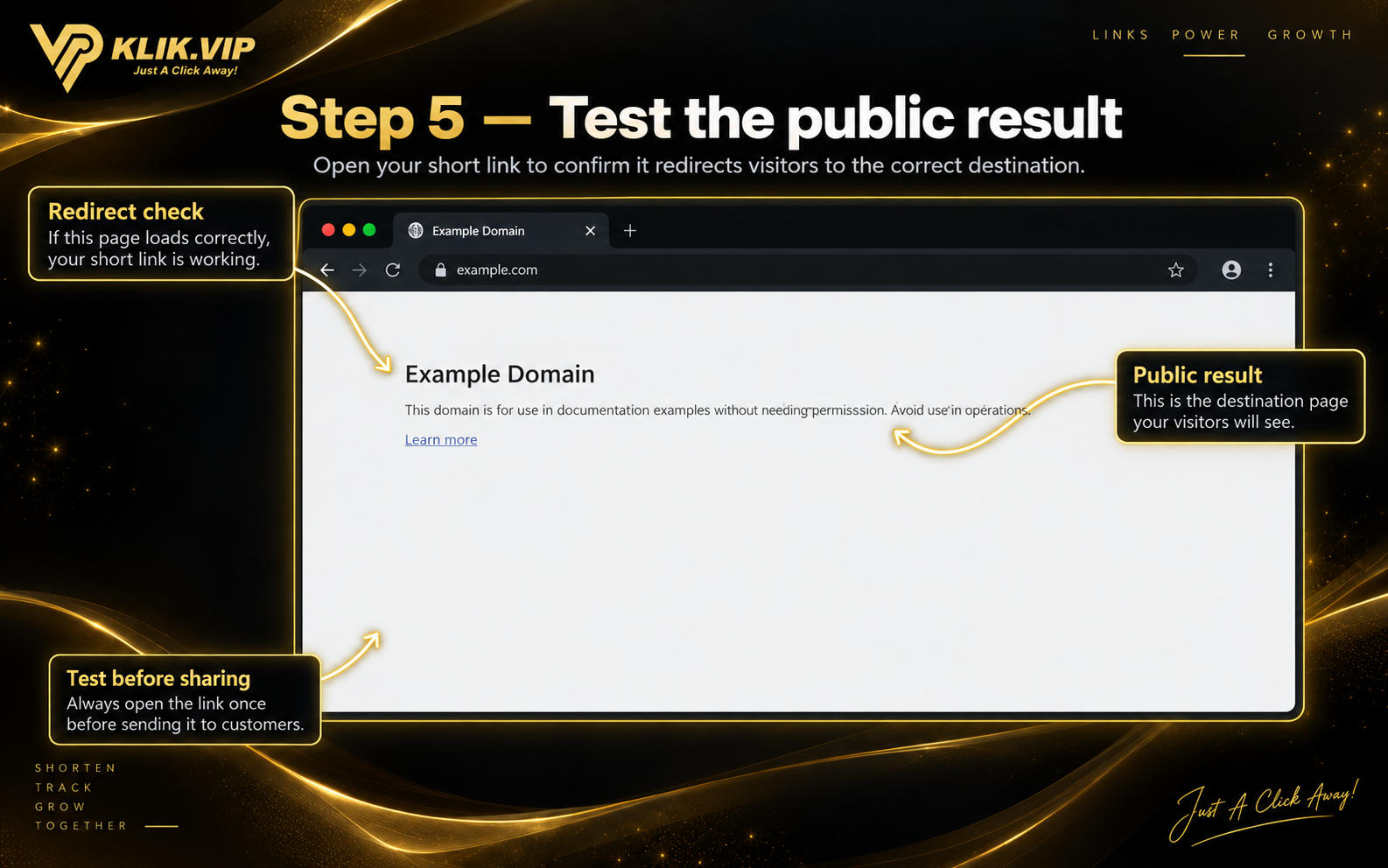
5. Test the public result
Before sharing the link widely, open the public short URL yourself. In this example, the public short URL redirects to example.com, confirming that the saved short link resolves to its destination.
6. Review link statistics
Each saved short link has a Statistics area. This example link has no traffic for the selected date range, but the available reporting views are still shown.
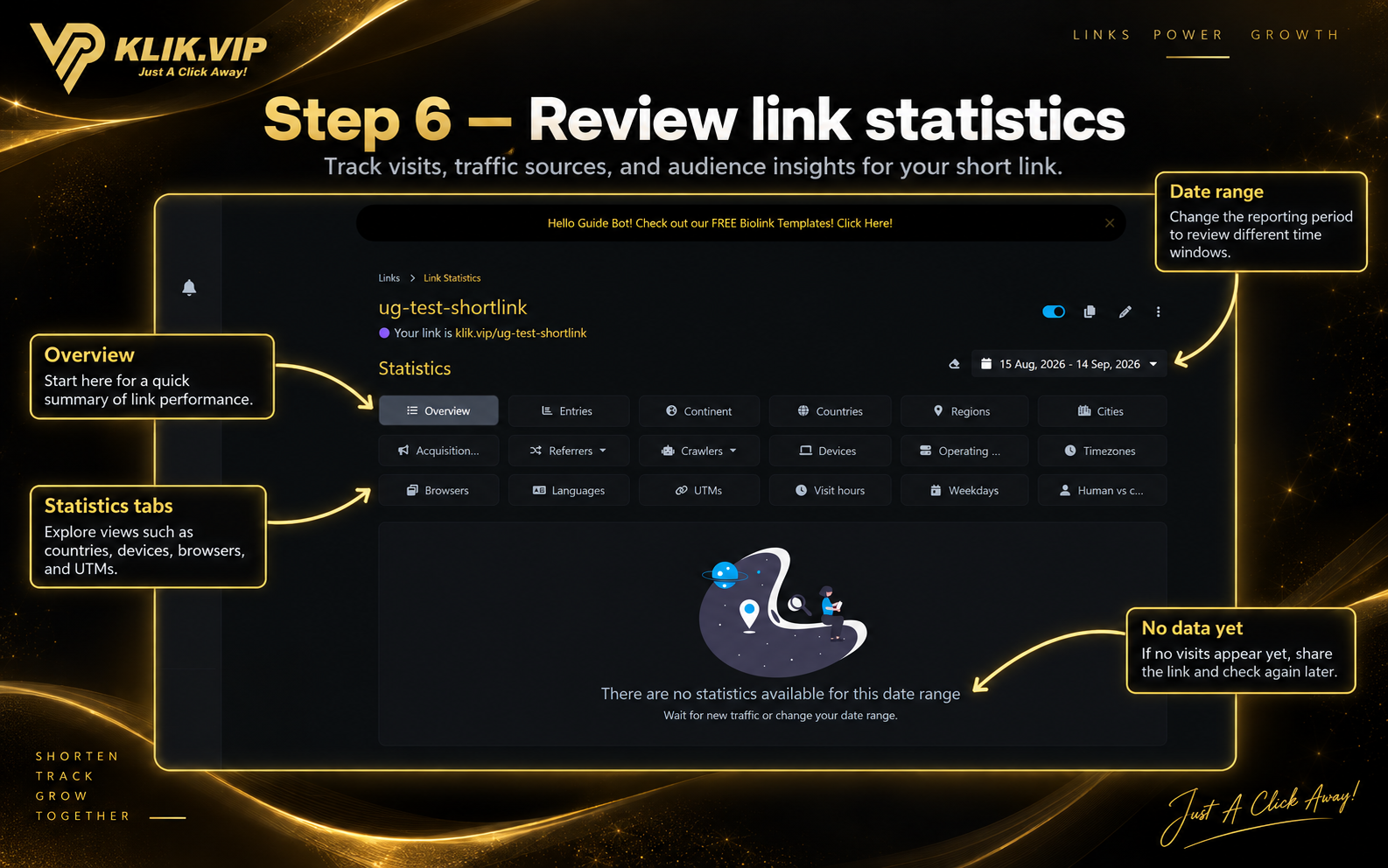
Visible analytics views include Overview, Entries, Continent, Countries, Regions, Cities, Acquisition, Referrers, Crawlers, Devices, Operating systems, Timezones, Browsers, Languages, UTMs, Visit hours, Weekdays and Human vs crawler traffic.
7. Tips & troubleshooting
Tips
- Use a clear short path that is easy to read and remember.
- Test the short link before placing it in printed material or a paid campaign.
- Use a Shortened link for one destination; use a Biolink when you need multiple actions on one page.
- Use the optional settings only when they are relevant to the campaign.
- Review Statistics after the link starts receiving traffic.
Troubleshooting
- The short link goes to the wrong page: open the link settings and check the Destination URL.
- You cannot use the short path you want: choose another available path.
- The link should not be live yet: review the Link is active setting.
- No statistics are shown: check the selected date range and allow the link to receive traffic first.