What is a Biolink?
A Biolink is a single page that lets you combine multiple links and content elements under one Klik VIP URL. Instead of sending people to several different URLs, you can give them one page containing the actions and information that matter most.
Multiple actions in one link
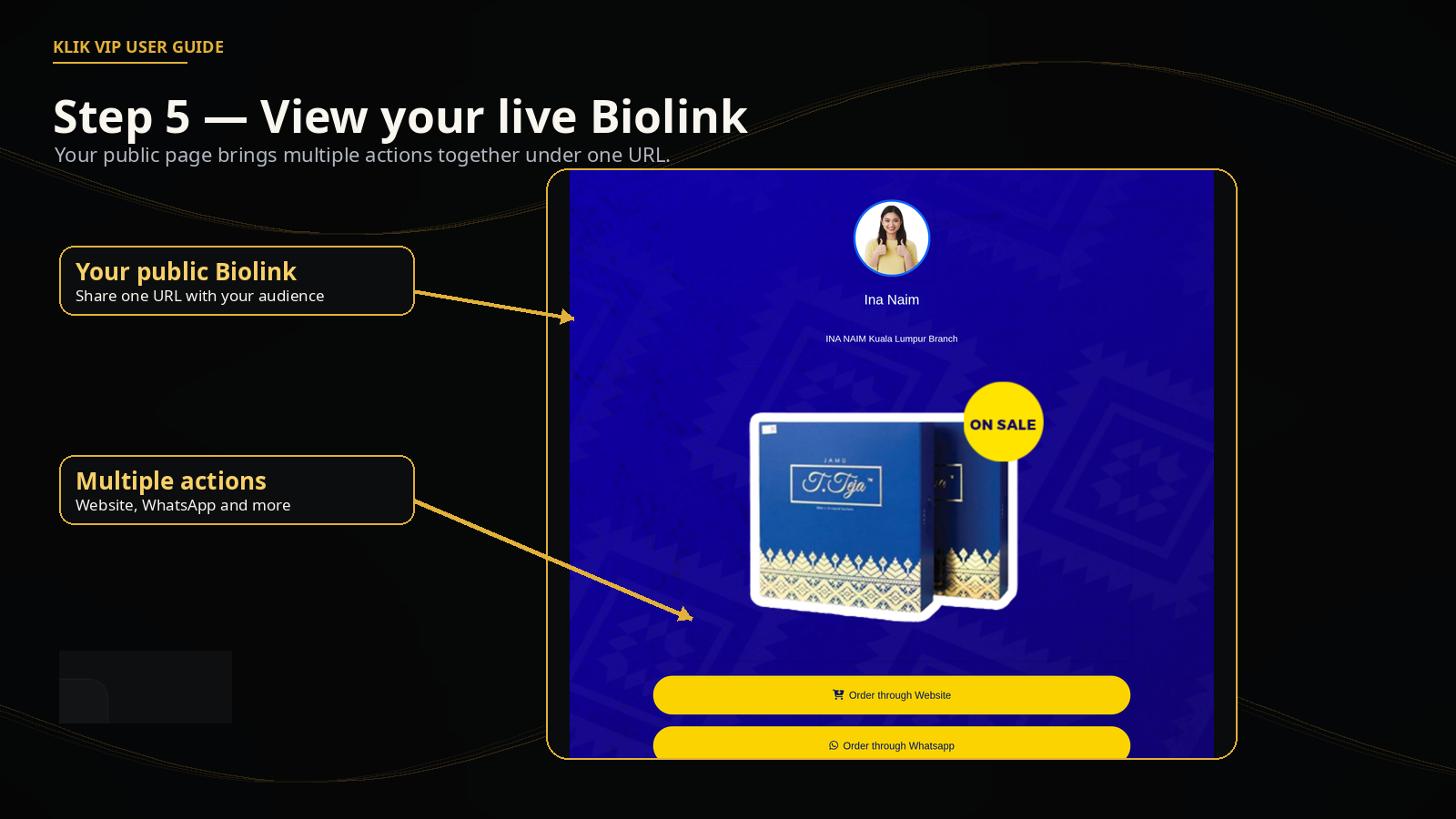
Bring website links, WhatsApp actions and other content together on one page.
Mobile-friendly page
Your Biolink is presented as a public page that visitors can open from a single Klik VIP URL.
Built with blocks
Arrange content using blocks such as links, headings, images, social links, dividers and other supported block types.
Built-in statistics
Review pageviews, visitors and the available traffic breakdowns from the Biolink statistics area.
1. Open Biolink pages
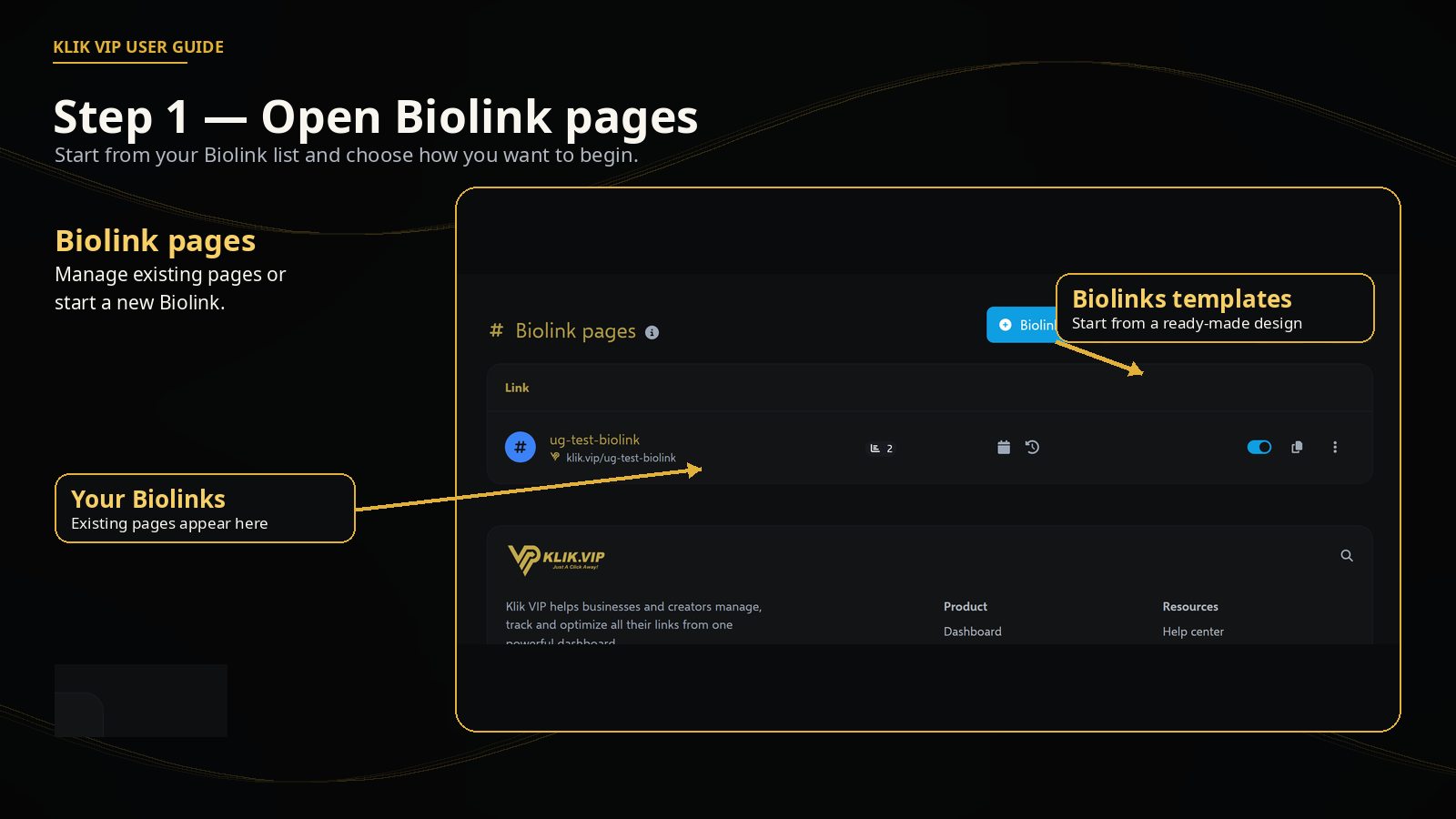
Open Biolink pages from Klik VIP. Your existing Biolinks appear on this screen. You can also start a new page or open the Biolinks template gallery.
2. Choose a template
The template gallery shows ready-made Biolink designs. You can Preview template before choosing one, then select Choose template when you find a layout you want to use.
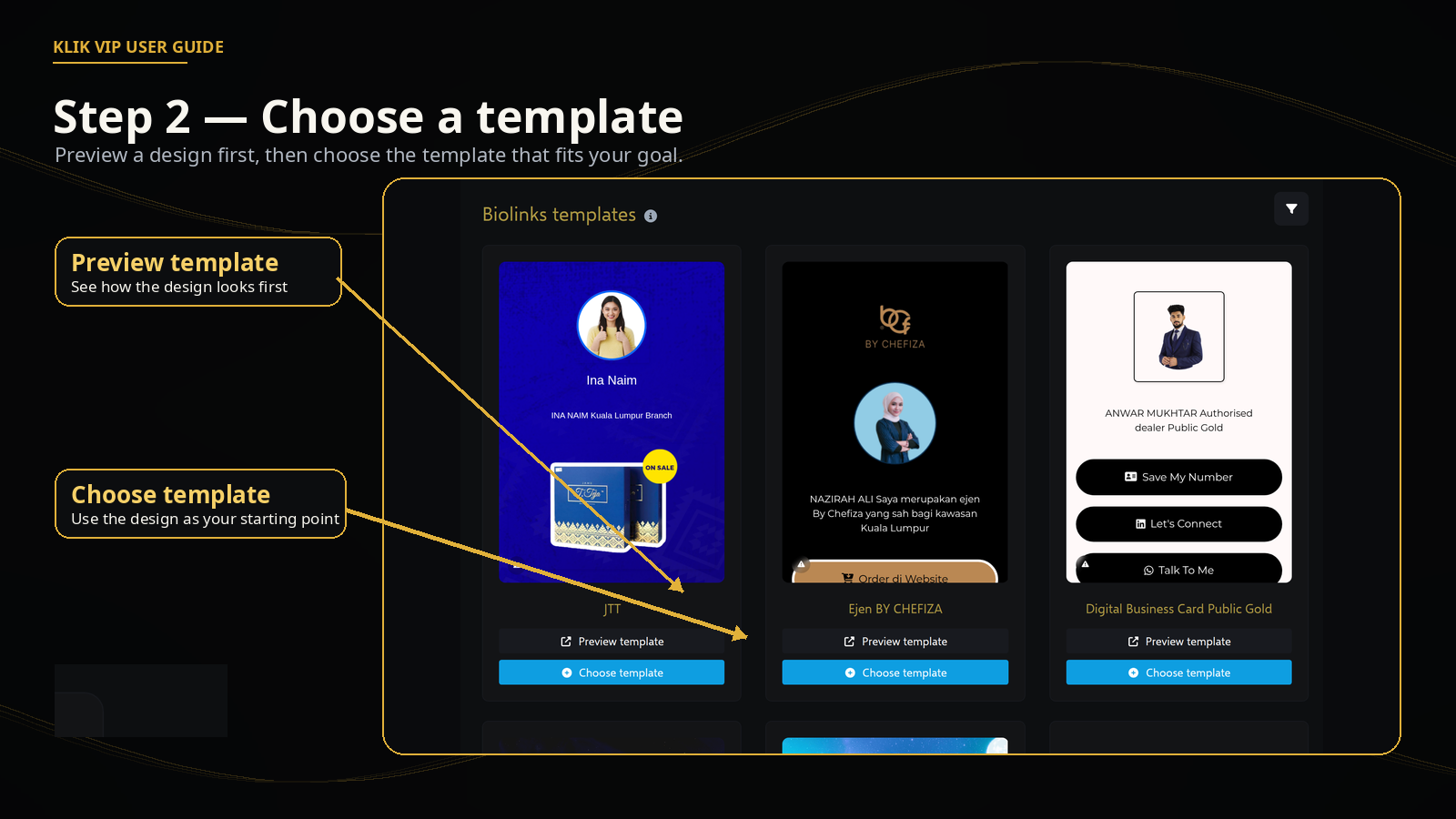
After choosing a template, continue through the Biolink creation flow shown by Klik VIP. Once the page is created, Klik VIP opens the Biolink editor so you can customize the page.
3. Build and arrange your Biolink
The Biolink editor contains Settings and Blocks. The captured workflow shows the Blocks area, where each content block appears as a separate item and the public-page preview is shown alongside it.
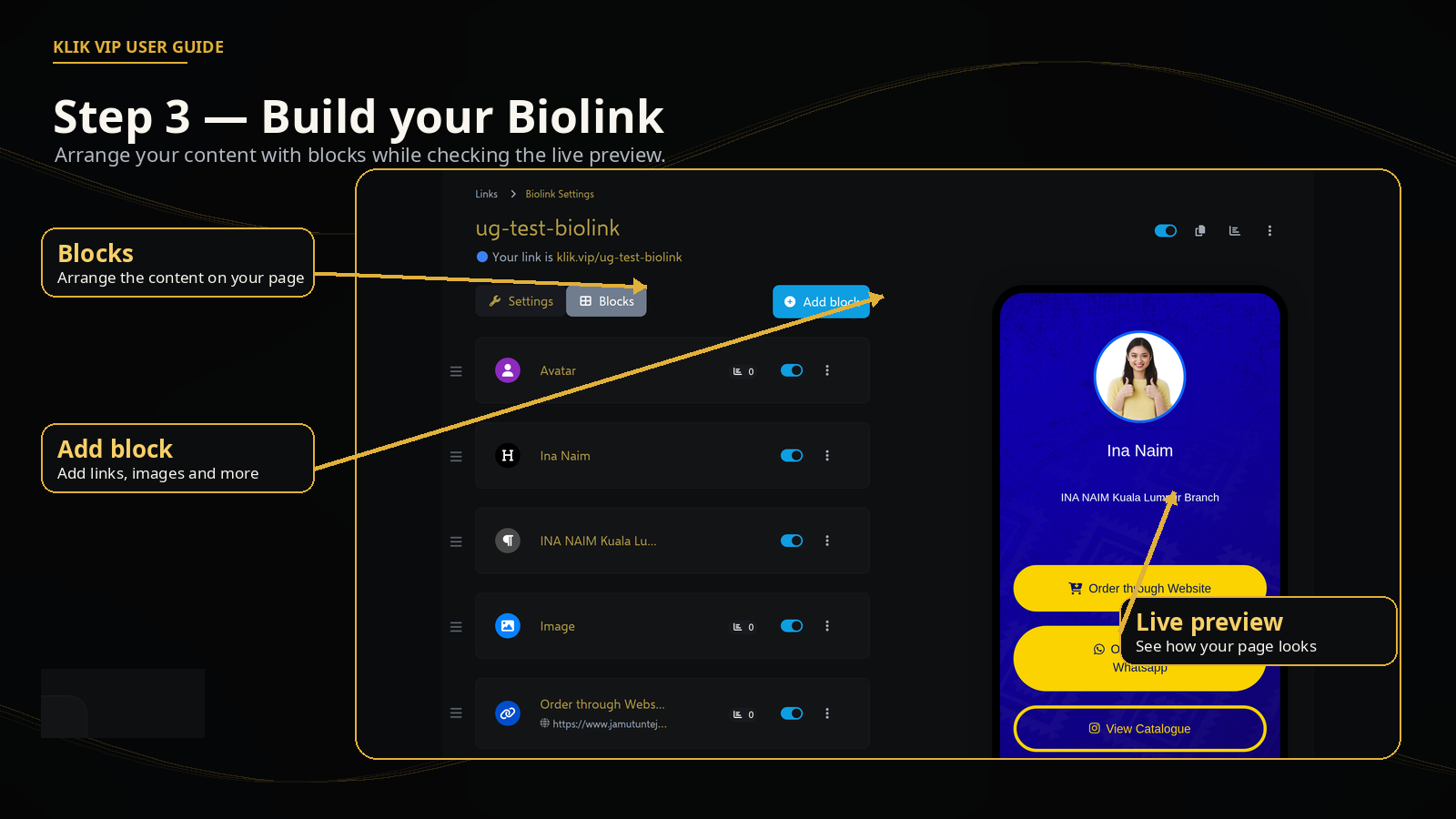
- Use the drag handle beside a block to arrange the order of your content.
- Use the on/off control shown beside a block to enable or disable it.
- The live preview helps you check how the public Biolink is coming together while you edit.
4. Add blocks
Click Add block to open the block selector. Blocks are the building pieces of your Biolink page.
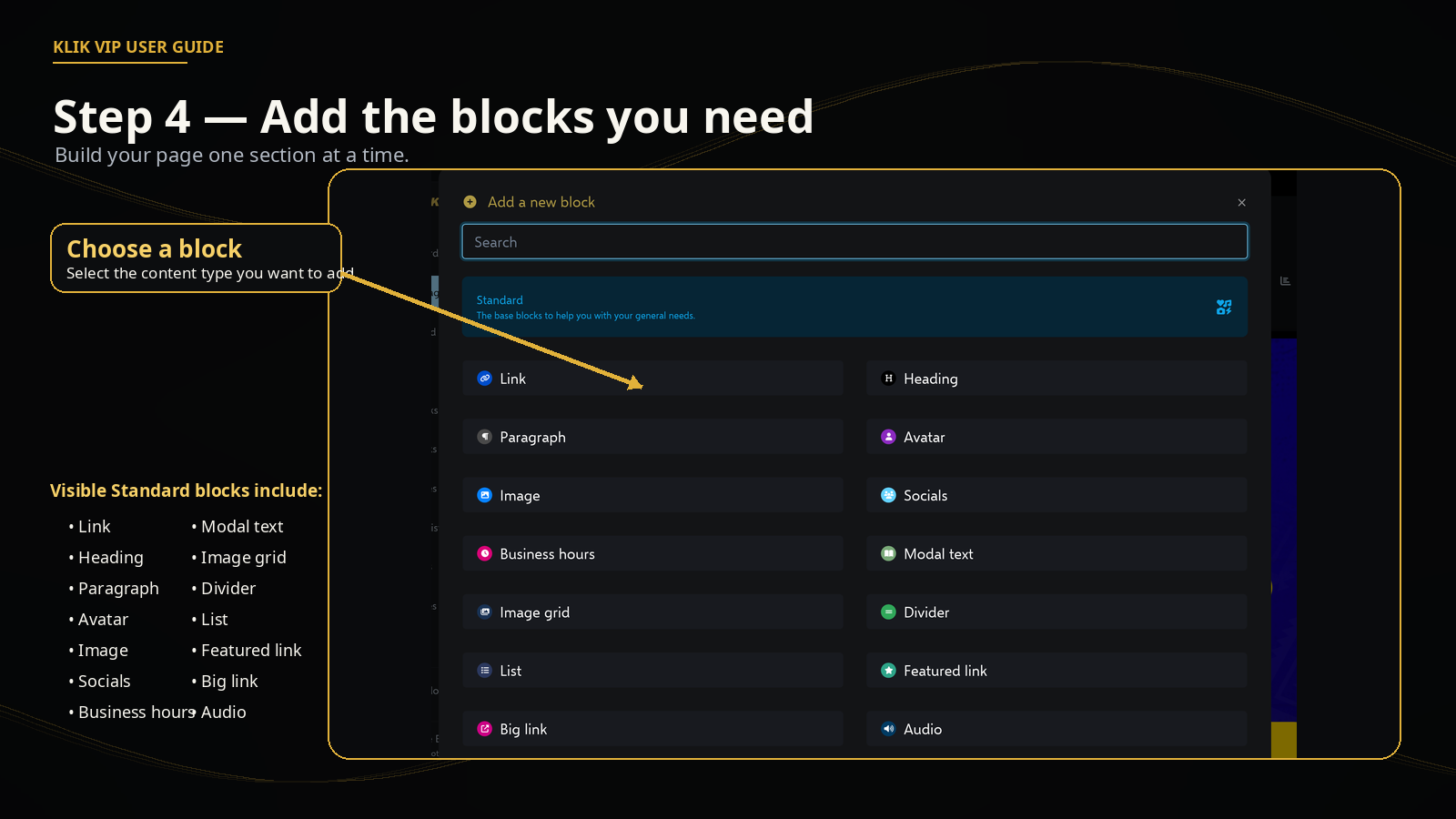
Standard block types visible in the captured selector include:
Links & actions
Link, Featured link and Big link.
Text & structure
Heading, Paragraph, List and Divider.
Identity & social
Avatar and Socials.
Media
Image, Image grid and Audio.
Business information
Business hours.
Other visible options
Modal text and other supported blocks shown in the selector.
5. View your live Biolink
Once your page is ready, open the public Klik VIP URL to check the visitor experience. The captured example combines profile information, an image and multiple actions on one page.
6. Review Biolink statistics
Your Biolink has its own Statistics area. The captured screen shows summary metrics for Pageviews and Visitors, together with deeper analytics views.
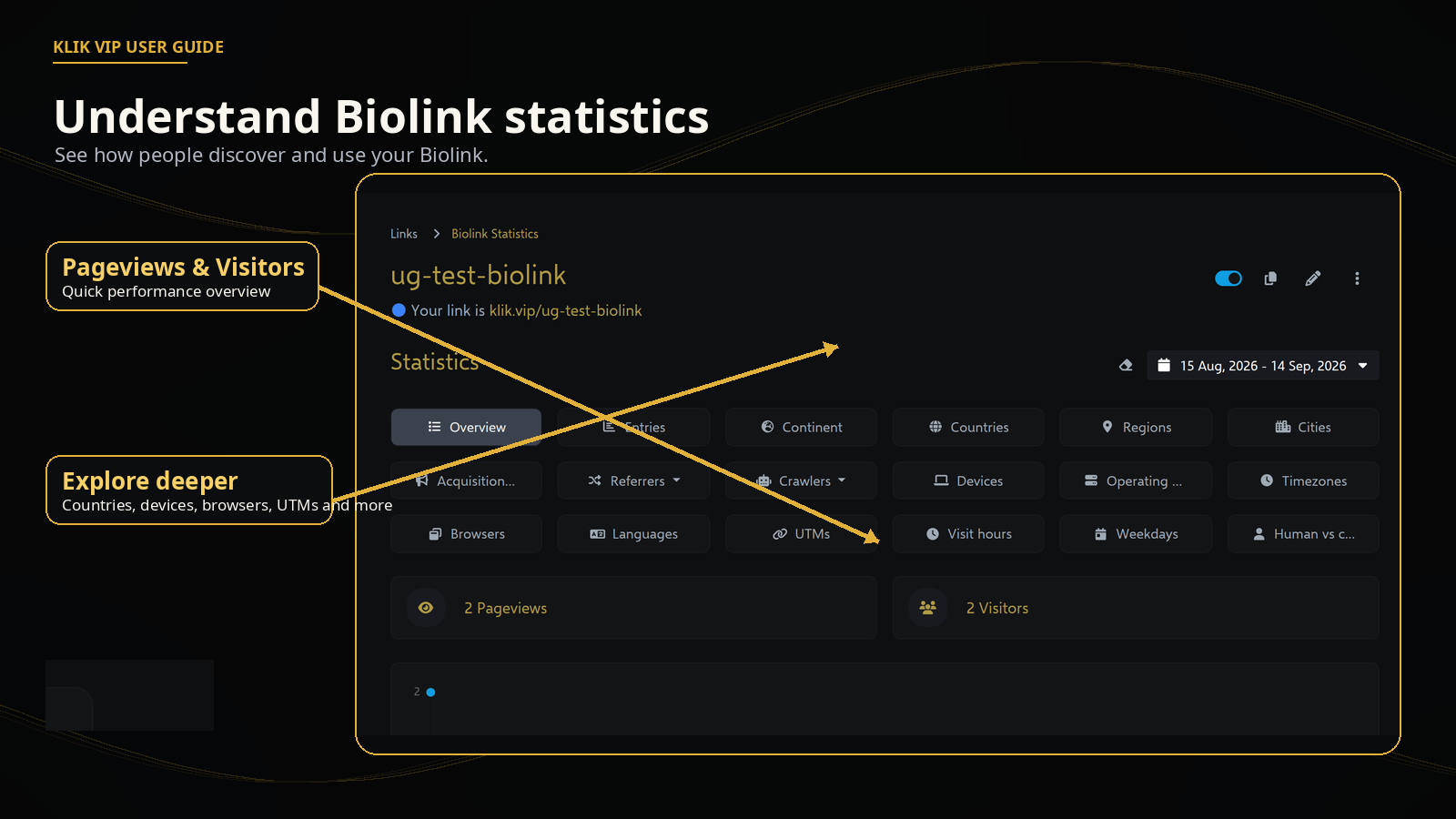
Available analytics views visible in the captured interface include Overview, Entries, Continent, Countries, Regions, Cities, Acquisition, Referrers, Crawlers, Devices, Operating systems, Timezones, Browsers, Languages, UTMs, Visit hours, Weekdays and Human vs crawler traffic.
7. Tips & troubleshooting
Tips
- Start with a template when you want to build your first page faster.
- Keep the most important actions near the top of the page.
- Use blocks to separate different types of content instead of trying to place everything into one link.
- Check the public page after making important changes.
- Review your statistics after the Biolink starts receiving traffic.
Troubleshooting
- Can't find the page you created: return to Biolink pages and look for it in the list.
- Need a different design: open the Biolinks template gallery and review the available templates.
- Need more content on the page: open the Blocks area and use Add block.
- No meaningful statistics yet: analytics need visitor traffic before the reports become useful.