What does Links statistics show?
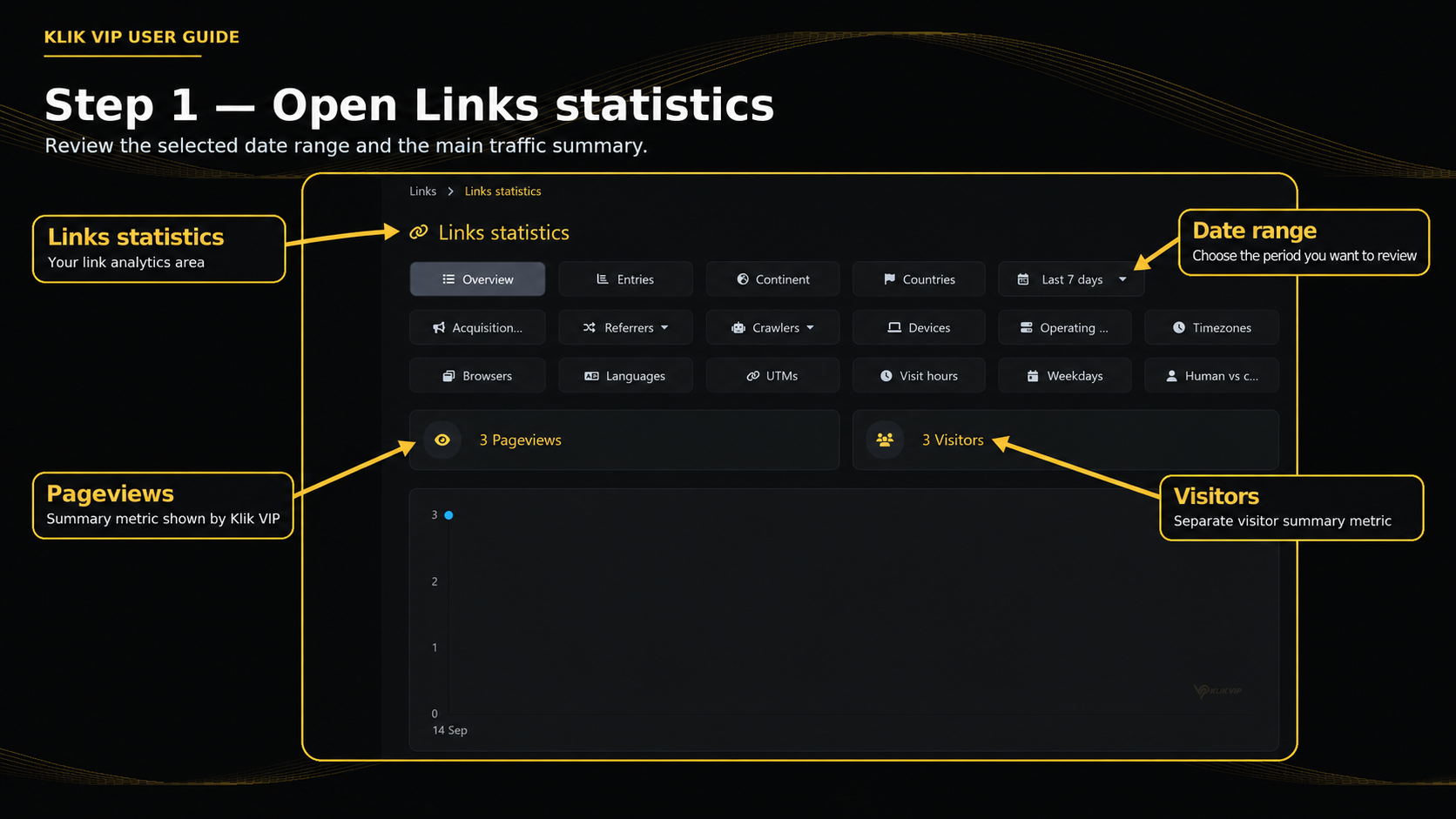
Links statistics lets you review the traffic information Klik VIP has recorded for your links within the selected period.
Summary metrics
The Overview screen displays separate Pageviews and Visitors summary metrics.
Geography
Review traffic by Continent, Countries, Regions and Cities.
Acquisition & referrers
Use the available acquisition and referrer views to examine where traffic came from.
Technology
Review Devices, Operating systems, Browsers and Languages.
Campaign & timing
Available views include UTMs, Visit hours, Weekdays and Timezones.
Traffic quality
Crawlers and Human vs crawler views are also available.
1. Open Links statistics
Open Links statistics from the Klik VIP sidebar. The Overview screen shows the selected date range, the available analytics views and the main Pageviews and Visitors summary.
2. Explore analytics views
Use the analytics buttons to move from the high-level Overview into the specific traffic dimension you want to understand.
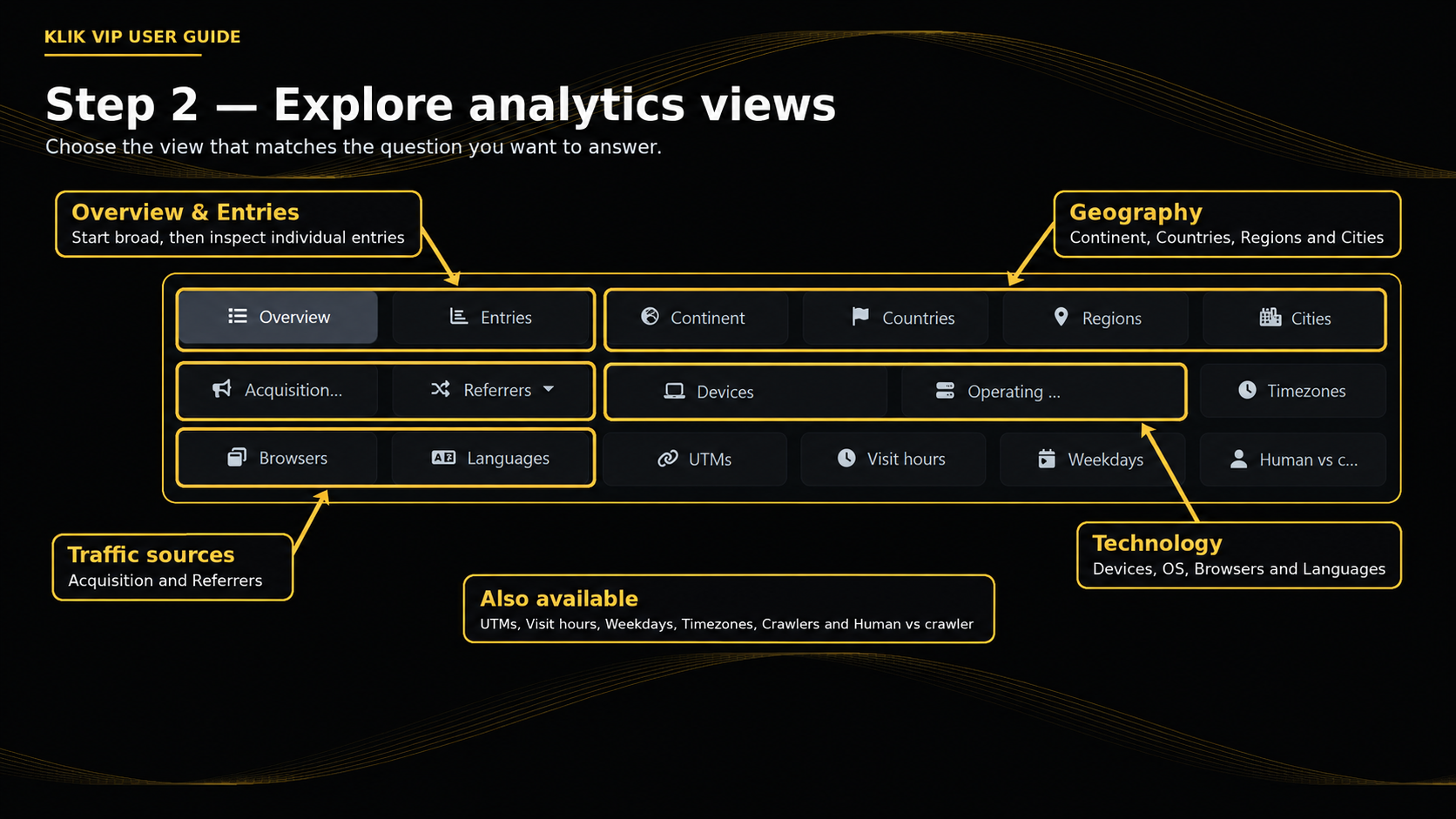
Overview & Entries
Start with the overall summary, then move to individual recorded entries when you need more detail.
Geography
Continent, Countries, Regions and Cities help you understand where recorded traffic is coming from.
Acquisition & Referrers
Use these views to review the traffic-source information available in Klik VIP.
Devices & software
Devices, Operating systems, Browsers and Languages help describe the technology used by visitors.
Campaign & timing
UTMs, Visit hours, Weekdays and Timezones provide additional campaign and timing context.
Crawlers & humans
Use the crawler-related views when you need to distinguish automated traffic information from human traffic information shown by Klik VIP.
3. Read Latest Entries
The Latest Entries section provides row-level details for recent recorded visits. The visible columns include location, device, operating system/browser, referrer and the time the entry was created.
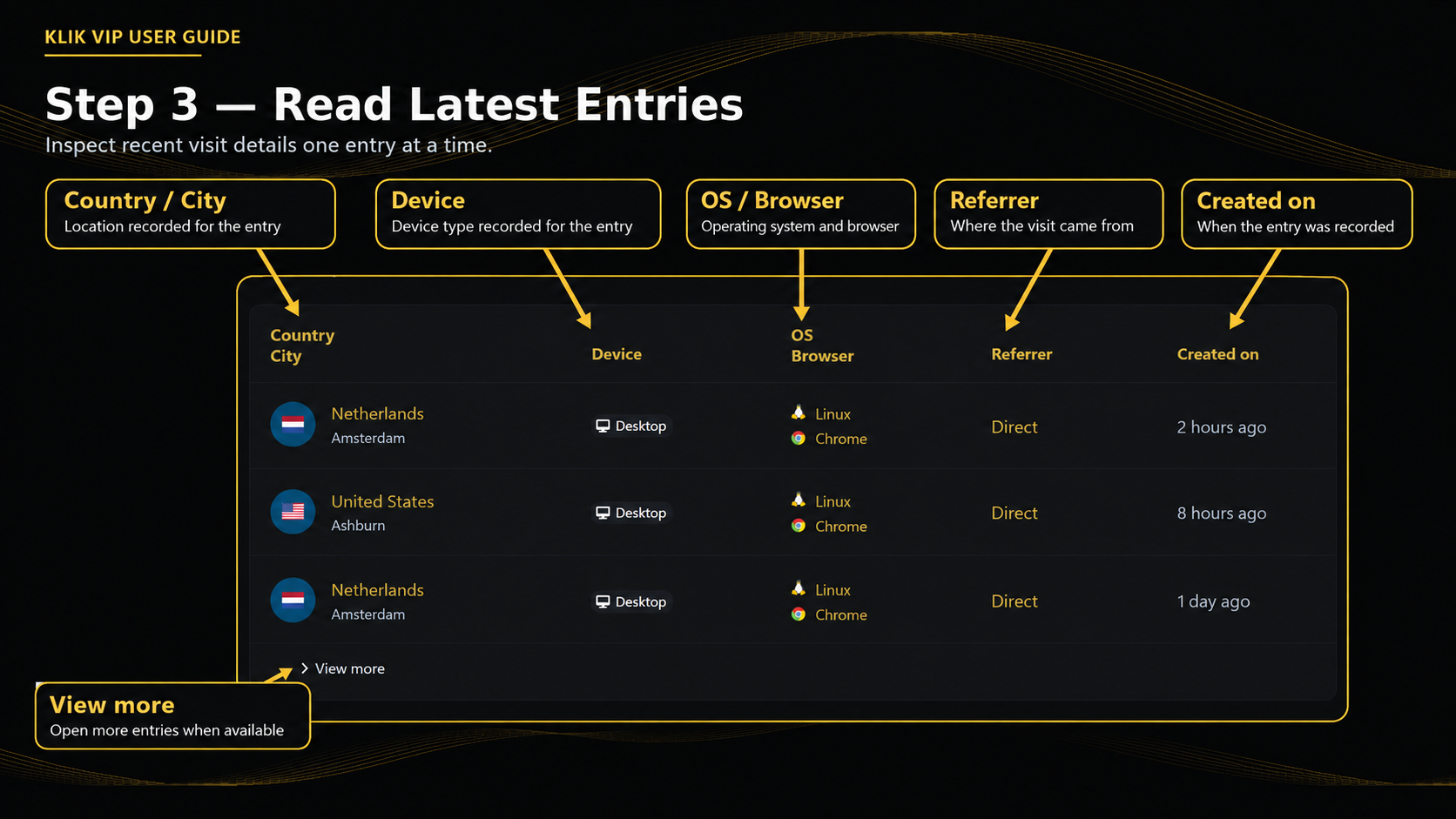
Country / City
Shows the location information recorded for the entry.
Device
Shows the recorded device type, such as Desktop in the example.
OS / Browser
Shows the operating system and browser information recorded for that entry.
Referrer
Shows the referrer information available for the visit, such as Direct in the example.
Created on
Shows when the entry was recorded.
View more
Use View more when more recorded entries are available to inspect.
4. Tips & troubleshooting
Tips
- Check the date range before comparing traffic numbers.
- Start with Overview, then open a more specific analytics view when you have a question to answer.
- Use Countries, Regions and Cities when location matters to your campaign.
- Use Devices, Operating systems and Browsers when checking the technology your visitors use.
- Use UTMs and Referrers when reviewing campaign/source information.
- Use Latest Entries when you need row-level details instead of only aggregate summaries.
Troubleshooting
- No statistics are shown: check the selected date range and confirm that your links have received traffic during that period.
- The numbers seem different from another period: verify that both views are using the same date range before comparing them.
- You cannot find the detail you need: try another analytics view such as Countries, Devices, Referrers, UTMs or Latest Entries.