What is a Klik VIP Signature?
A Klik VIP Signature is a reusable email signature you can design inside your account. It can include your name, role, company, contact information, social profiles, image and optional disclaimer.
Professional identity
Show your name, position, company and preferred sign-off in a consistent format.
Contact details
Add the website, email, phone and address information you want recipients to see.
Social profiles
Add supported social media links and display them as icons in the signature.
Reusable output
Copy the rendered signature directly or copy its HTML code, depending on your email application.
Step 1: Set up the signature
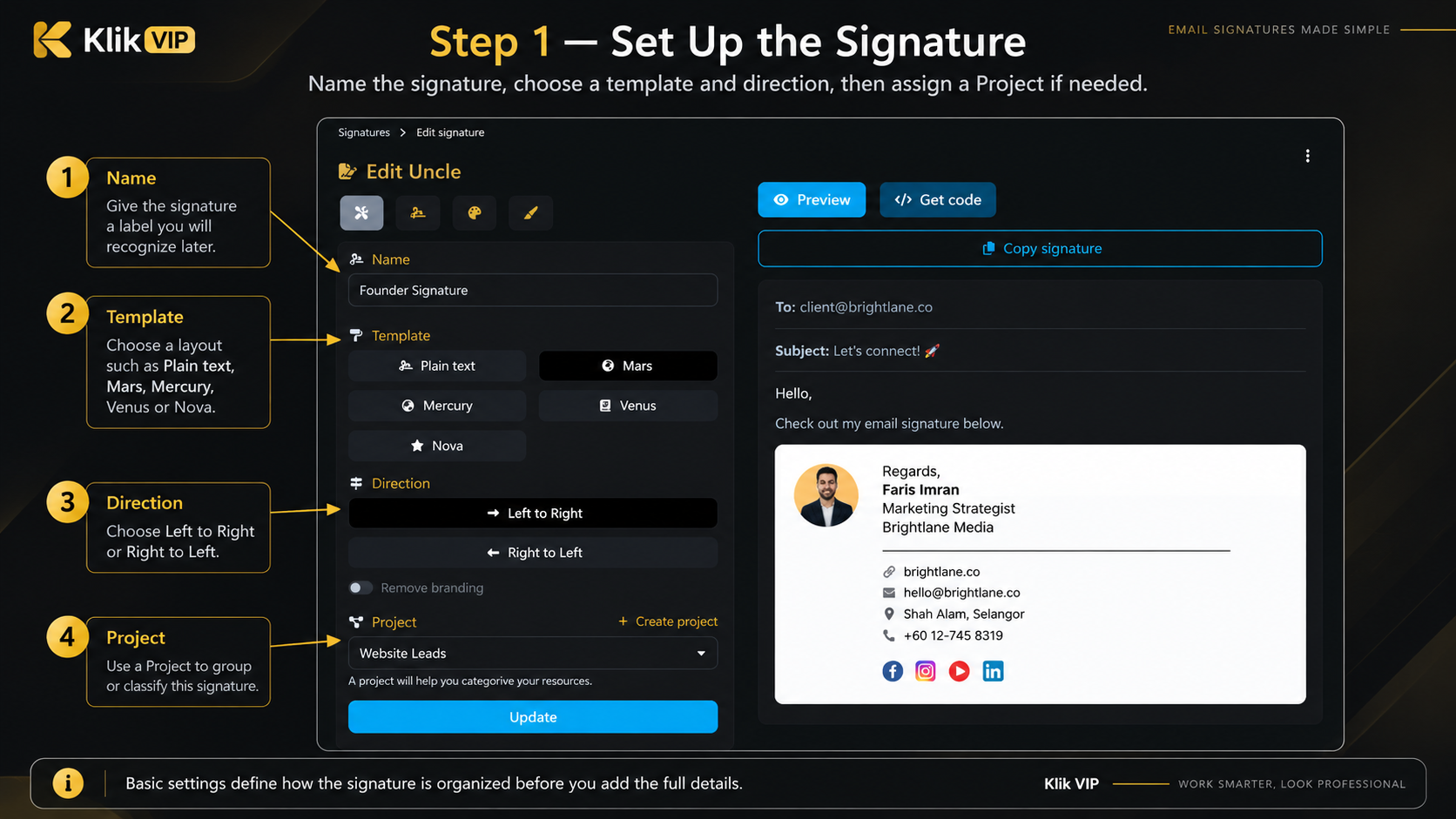
Start with the main signature settings. Give the signature a clear Name, choose a Template, select the text Direction, and optionally assign it to a Project.
The Project option is useful when you want to classify signatures by brand, campaign, department or other workstream.
Step 2: Add your signature details
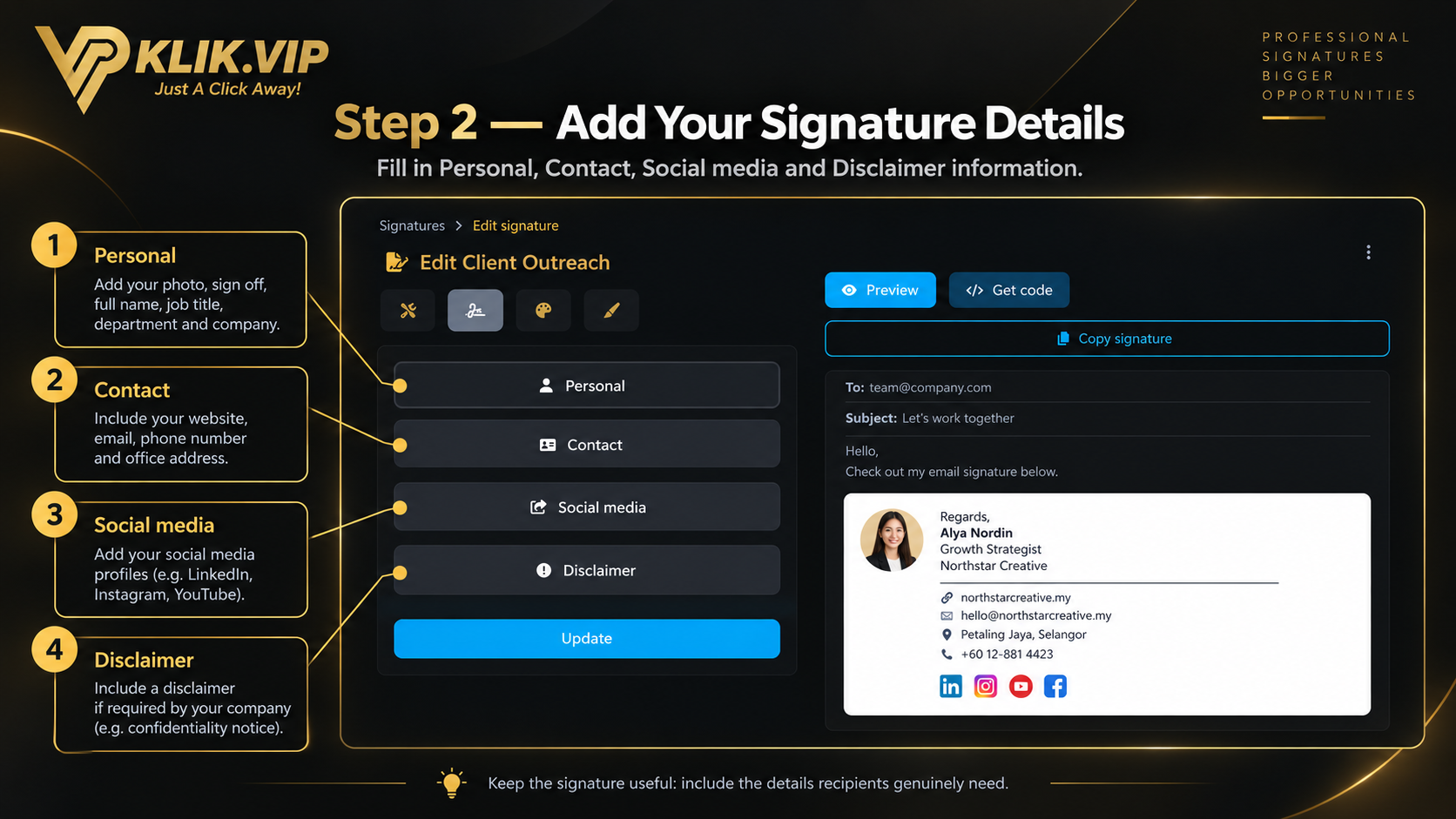
The signature content is organized into sections. Open the sections you need and enter the information you want included.
Personal
Add items such as image URL, sign-off, full name, job title, department and company.
Contact
Add contact information such as your website, email, phone and address.
Social media
Add the social profiles you want shown in the signature.
Disclaimer
Add a disclaimer when your company or industry requires one.
Step 3: Choose a template
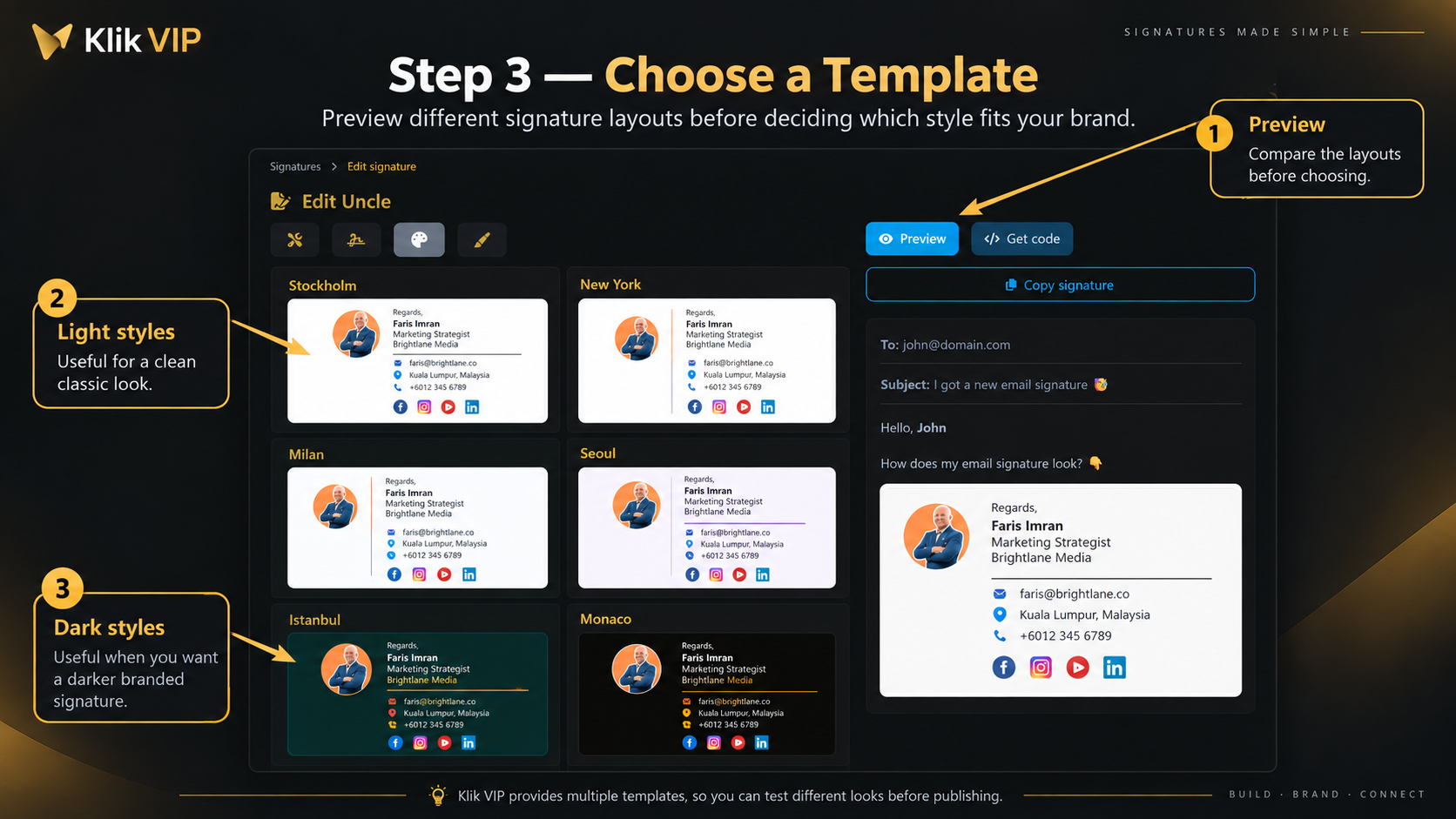
Open the template section to compare the available layouts. The interface includes template styles such as Stockholm, New York, Milan, Seoul, Istanbul and Monaco.
Use Preview to see how your actual signature details look with the selected template before deciding.
Step 4: Customize the appearance
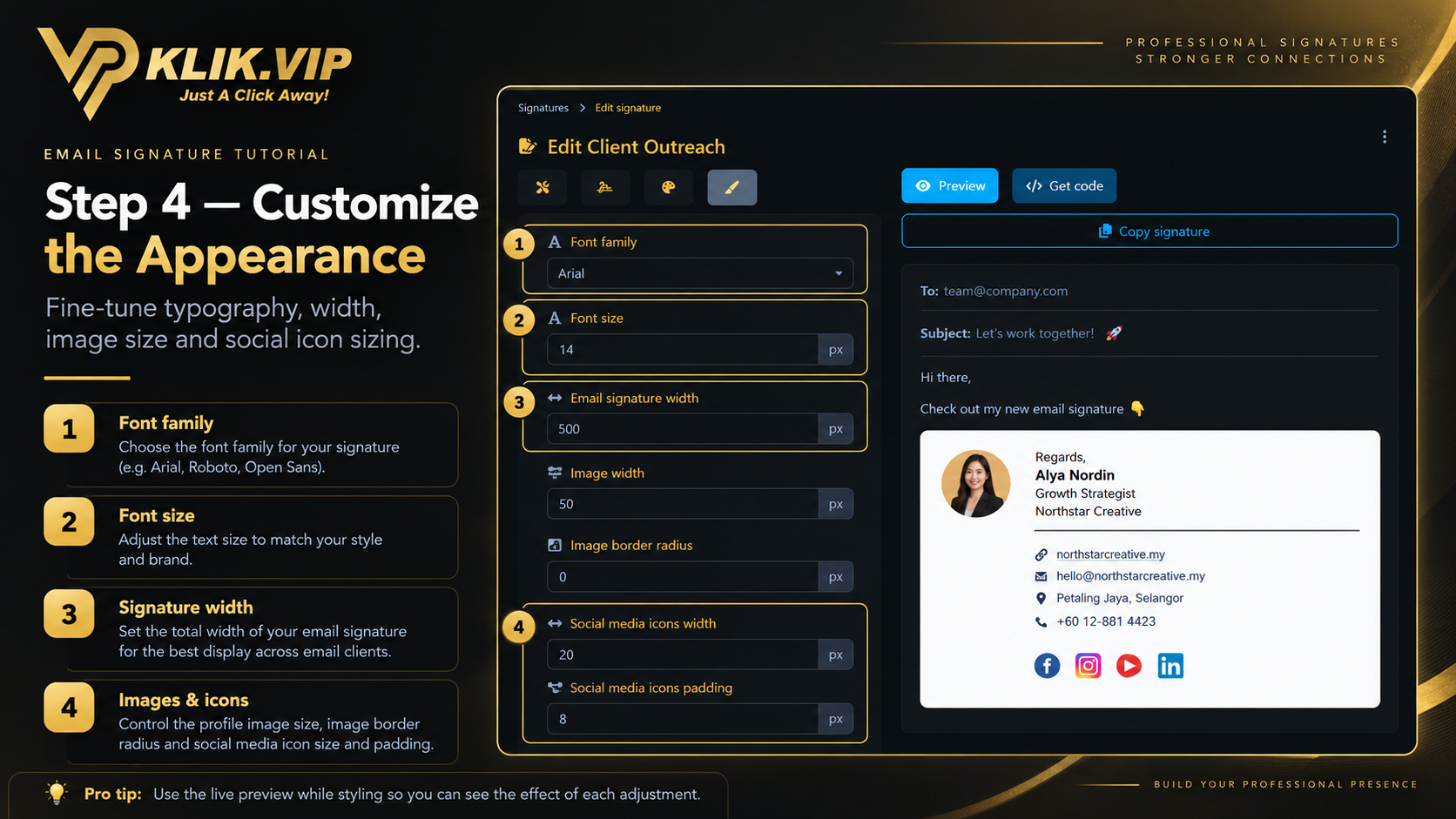
Use the appearance settings to fine-tune the size and styling of your signature.
- Font family — choose the typeface used in the signature.
- Font size — adjust the text size.
- Email signature width — control the overall width of the signature.
- Image width and Image border radius — adjust the profile image size and shape.
- Social media icons width and related spacing options — adjust the size and spacing of the social icons.
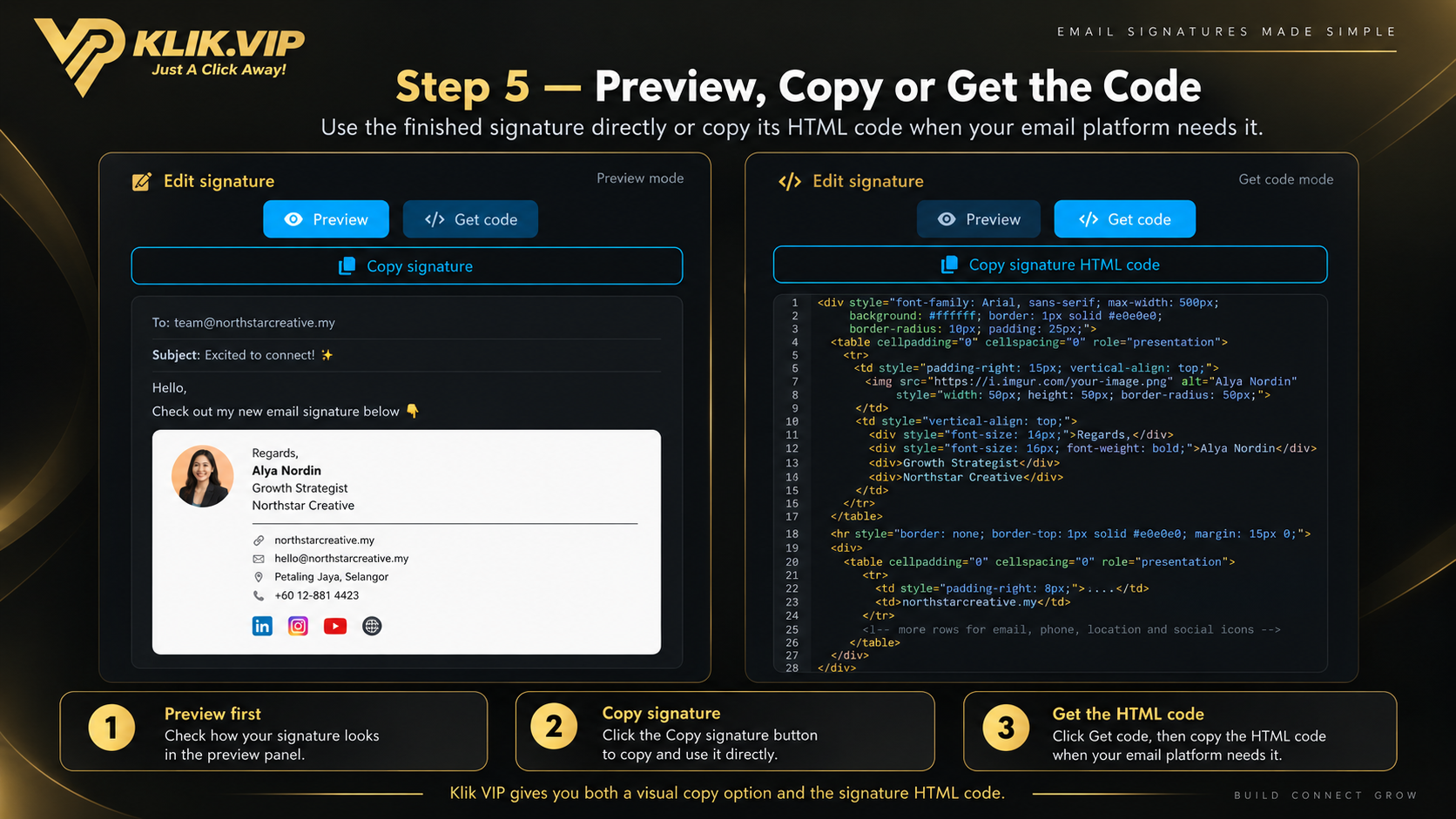
Step 5: Preview, copy or get the code
When the signature is ready, open Preview and check the final result carefully.
Klik VIP gives you two output options:
Copy signature
Copy the rendered signature when your email application supports pasting a formatted signature directly.
Get code
Open the HTML output and use Copy signature HTML code when your email application requires HTML source.
Tips & troubleshooting
Best practices
- Keep the signature compact and easy to scan.
- Use a clear profile or brand image.
- Include only the contact methods you actually want recipients to use.
- Preview the signature after changing the template or appearance settings.
- Create different signatures when different teams, brands or campaigns need different contact information.
Troubleshooting
- The image does not appear: confirm that the Image URL is publicly accessible.
- The pasted signature looks different: your email application may apply its own formatting. Try the HTML code option if your email platform supports it.
- The signature is too wide: reduce the Email signature width or image width.
- The social icons are too large: reduce the Social media icons width setting.