What is a Pixel?
A pixel in Klik VIP is a saved tracking ID that you can create inside your account for supported advertising and analytics platforms. It helps you keep your tracking setup organized in one place.
Supported platforms
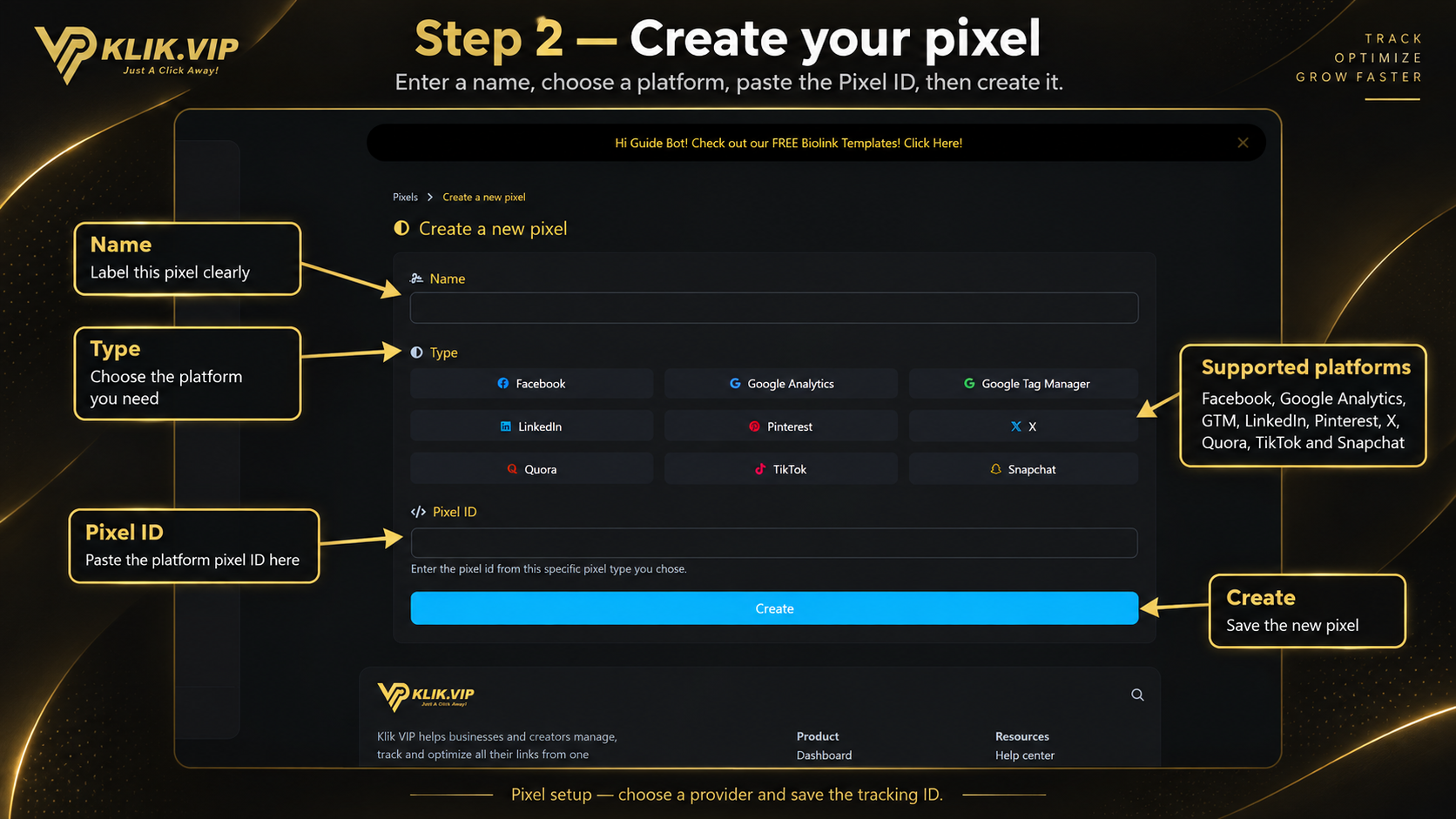
Klik VIP supports Facebook, Google Analytics, Google Tag Manager, LinkedIn, Pinterest, X, Quora, TikTok and Snapchat.
Simple setup
You only need to enter a name, choose the platform and paste the correct Pixel ID.
One place to manage
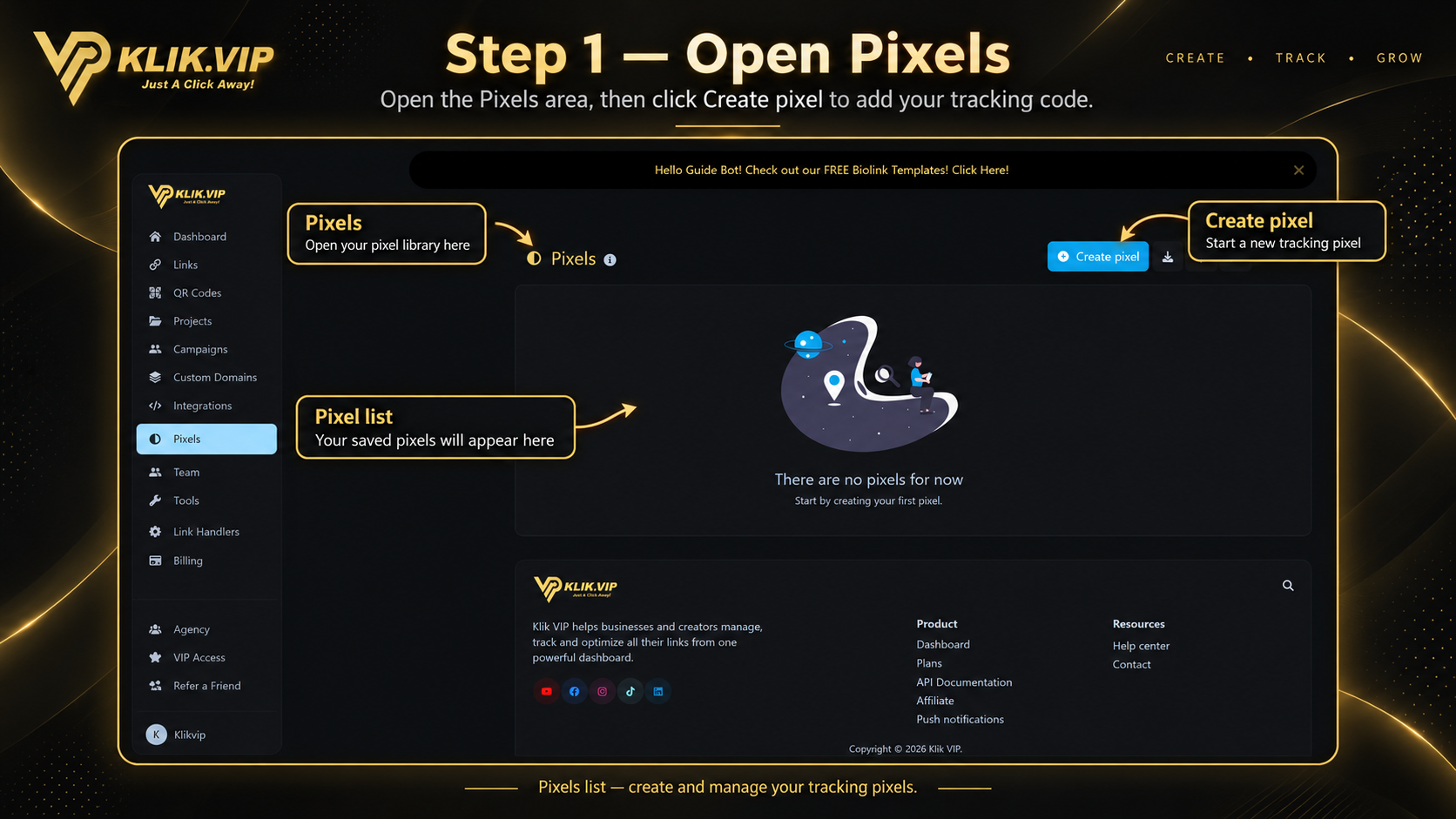
The Pixels page shows your saved pixels in one dedicated area.
Made for tracking
Use saved pixels later in supported Klik VIP workflows where tracking integration is needed.
1. Open Pixels
Open Pixels from the Klik VIP sidebar. This page is your pixel library. If you have not created any pixels yet, Klik VIP will show an empty state. Click Create pixel to start.
2. Create a new pixel
On the Create a new pixel screen, complete the fields in this order:
- Name: enter a clear label so you can recognize the pixel later.
- Type: choose the correct platform.
- Pixel ID: paste the tracking ID for the platform you selected.
- Create: save the pixel.
Name
Use a descriptive name such as the brand, campaign or destination you want to track.
Type
Select the platform that matches the tracking ID you want to save.
Pixel ID
Paste the ID that belongs to the selected platform. Use the correct ID format from that platform.
Create
After reviewing the details, click Create to save the new pixel in Klik VIP.
3. Tips & troubleshooting
Tips
- Choose the platform first so you know which tracking ID to paste.
- Use a clear name to make future management easier.
- Double-check the Pixel ID before saving the form.
- Keep naming consistent if you manage multiple brands or campaigns.
Troubleshooting
- You are unsure which platform to choose: check where the tracking ID came from and select the matching platform.
- The pixel is not saved yet: confirm that Name, Type and Pixel ID have been entered before clicking Create.
- You pasted the wrong ID: return to the form and use the tracking ID that belongs to the selected platform.