What is a Static Site?
A Static Site is a page built from files such as HTML, CSS, JavaScript and other web assets. Klik VIP can host the uploaded site and give it its own short URL.
Landing pages
Upload a custom landing page without installing a separate CMS.
Mini tools
Host lightweight front-end tools, calculators, forms or interactive pages built with HTML and JavaScript.
Campaign pages
Create dedicated pages for launches, promotions, events or special campaigns.
Use your Klik VIP URL
Choose the domain and Short URL for the published site.
Build the page with ChatGPT or Claude
You do not need to start from a blank file. You can ask tools such as ChatGPT or Claude to help create the HTML, CSS and JavaScript for a simple static page, then upload the finished files to Klik VIP.
If you use a ZIP package, make sure it contains an index.html file when unzipped. The Klik VIP interface also reminds you to use relative paths for images, CSS, JavaScript and other site assets.
1. Upload the HTML or ZIP file
Open your Static Site settings and click Choose File. Upload either a single HTML file or a ZIP package containing the files for the site.
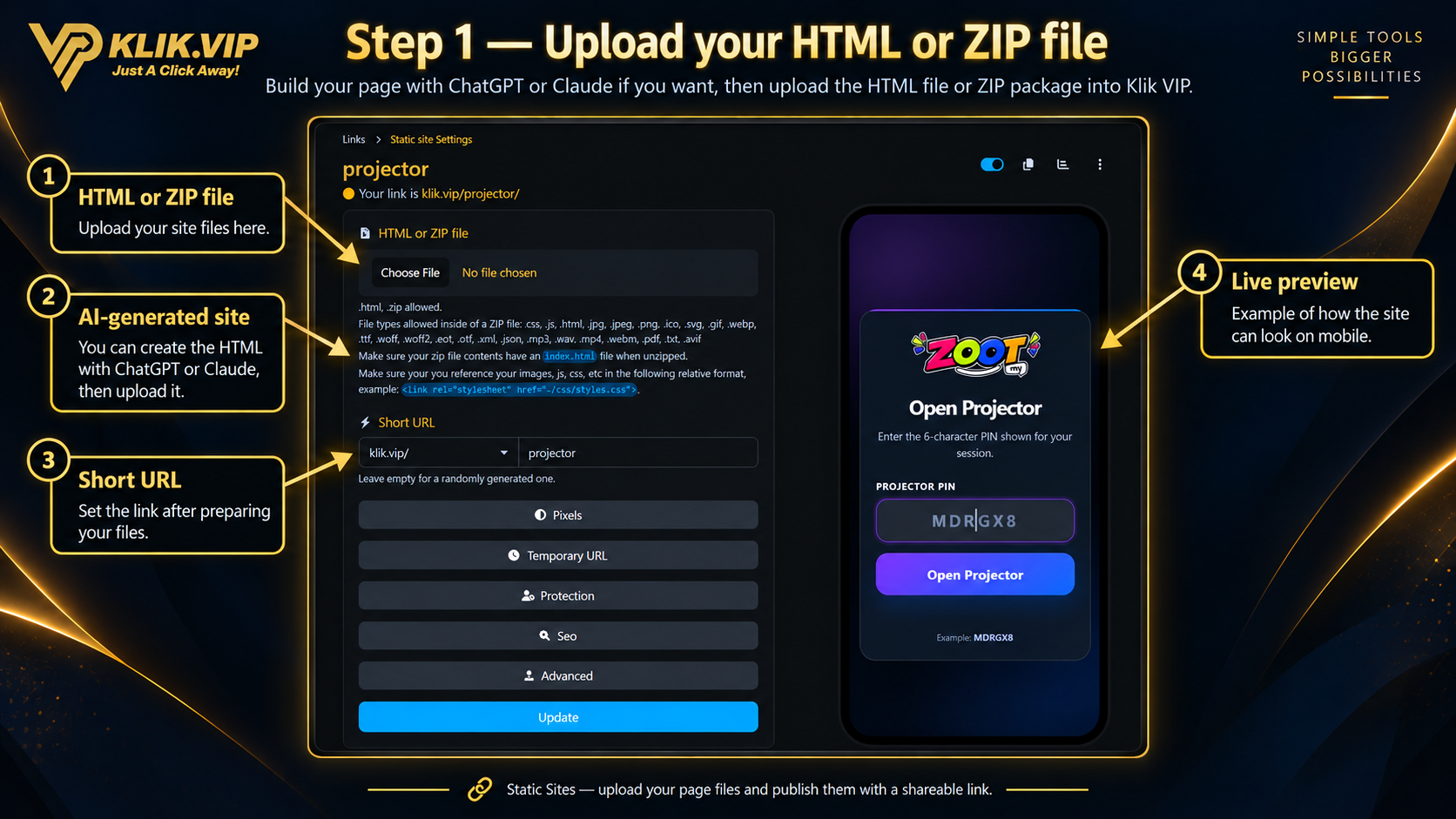
index.html when unzipped and that your CSS, JavaScript, images and other assets use relative paths.2. Set the Short URL
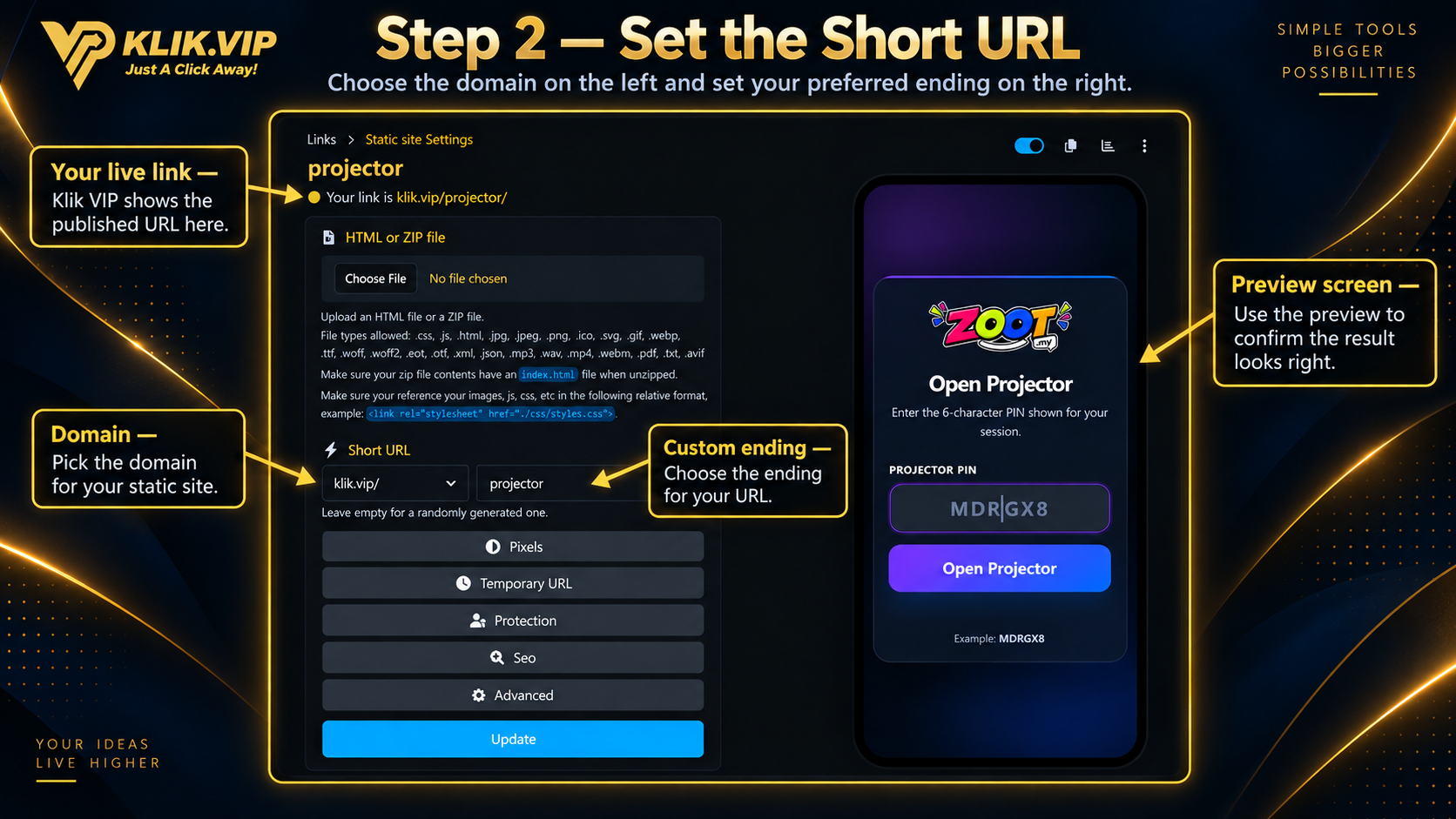
Choose the domain from the left side of the Short URL row, then enter the URL ending you want on the right. The page also shows the live published link near the top of the settings screen.
3. Configure optional settings
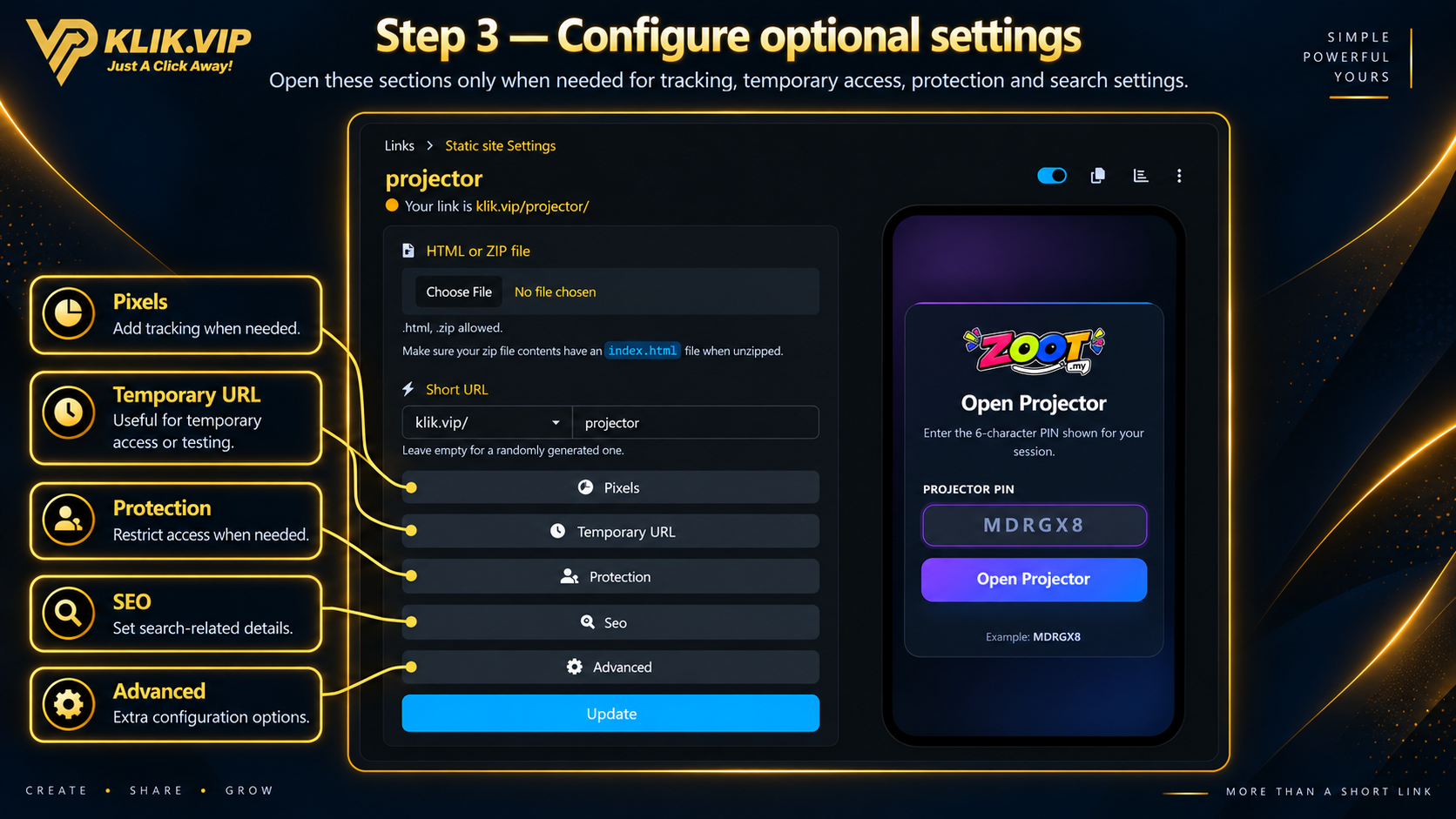
Static Sites also include optional settings that you can open only when needed:
Pixels
Add tracking when the site is part of a campaign or conversion flow.
Temporary URL
Use temporary access when you need a time-limited link.
Protection
Add access restrictions when the page should not be fully public.
SEO & Advanced
Configure search-related details and additional settings when needed.
4. Update and test the live site
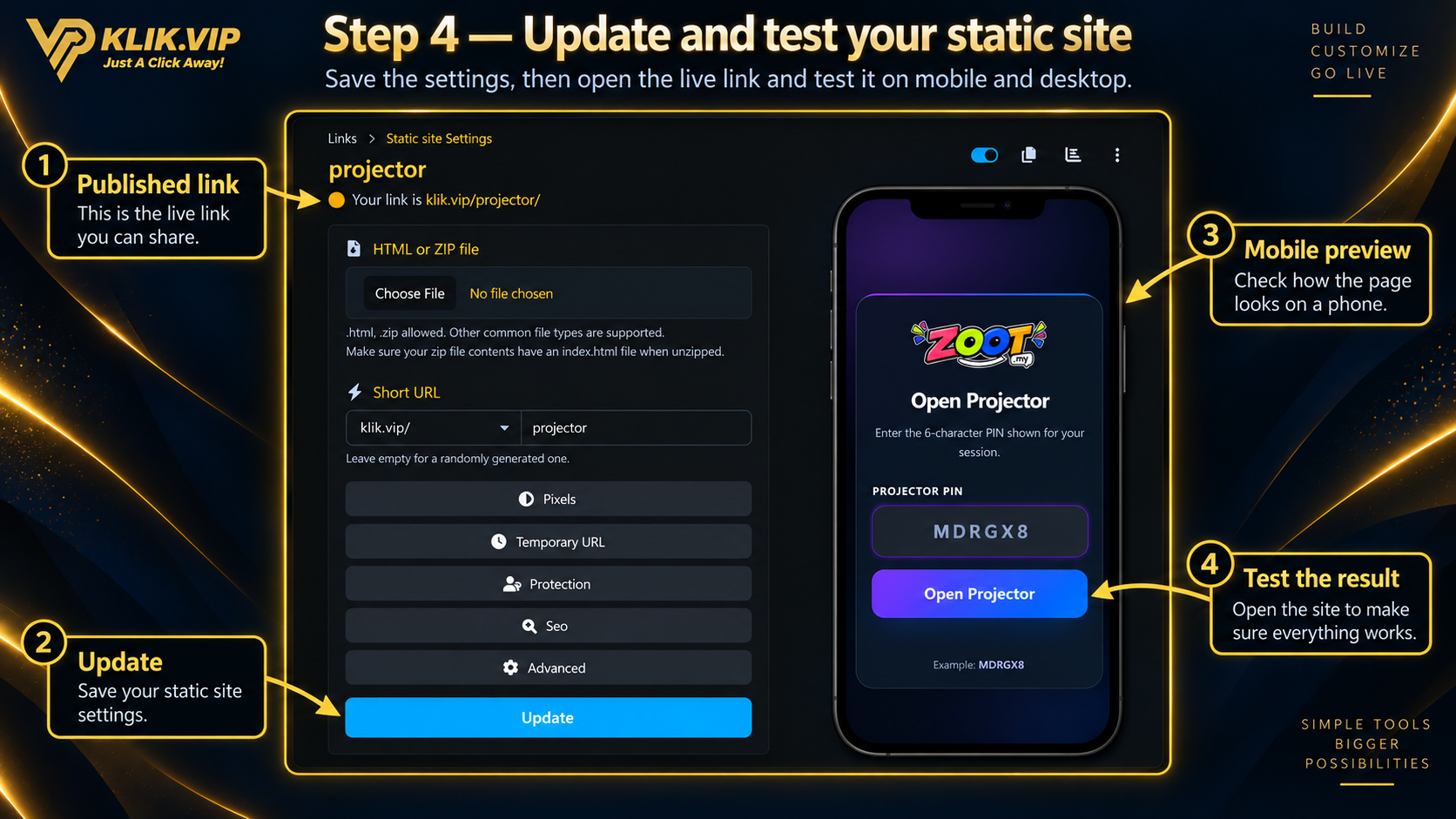
When the files, URL and optional settings are ready, click Update to save the Static Site.
Then open the published link and test the actual result. Check the page on both desktop and mobile, especially if your design includes forms, buttons, navigation or interactive JavaScript.
5. Tips & troubleshooting
Tips
- Keep an
index.htmlfile at the correct level inside a ZIP package. - Use relative asset paths such as
./css/styles.cssrather than paths that only work on your own computer. - Test the page locally before uploading it.
- After updating the files, refresh the live page and verify the latest version appears correctly.
- Always test the published page on both desktop and mobile.
Troubleshooting
- The page is blank: check that the ZIP package has a usable
index.htmlfile. - CSS or images are missing: check your relative file paths and folder names.
- JavaScript does not work: verify the file name and script path, then test the same files locally.
- The old version still appears: reload the page and confirm that the latest files were uploaded and saved.