How to Create an Event Link
Use an Event Link when you want Klik VIP to generate an .ics calendar file from your event details. After you fill in the event information and save it, people can open the link to add the event to their calendar.
What happens after someone clicks the Event Link?
On a phone, the link normally opens the device calendar app or shows an Add to Calendar flow.
On a desktop or laptop, the browser will usually download the .ics file, unless the computer already has an app that recognizes .ics files and opens it automatically.
In this guide
What an Event Link does
Stores event details
Add the event name, location, event URL, notes, start time, end time, reminders and timezone.
Generates a calendar file
The Event Link produces an .ics file so people can save the event into their own calendar.
Useful for launches and webinars
It works well for classes, live sessions, launches, consultations, workshops and any event where attendance matters.
Mobile and desktop behavior
Phones usually open the calendar flow directly. Desktop browsers normally download the file first.
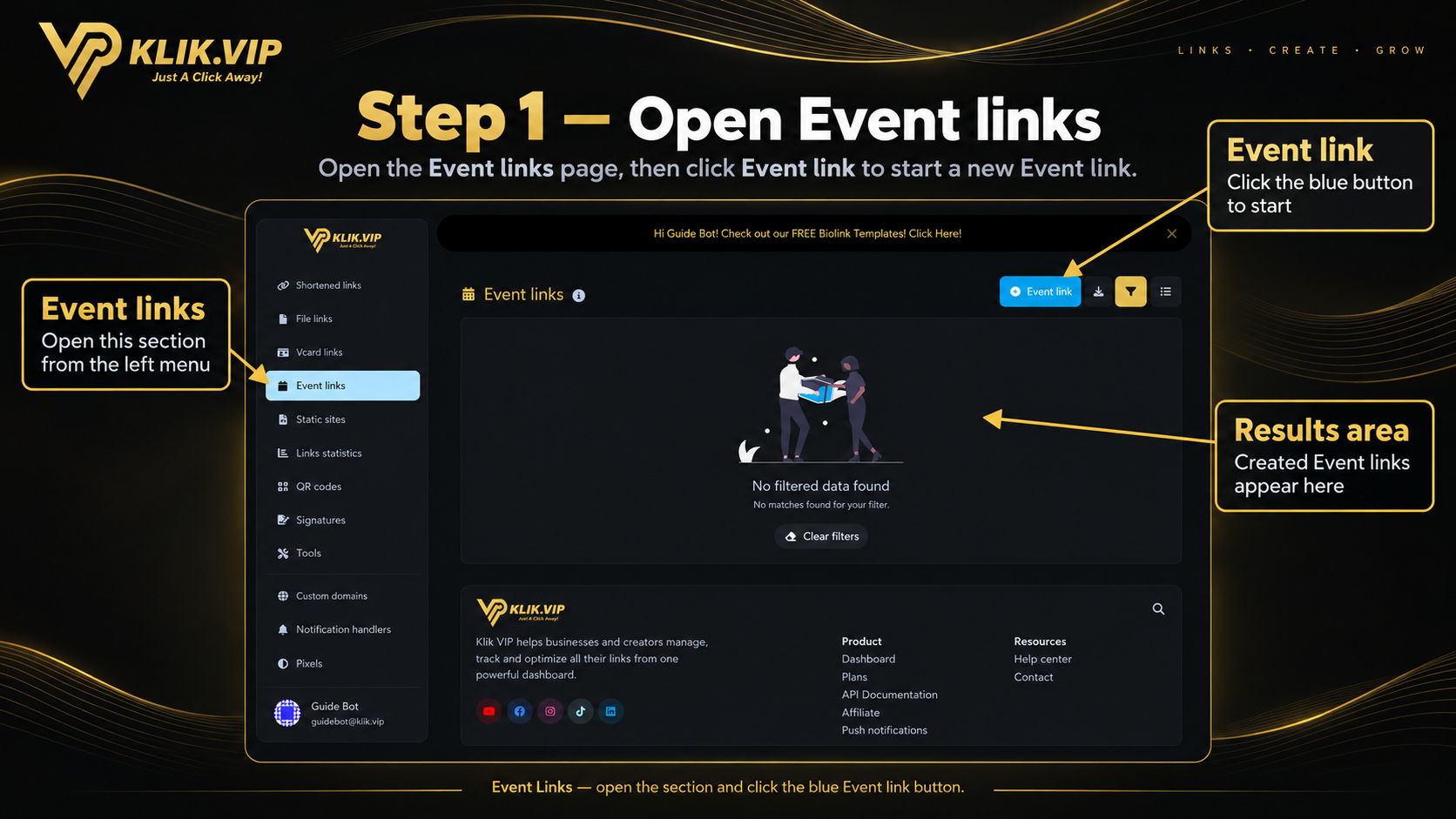
1. Open Event Links
Open Event links from the Klik VIP sidebar. On this page, click the blue Event link button to start a new one.
2. Fill in the event details
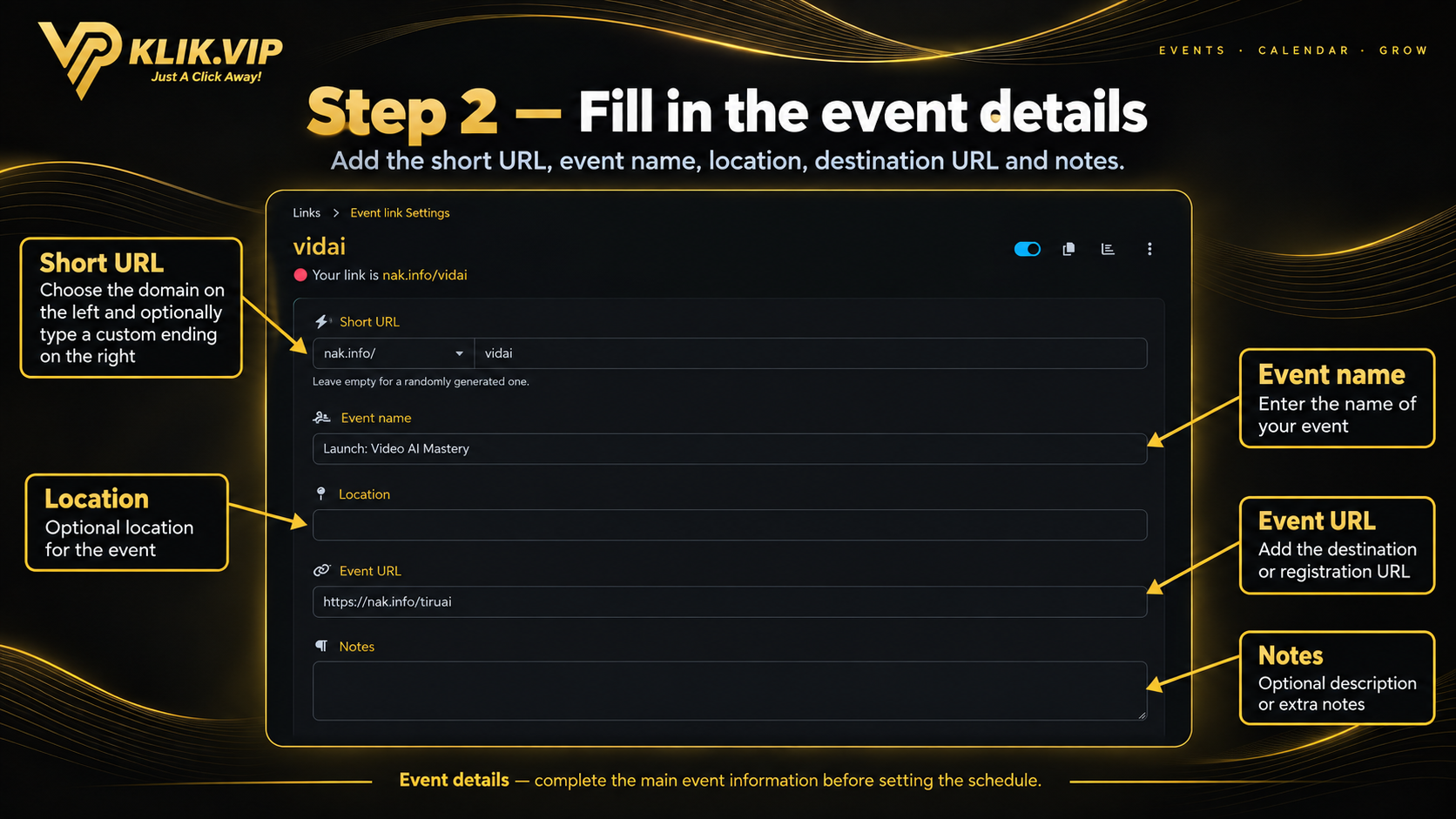
After creating the Event Link, enter the key information for your event. The settings page lets you fill in the main details such as:
- Short URL – choose the domain and ending for the Event Link.
- Event name – the name people will see in their calendar.
- Location – where the event happens, or your online meeting platform.
- Event URL – your webinar room, sales page, Zoom link or destination page.
- Notes – extra details people should keep with the event.
3. Schedule reminders and save
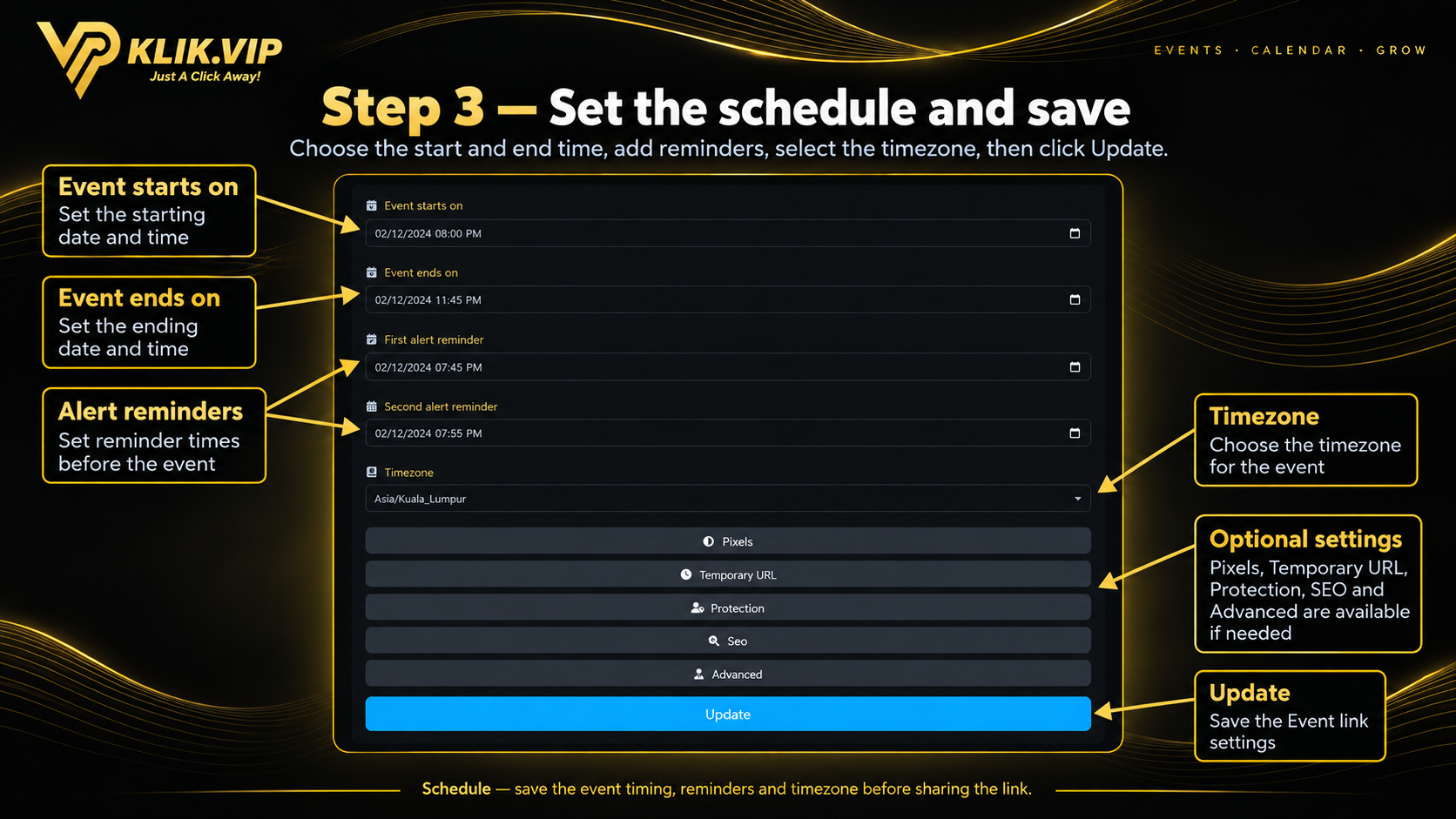
Continue by setting the event timing and reminder behavior. In the Event Link settings, you can configure:
- Event starts on – the start date and time.
- Event ends on – the end date and time.
- First alert reminder – the first reminder time.
- Second alert reminder – the second reminder time.
- Timezone – for example
Asia/Kuala_Lumpur.
Below that, you can also expand additional sections such as Pixels, Temporary URL, Protection, SEO and Advanced if you need them. When everything looks right, click Update to save the Event Link.
Important: Use the correct timezone. If the timezone is wrong, the event may appear at the wrong hour in the visitor's calendar.
4. What happens when someone opens the link
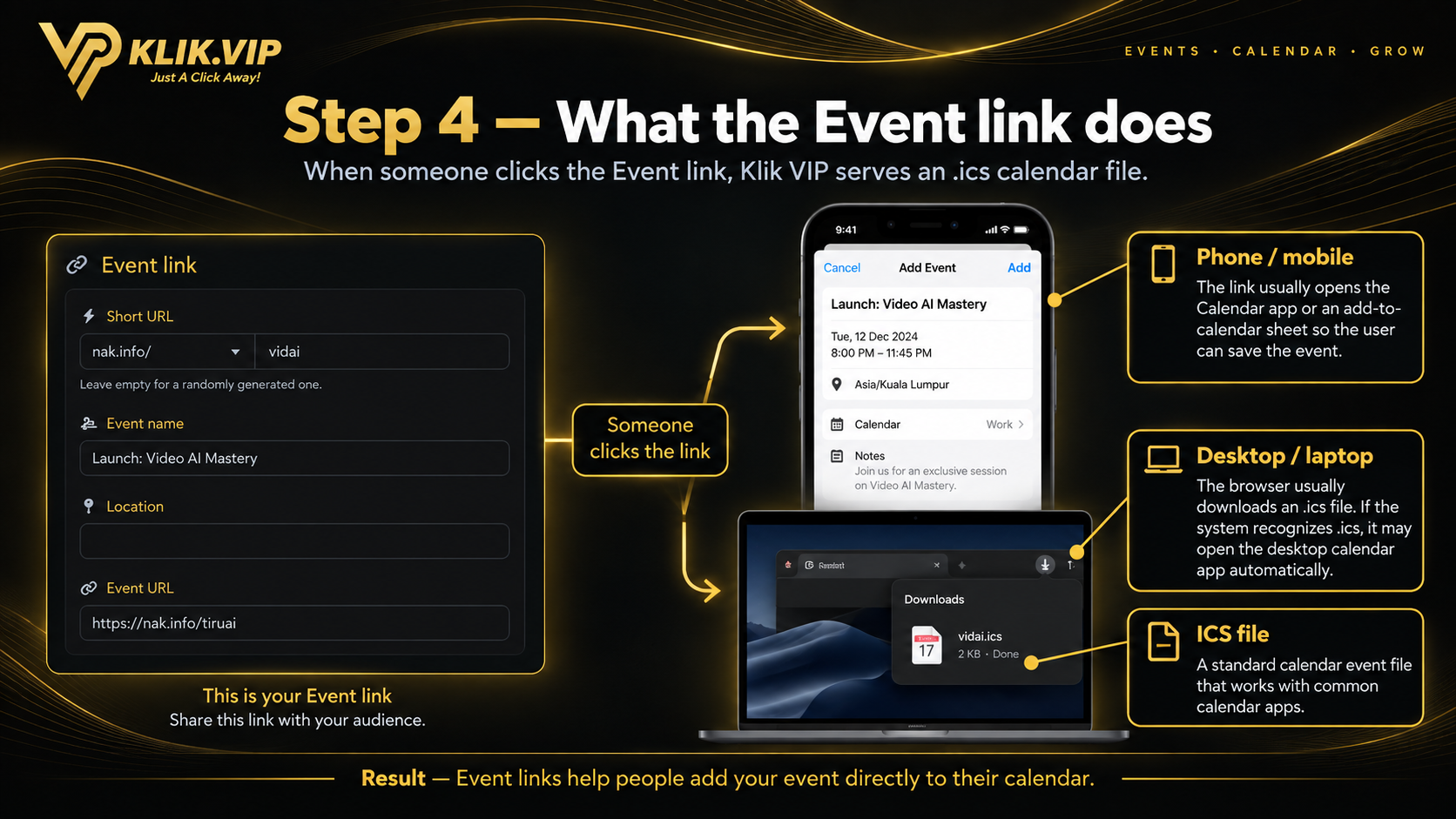
Once the Event Link is live, Klik VIP serves an .ics calendar file. This is the actual purpose of the Event Link.
On mobile
When someone opens the Event Link on a phone, the device usually opens the calendar flow automatically so the user can review the details and tap Add or Save.
On desktop
When someone opens the Event Link on a desktop or laptop, the browser usually downloads the .ics file. If the operating system or browser already recognizes calendar files, it may open the calendar app directly.
5. Tips & troubleshooting
- Make sure the event name is clear and recognizable.
- Add the correct location or meeting URL so people know where to join.
- Use the right start time, end time and timezone.
- Set at least one reminder if you want people to remember the event.
- If the link downloads an
.icsfile on desktop, that is normal behavior. - If the link opens the calendar app on a phone, that is also normal behavior.
Troubleshooting: If the event appears at the wrong time, check the timezone first. If the downloaded file does not open automatically on desktop, open the .ics file manually in your calendar application.
Where to go next
Learn how to create branded short links.
Track clicks and visitors across campaigns.
Turn your link into a scannable QR code.
Plan availability: Feature availability and usage limits depend on your current Klik VIP plan. Check the Plan page for the latest limits.