What are Account Logs?
Account Logs gives you a history of recorded activity connected to your Klik VIP account.
The supplied Logs screen shows successful login events. Depending on the activity recorded by the platform, other event types may also appear.
Type
The event name recorded by the system.
IP
The IP address associated with that event.
Details
Icons can summarize available device, location, operating system and browser information.
Activity time
The right side of each row shows how recently the event was recorded.
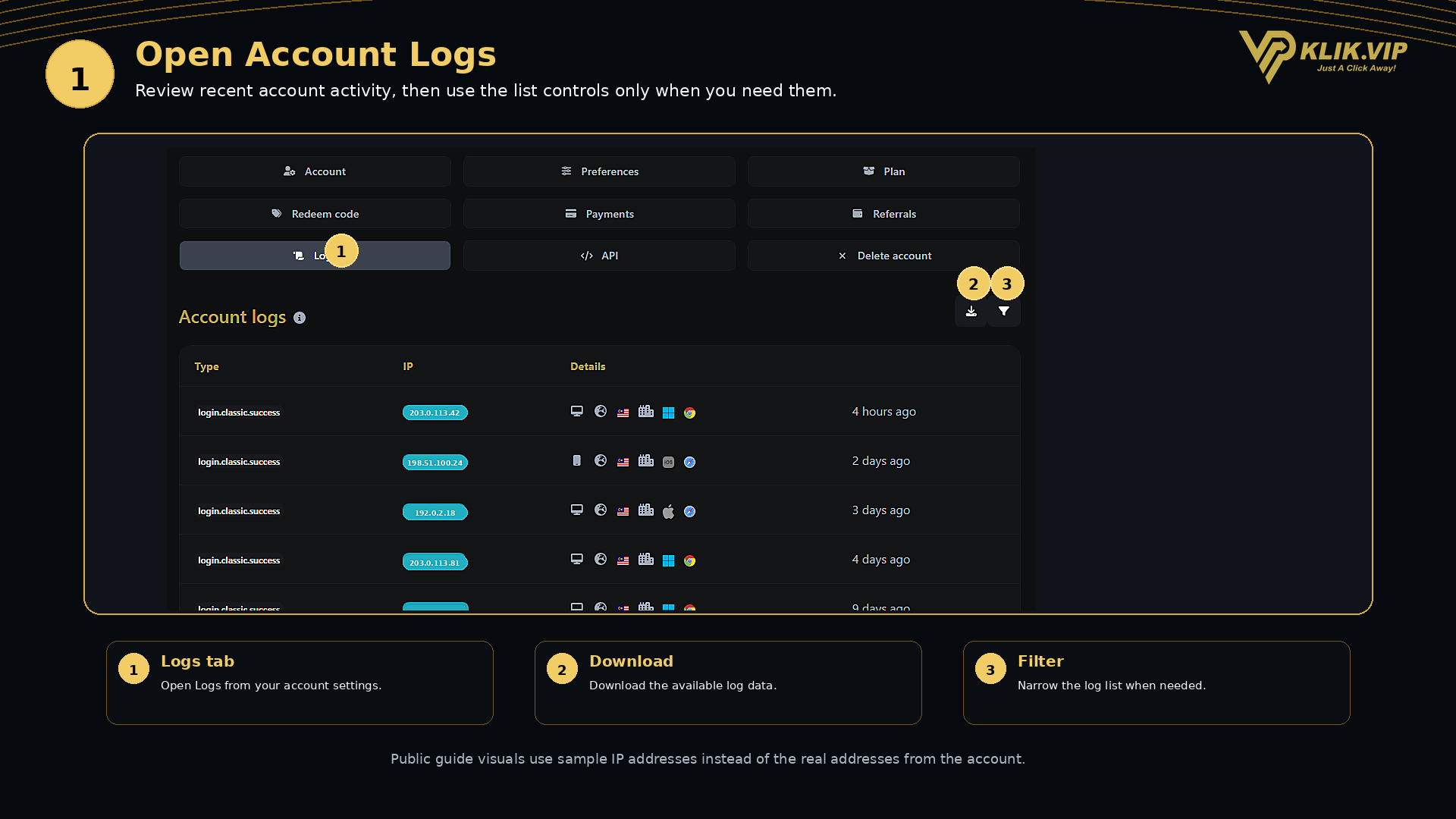
1. Open Account Logs
Open Logs from your account settings. The Account logs table lists the activity currently recorded for the account.
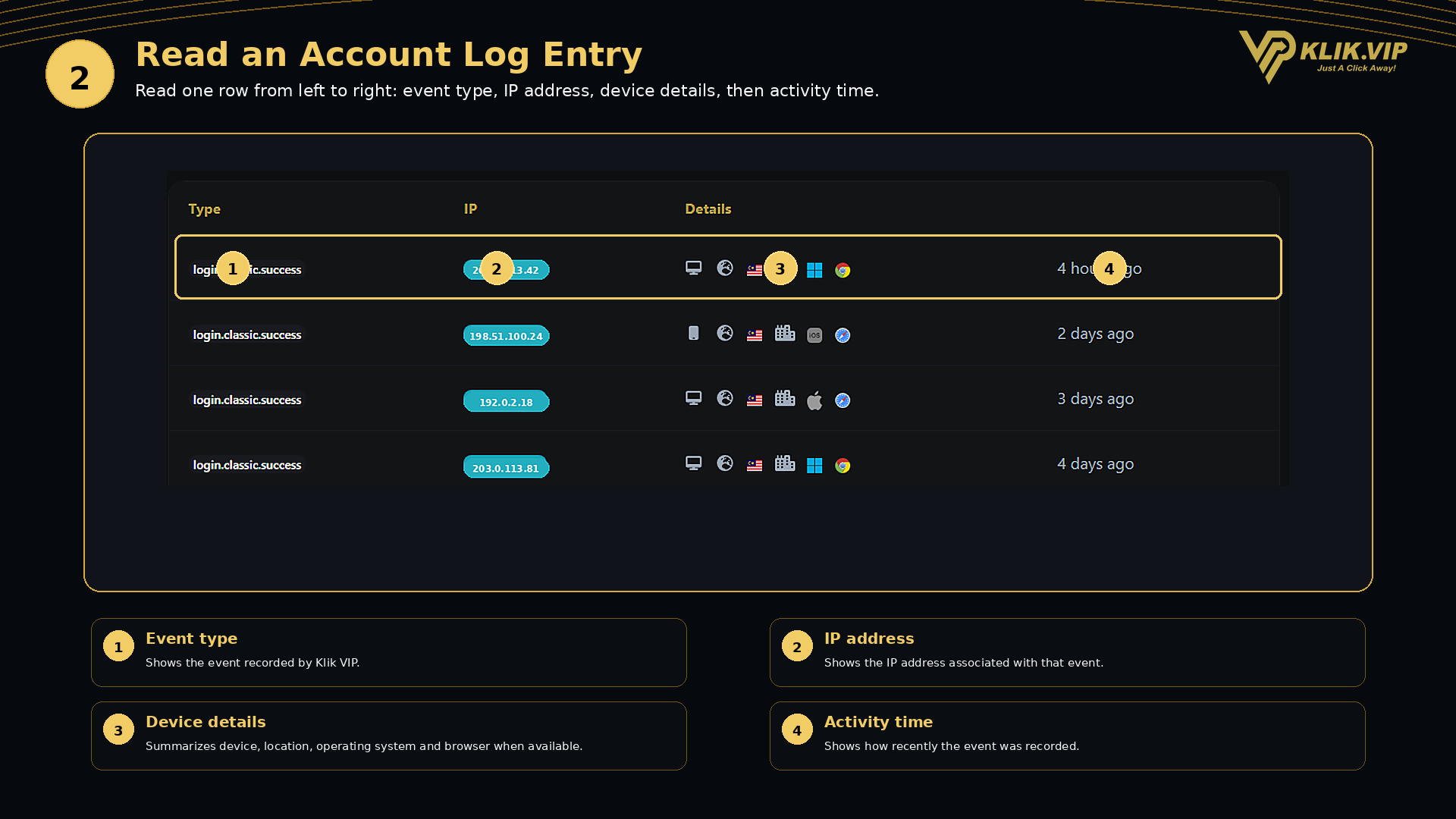
2. Read a Log Entry
Each row provides information that can help you identify the activity.
- Type — the event recorded by Klik VIP. In the supplied screenshot, the visible type is
login.classic.success. - IP — the IP address associated with the event.
- Details — the row can show icons for the device and other environment details such as country, operating system or browser where available.
- Activity time — shows how recently the event occurred, such as hours, days or months ago.
3. Use Download and Filter
The Logs page includes controls at the top-right of the log list.
- Download — use the download control when you need a copy of the available log data.
- Filter — use the filter control when you want to narrow the log list.
4. Review Unfamiliar Activity
Account Logs can be useful when you want to compare recent activity with the devices and locations you normally use.
If an entry looks unfamiliar, review the information shown in the row — especially the event type, IP, device/browser details and time — before deciding whether further account-security action is needed.
5. Tips & Privacy
- Review recent logs if you notice unexpected account activity.
- Use multiple fields together rather than relying on the IP address alone.
- Remember that IP addresses can change depending on network, mobile connection or VPN usage.
- Avoid publishing screenshots that expose your real IP addresses.
- Download the log data when you need to keep a separate record.