What is Data in Klik VIP?
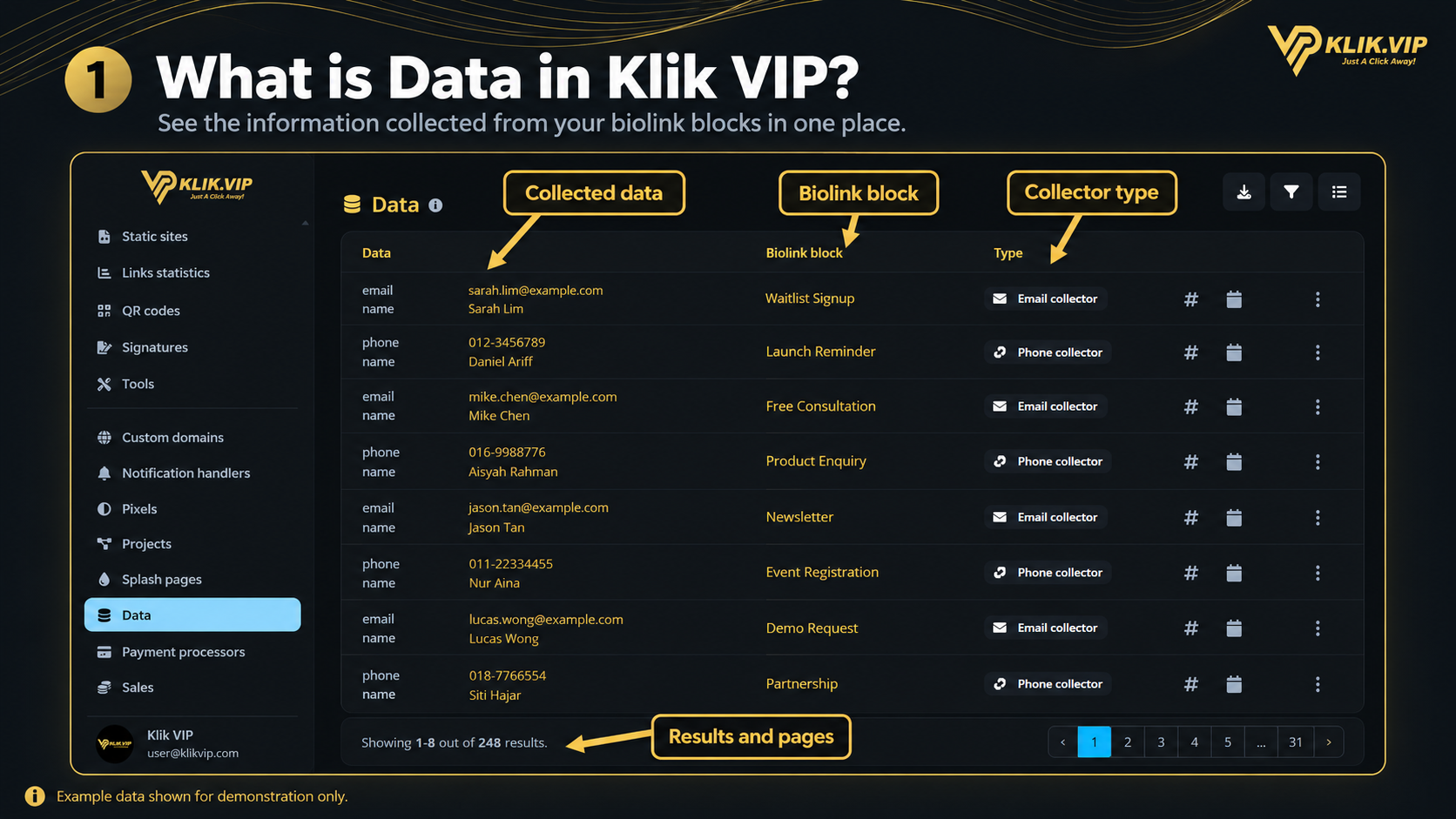
The Data page gives you one place to review information collected from visitors through supported Klik VIP collector blocks.
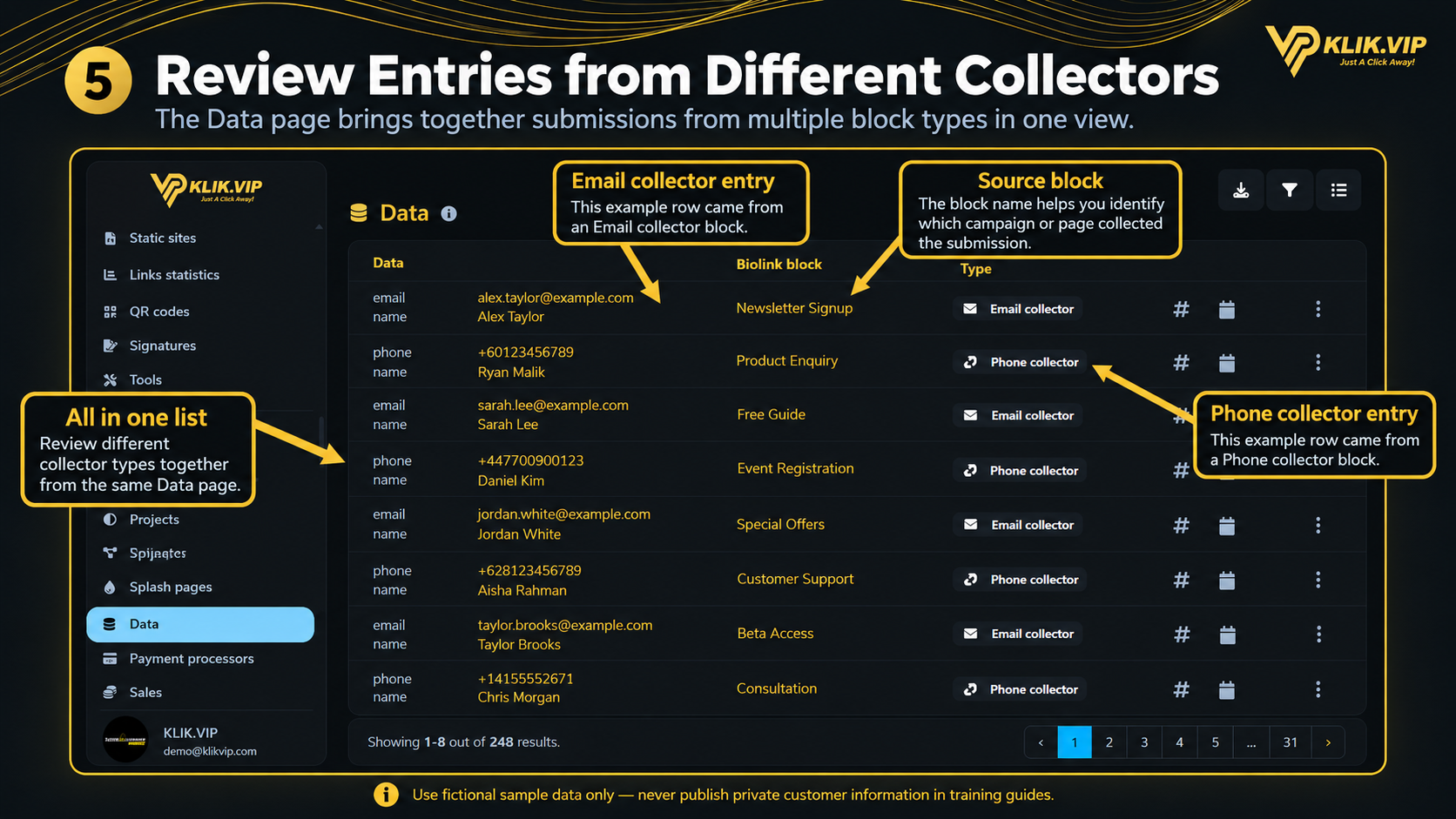
In the screenshots provided, the Data page contains entries from Email collector and Phone collector blocks. Each row shows the submitted information together with its source block and collector type.
Depending on the Biolink blocks you use, Data may also contain submissions collected through other supported data-collection blocks, such as Contact Collector or Appointment Calendar.
Submitted information
See the values captured from a visitor, such as an email address, phone number or name.
Biolink block
See which collector block produced the entry so you can identify where the lead came from.
Collector type
Identify whether the record came from an Email collector or Phone collector.
Centralized view
Review records from different collector blocks from the same Data page.
1. Open the Data Page
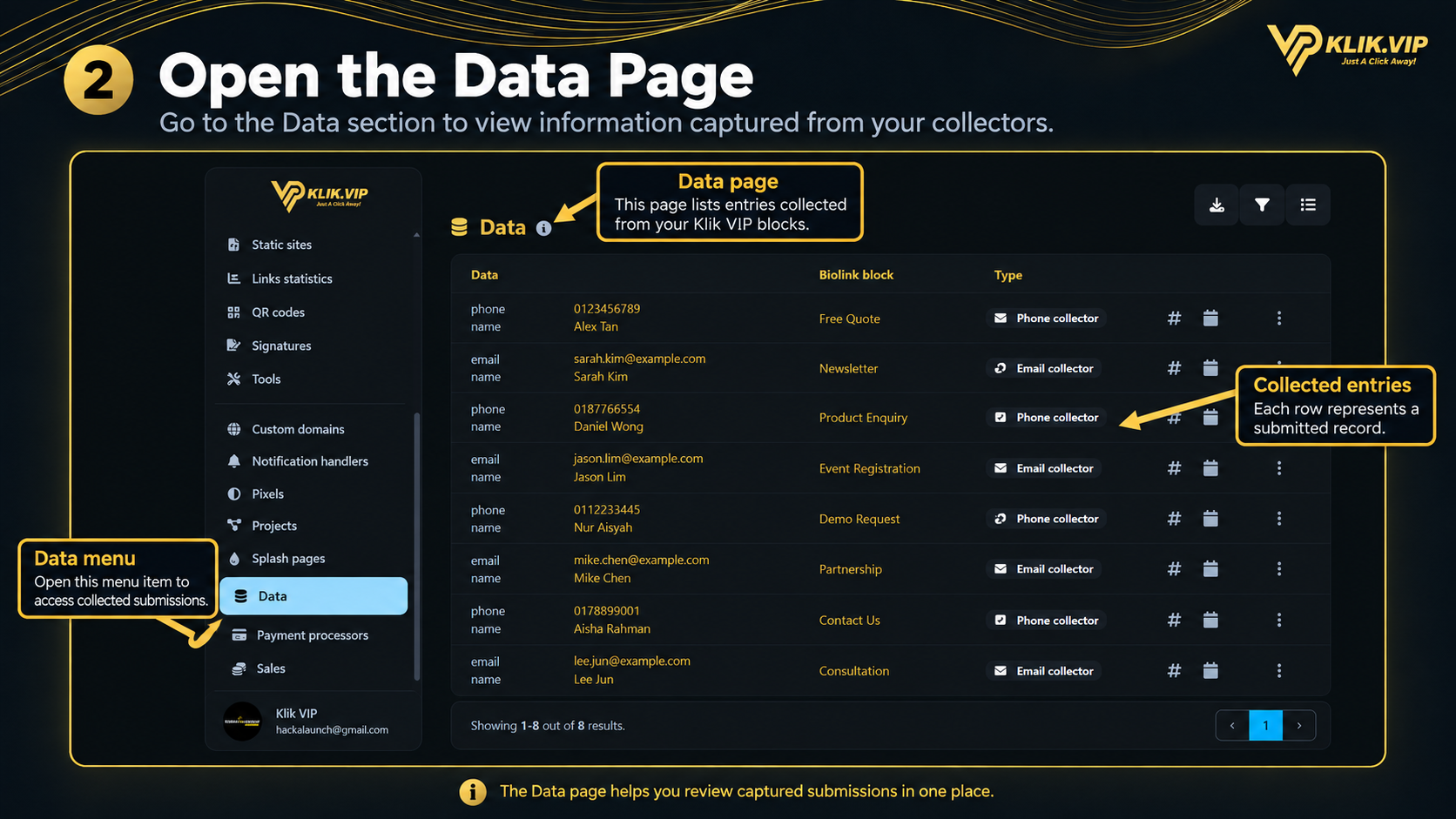
From the Klik VIP dashboard, open Data from the left menu. The page will display the records that have been captured through your supported collector blocks.
- Log in to your Klik VIP account.
- Open Data from the dashboard menu.
- Review the collected entries in the table.
2. Understand the Data Table
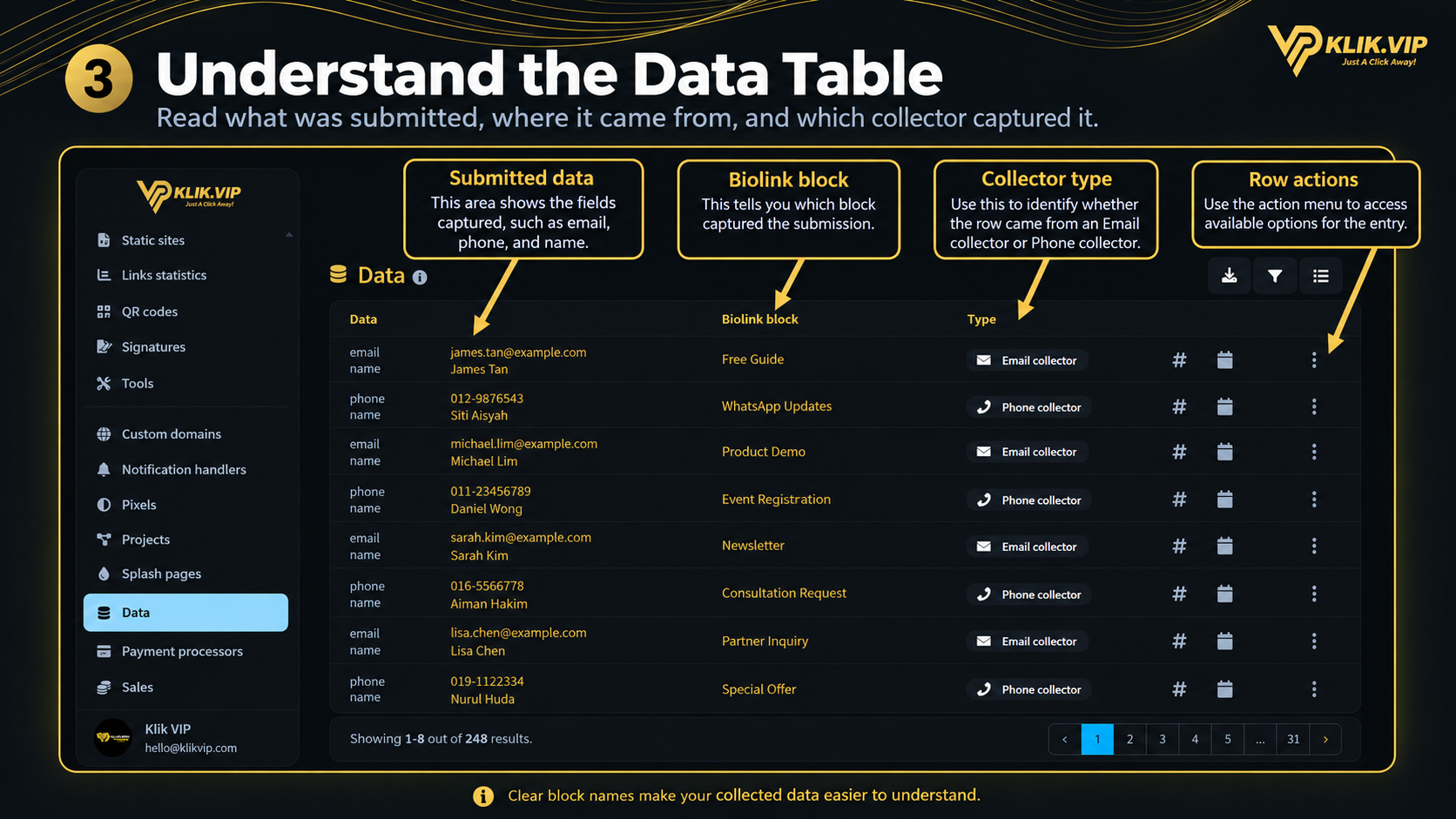
The Data table helps you understand both what was submitted and where it came from.
- Data — shows the fields and values that were submitted.
- Biolink block — shows the name of the block that collected the record.
- Type — identifies the collector type, such as Email collector or Phone collector.
- Row controls — additional icons are available on each record for record-level actions.
3. Use Filters, Export and Pagination
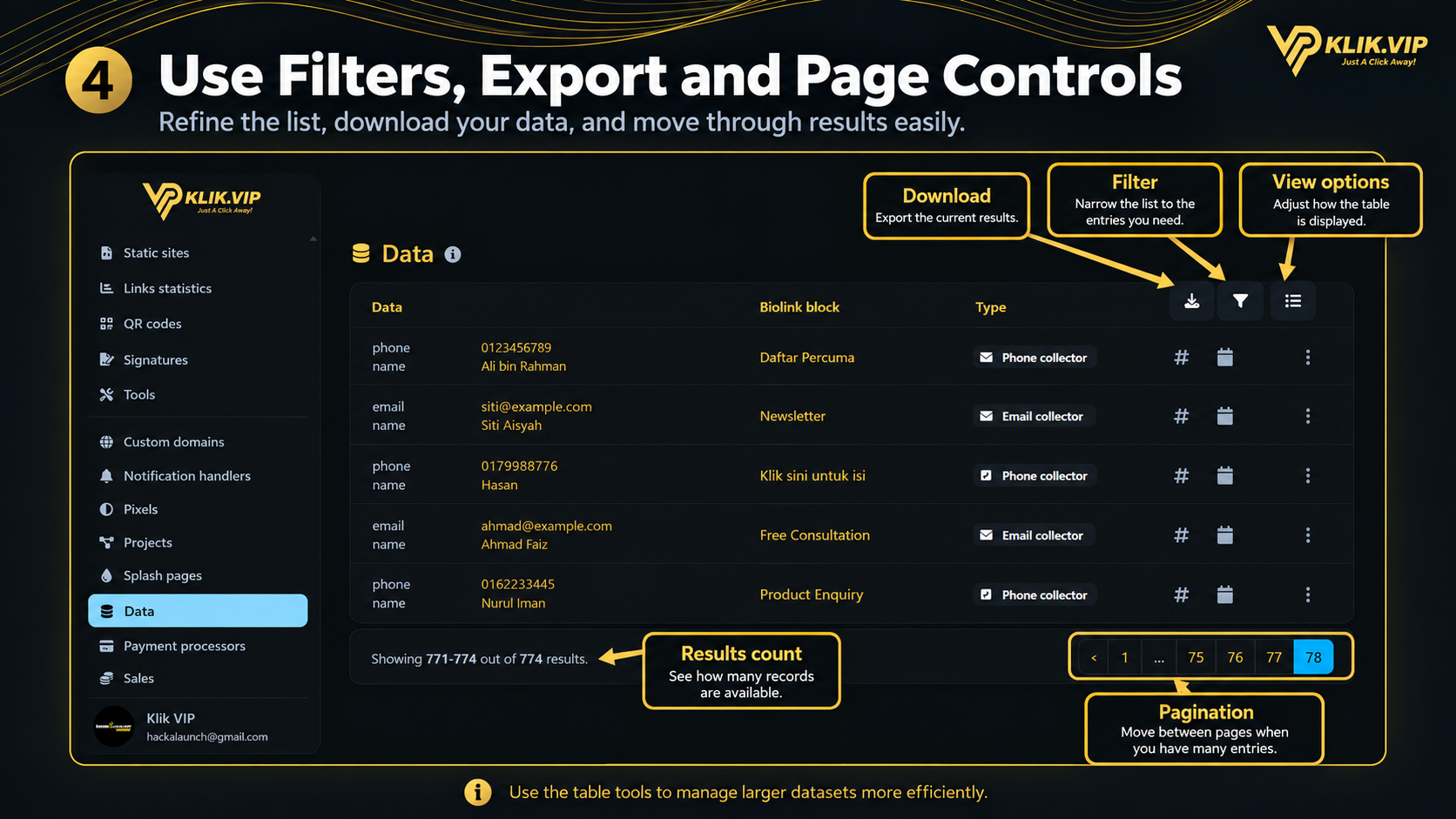
The controls at the top-right of the Data page help you work with larger datasets more efficiently.
Download / Export
Use the download control when you need a copy of your collected data outside the current view.
Filter
Use the filter control to narrow the list and focus on the records you need.
View options
Use the list/view control to adjust how the table is displayed where available.
Pagination
Move between result pages when the number of collected records is larger than one page.
The results counter at the bottom shows which records are currently visible and how many results are available in total.
4. Review Entries from Different Collectors
The same Data page can display submissions from different collector blocks together. This makes it easier to review leads collected from different campaigns without opening each Biolink block separately.
For example, one record may come from an Email collector used for a newsletter signup, while another may come from a Phone collector used for a product enquiry.
5. Tips & Good Practice
- Name collector blocks clearly so you can immediately recognize where each submission came from.
- Use filters when you only need to work with a specific subset of records.
- Export when needed if you want to work with the collected information outside Klik VIP.
- Review your records regularly so your collected data remains useful and manageable.
- Protect personal information and only collect information you genuinely need.
- Use fictional data in public training materials rather than exposing real customer details.