What is the Plan Page?
The Plan page is where you can review the subscription currently attached to your Klik VIP account and compare it with the next available plan shown to you.
Current plan
See the plan your account is currently using.
Feature access
Review which features are included and which are not available on the current plan.
Usage limits
Check limits for items such as links, pixels, domains, blocks, payment processors and other supported resources.
Upgrade options
Compare the next plan shown by Klik VIP before deciding whether to upgrade.
1. Review Your Current Plan
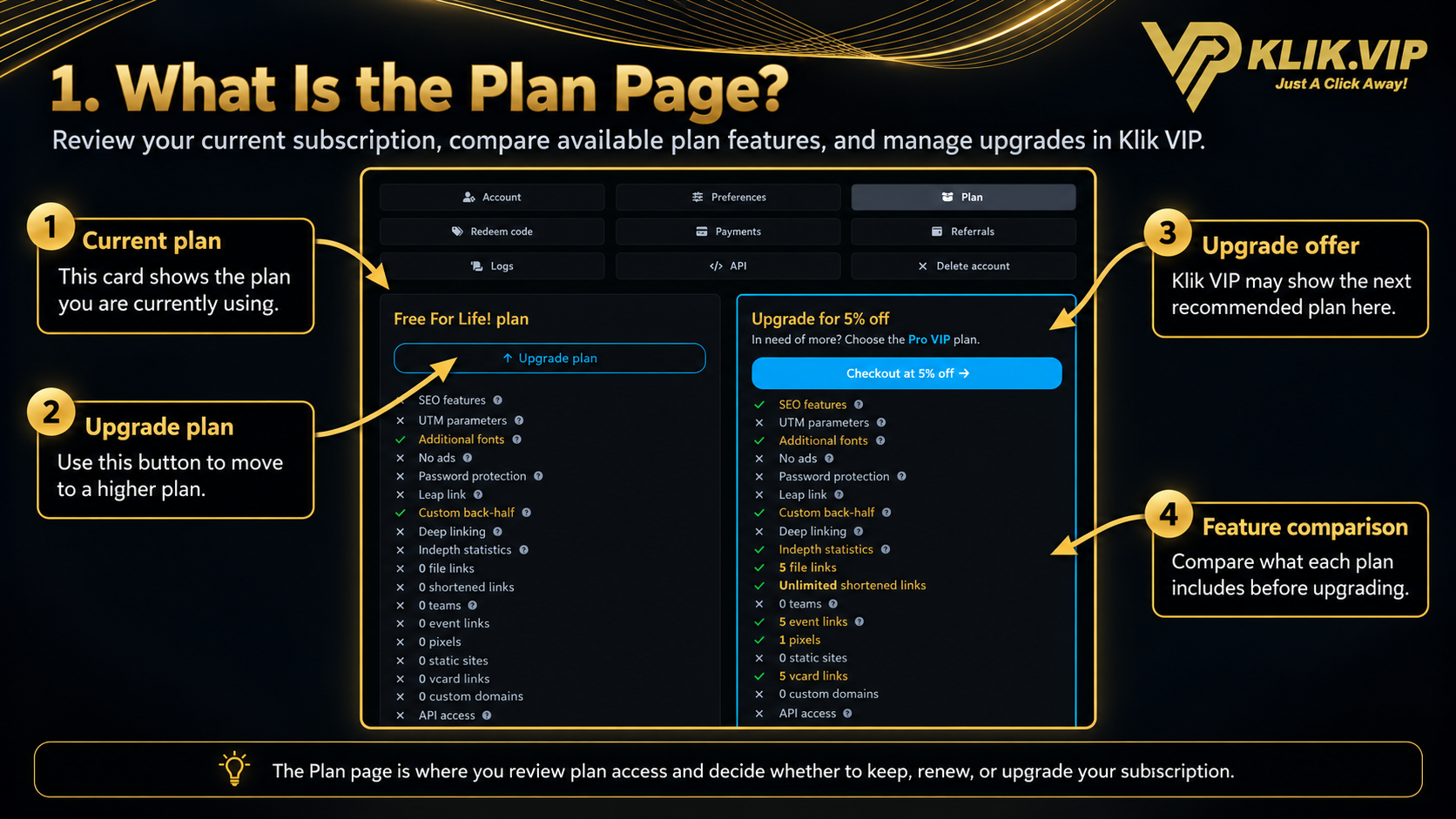
Your current plan appears on the left side of the Plan page. The exact information shown depends on whether your account is on a free or paid subscription.
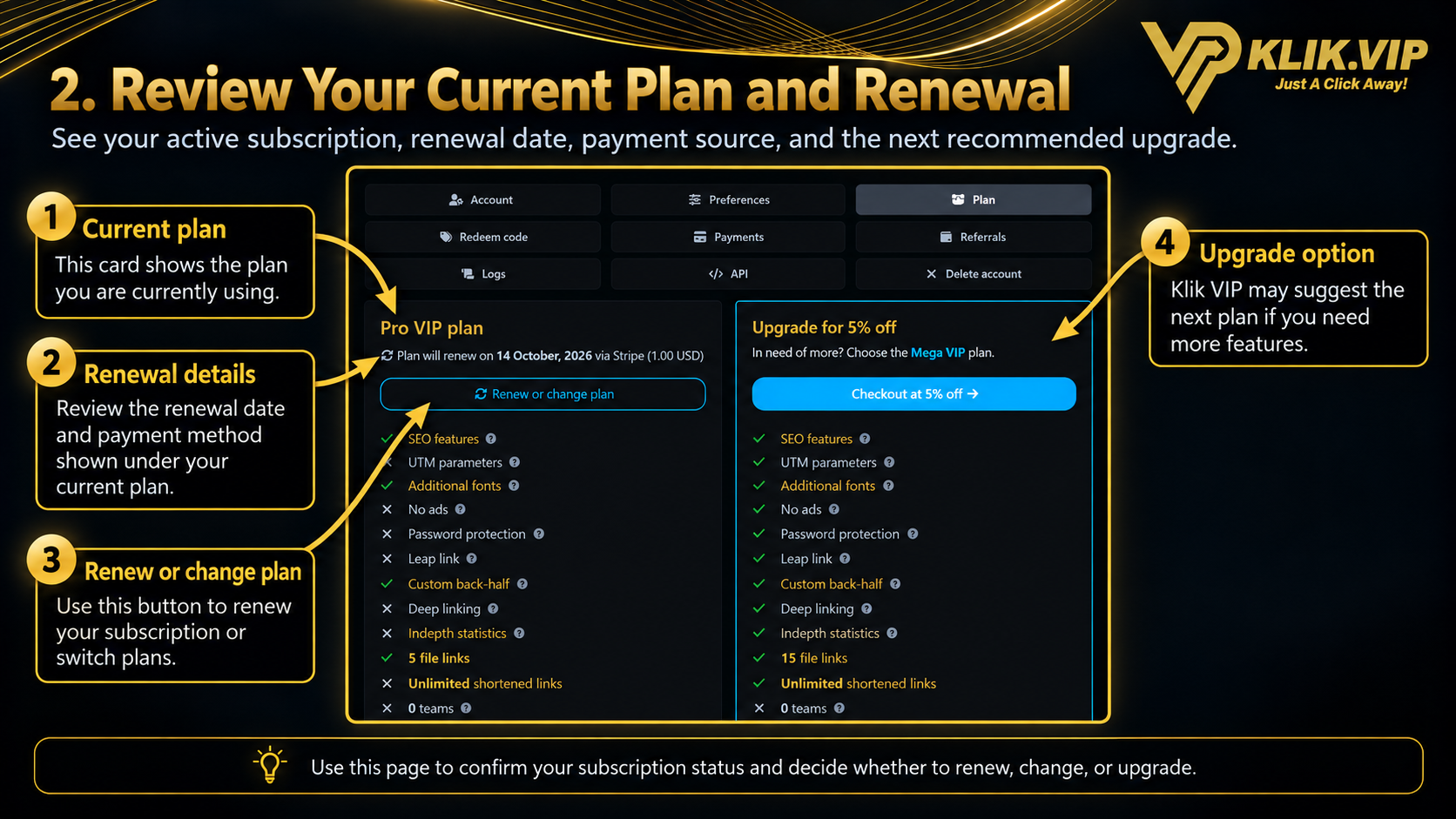
- Plan name — identifies the active subscription, such as Free For Life or Pro VIP in the supplied screenshots.
- Renewal details — paid subscriptions may show the renewal date, payment provider and renewal amount.
- Renew or change plan — paid plans can show a button for renewing or switching to another plan.
- Upgrade plan — free users can use the upgrade button to move to a paid plan.
2. Compare Features and Limits
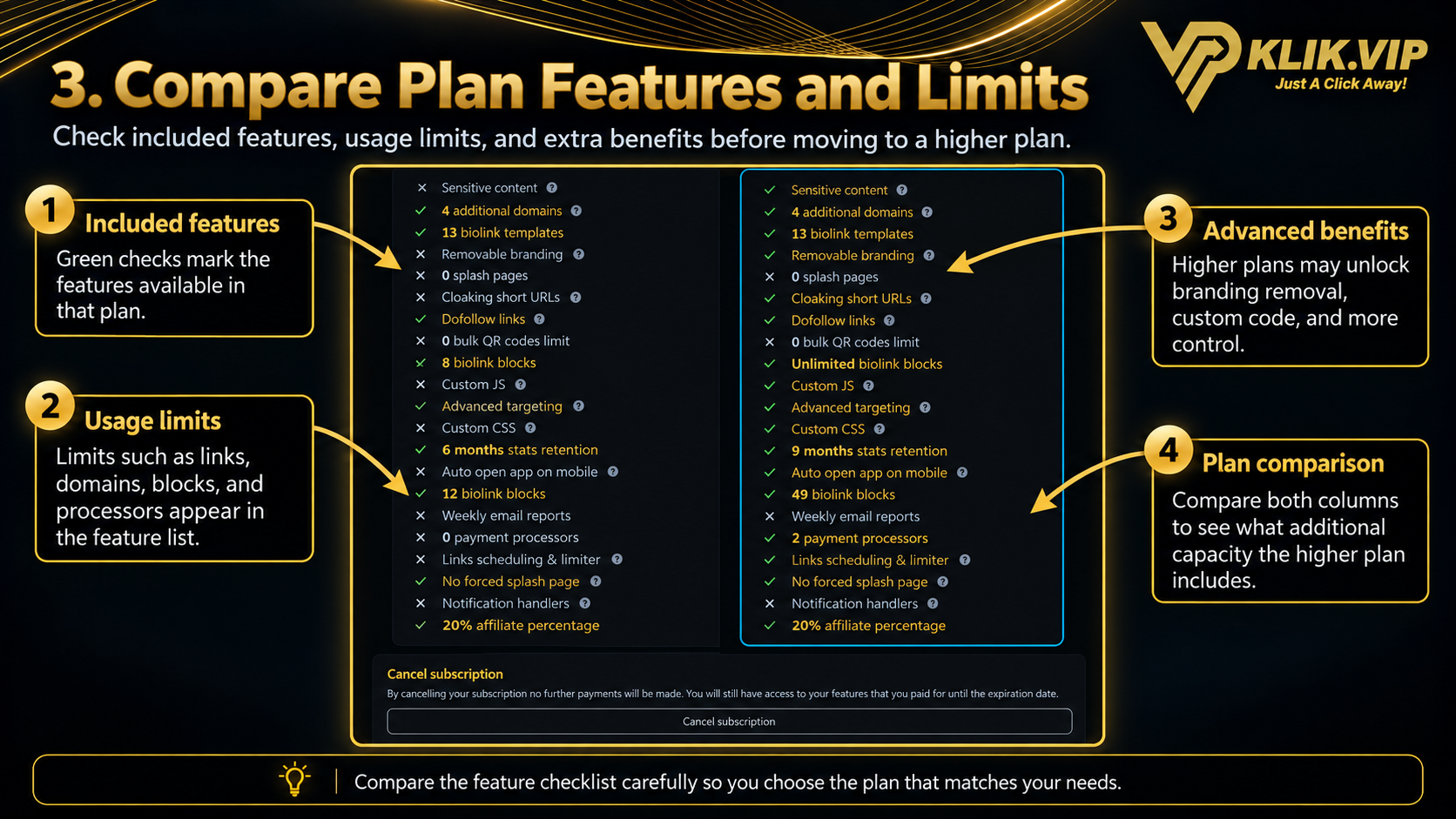
Each plan card contains a detailed feature checklist. Use this comparison before upgrading so you know exactly what additional access or capacity is included.
- Green check marks indicate features or allowances available in that plan.
- Cross marks indicate features that are not included.
- Numeric limits show the capacity included for supported resources such as file links, event links, pixels, vCard links, domains, blocks and payment processors.
- Advanced features may include items such as deeper statistics, custom code, branding control, scheduling or other plan-dependent functionality.
3. Upgrade, Renew or Change Your Plan
The action available to you depends on your current subscription.
Free plan
Use Upgrade plan to move from the free plan to a paid plan.
Paid plan
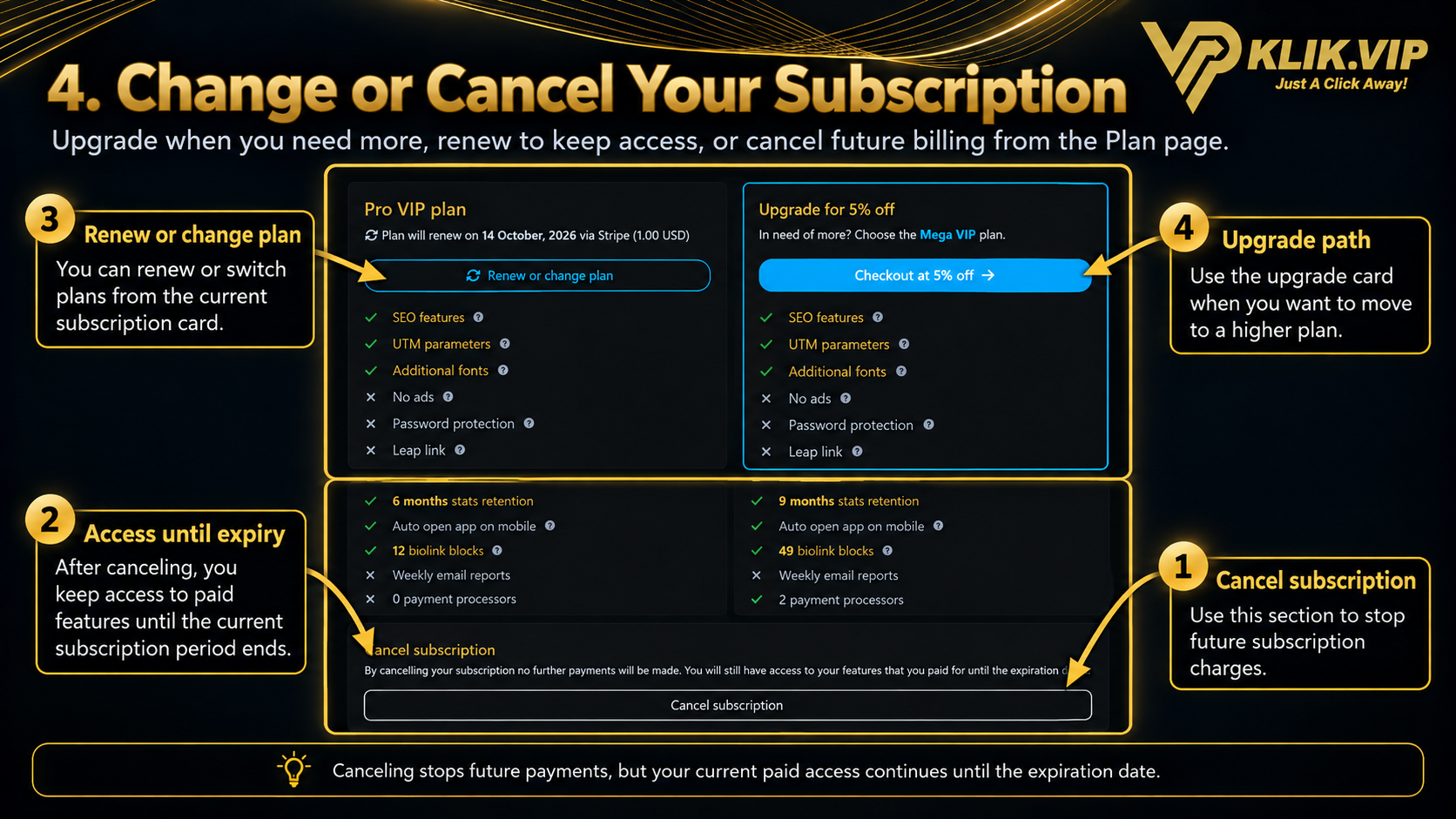
Use Renew or change plan when you want to manage the active subscription.
Klik VIP may also display an upgrade card beside your current plan. In the supplied screenshots, this card shows the next recommended plan and a checkout button.
4. Cancel a Subscription
Paid subscriptions can display a Cancel subscription section near the bottom of the Plan page.
The message shown in the supplied screenshot explains that after cancellation, no further subscription payments will be made, while paid features remain available until the subscription expiration date.
5. Tips Before Changing Your Plan
- Review the current plan name before making any change.
- Check the renewal date and payment provider when they are shown.
- Compare the feature checklist carefully, not only the plan name.
- Look at the usage limits for the resources you actually use.
- Confirm that the higher plan includes the specific feature you need before upgrading.
- If you cancel a paid subscription, note the expiration date so you know how long paid features remain available.