1. Open Account Settings
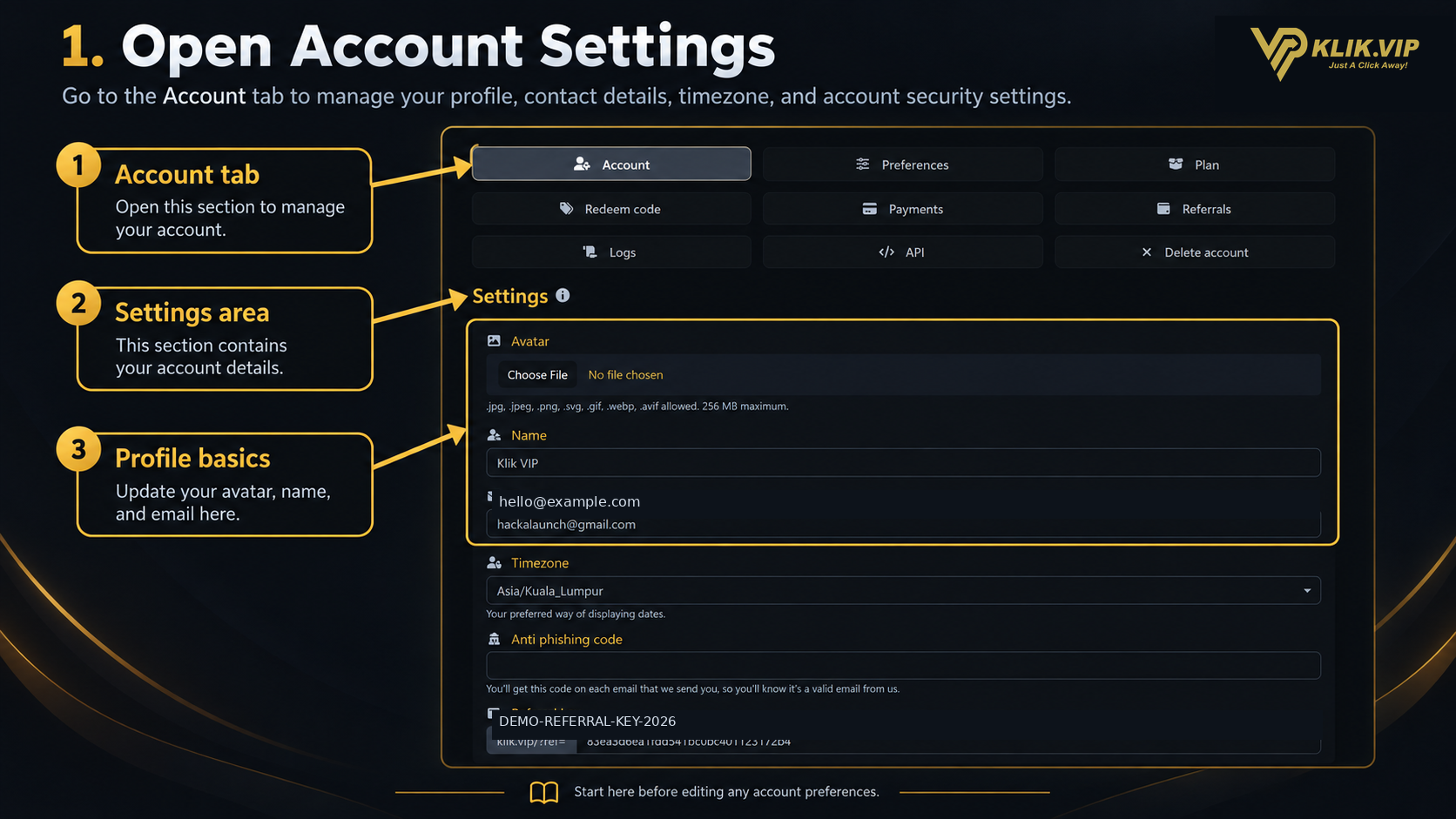
Open the Account tab from the Klik VIP settings area. This is the main page for your core profile and account-level information.
Profile basics
Manage your avatar, display name and email address.
Timezone
Choose the timezone Klik VIP should use when displaying dates.
Anti-phishing code
Add a personal code that helps you recognize valid Klik VIP emails.
Referral key
View the unique key used to build your Klik VIP referral URL.
2. Update Basic Profile Details
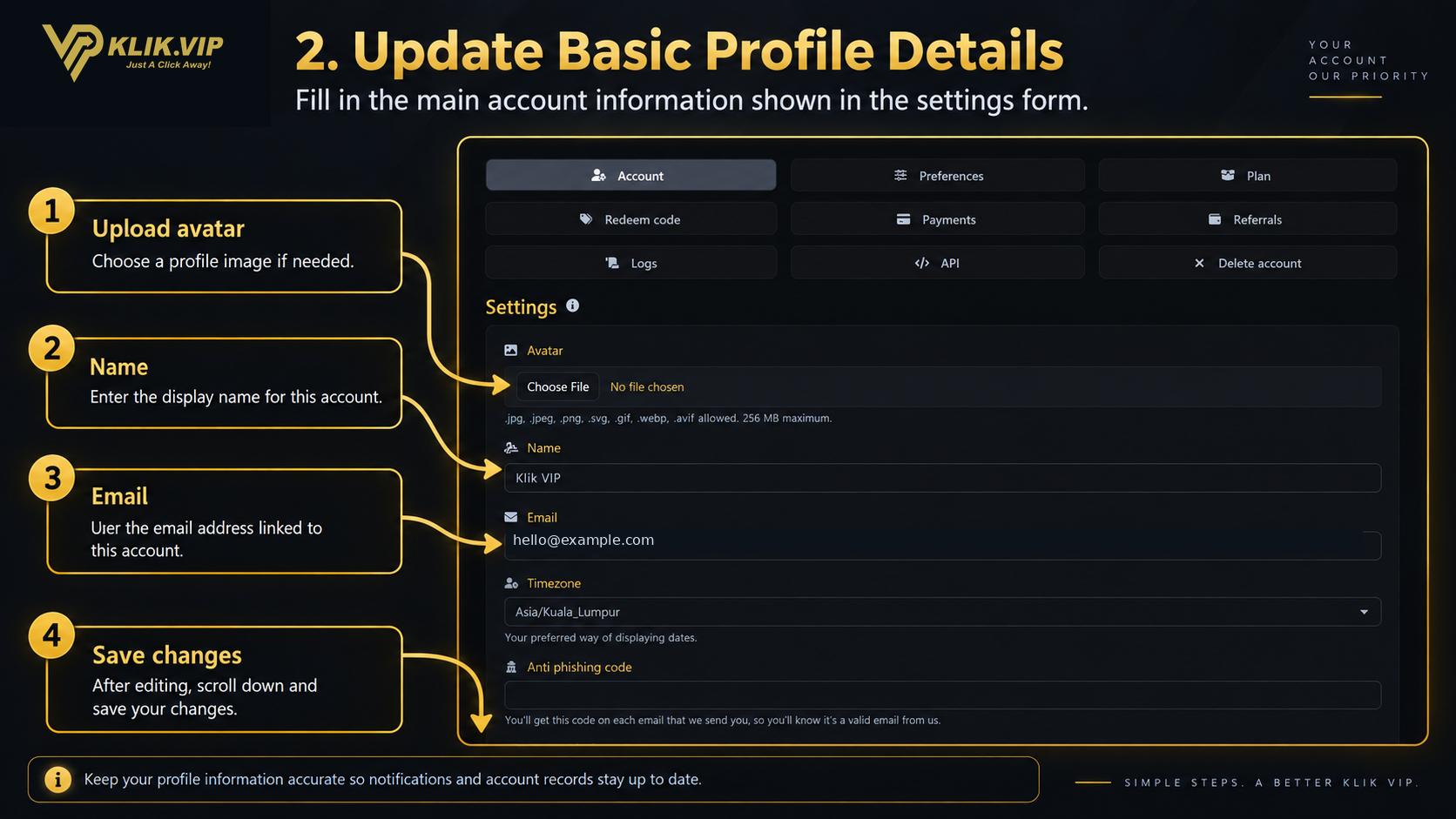
Use the first part of the Account form to keep your profile details current.
- Avatar — upload a profile image if required.
- Name — set the display name for your account.
- Email — review or update the email address linked to the account.
3. Set Your Timezone and Anti-Phishing Code
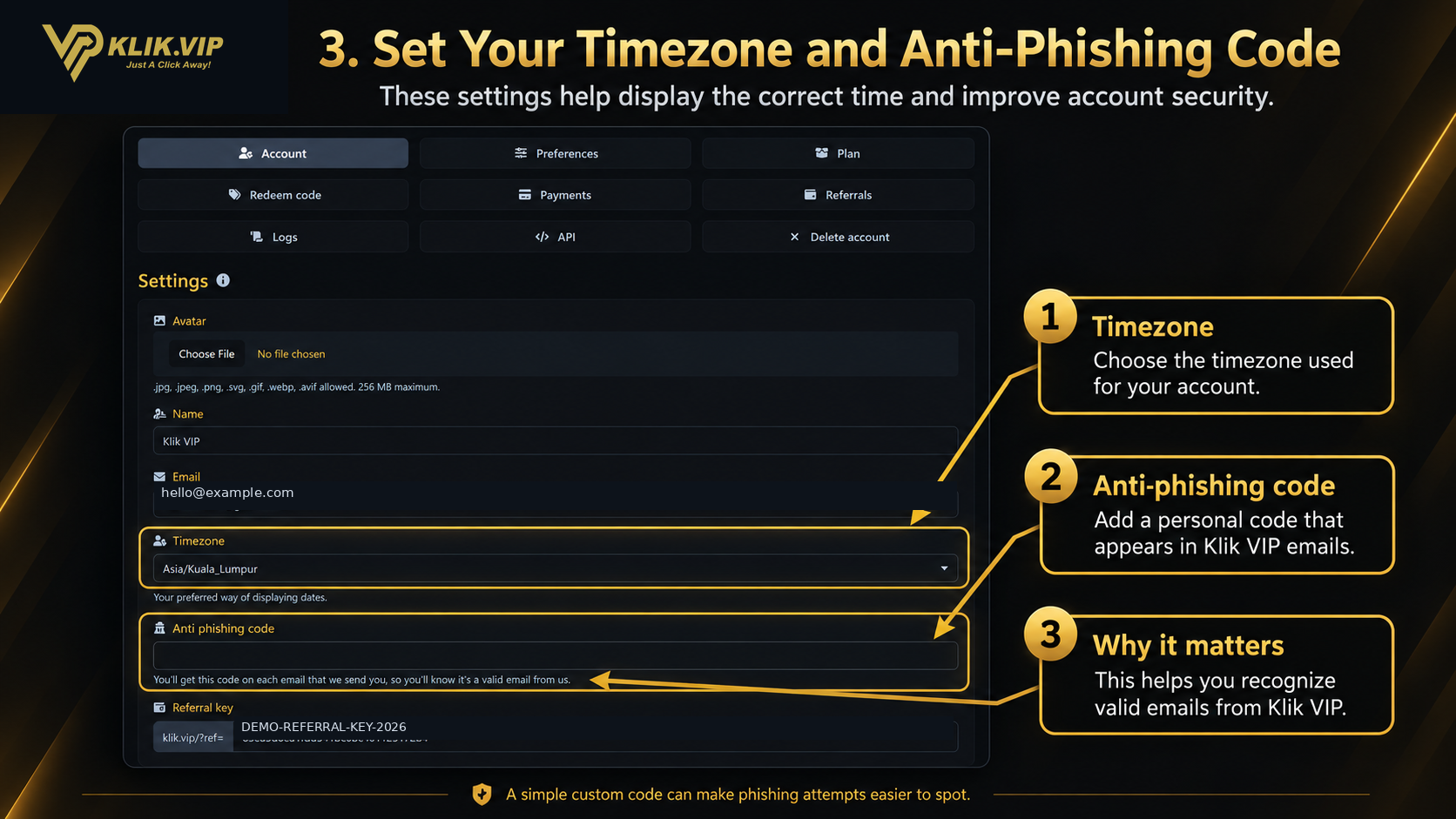
The Timezone setting controls your preferred way of displaying dates. Choose the timezone that matches where you normally operate.
The Anti-phishing code is a personal code that Klik VIP can include in emails sent to you. Seeing your own code helps you recognize that the message is genuinely associated with your Klik VIP account.
4. Understand Your Referral Key
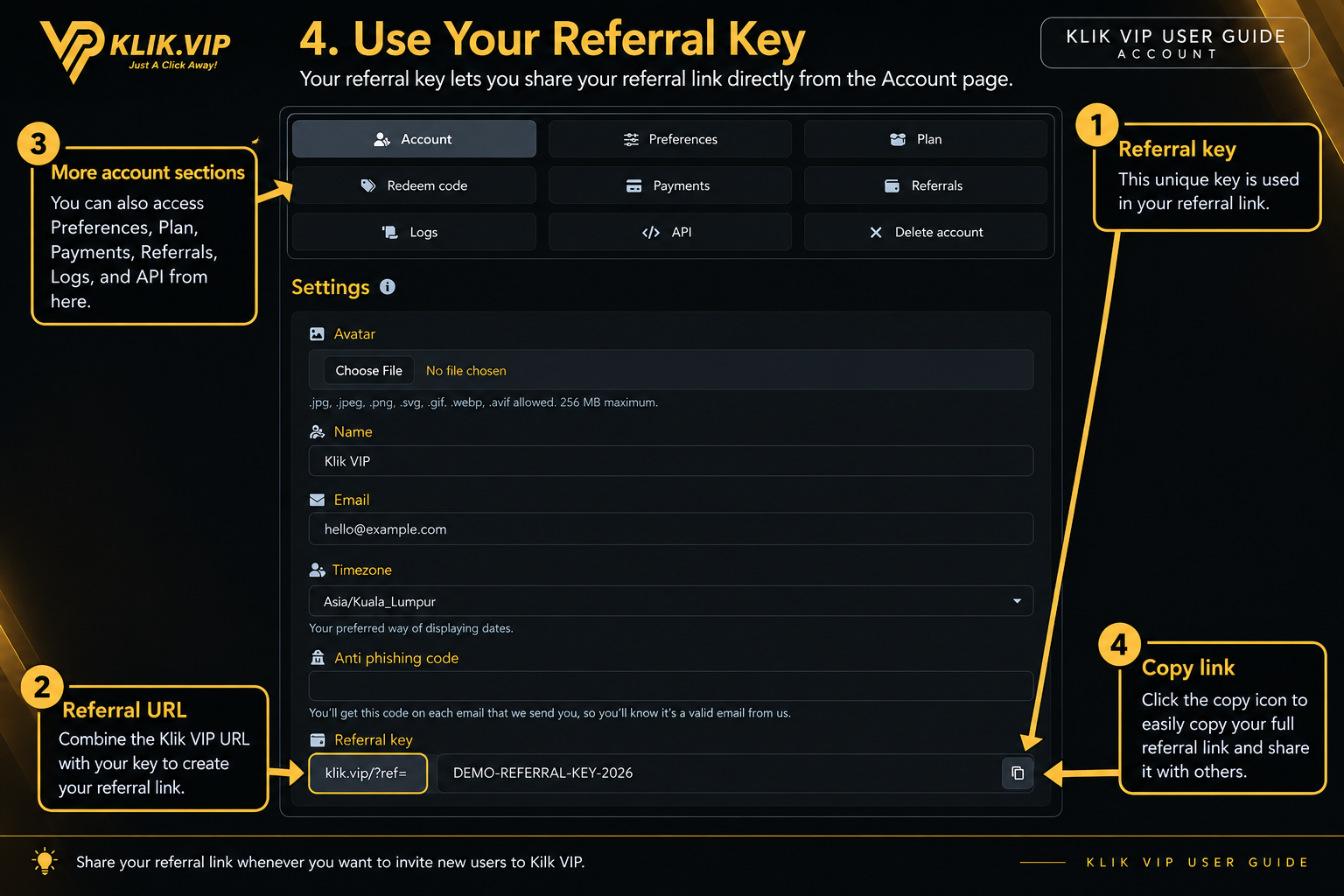
Your Account page also displays a Referral key. This key is combined with the Klik VIP referral URL to create your unique referral link.
You can share that referral URL when you want to invite new users through your Klik VIP referral account.
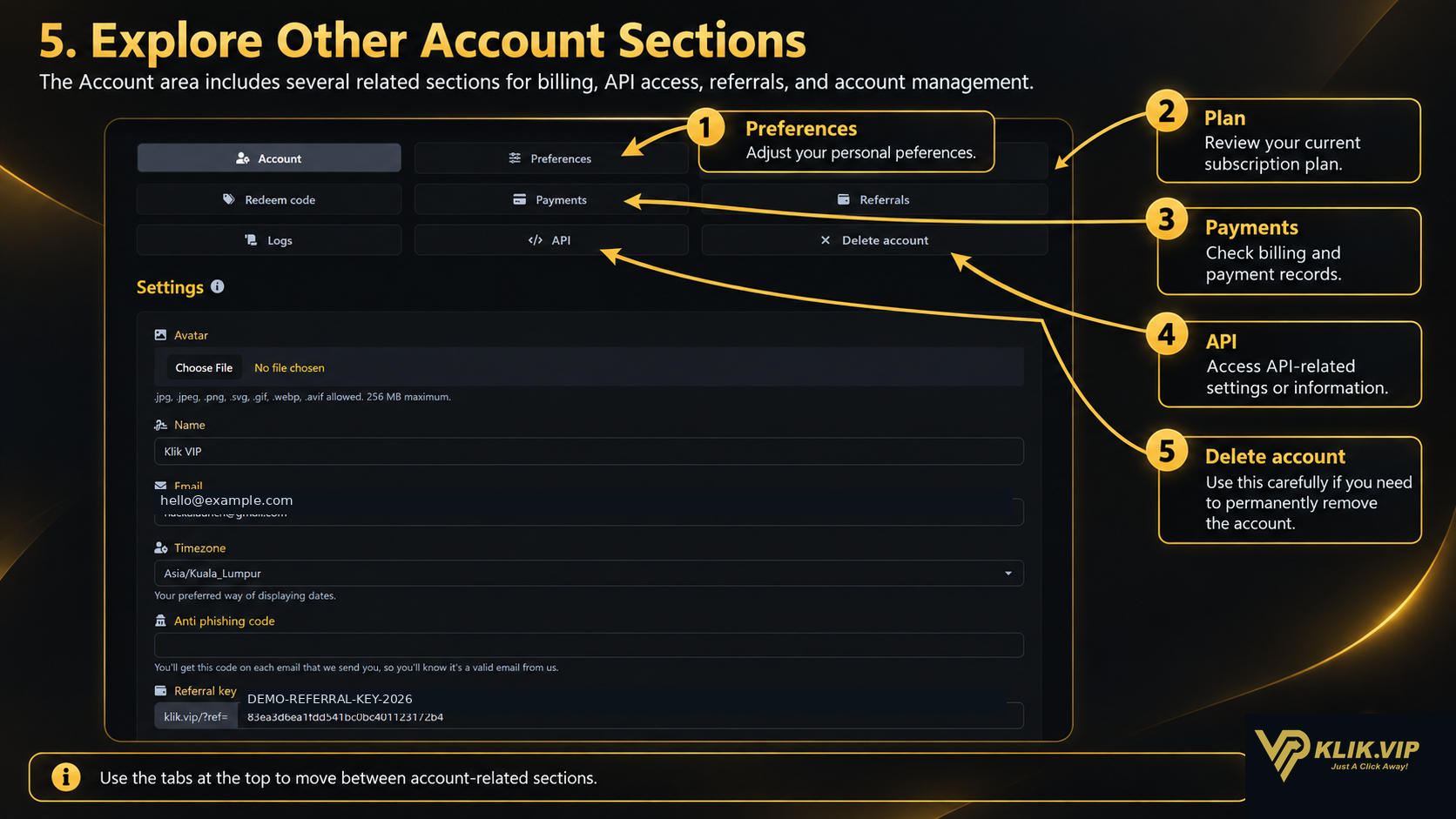
5. Explore Other Account Sections
The settings area includes several related account pages. These are separate from the basic Account profile form and can be opened using the tabs at the top.
Preferences
Adjust account preferences and behavior settings.
Plan
Review information related to your current Klik VIP plan.
Payments
Access account billing and payment-related records.
Referrals
Open the dedicated referral area.
Logs & API
Access account activity information and API-related settings where available.
Delete account
Delete Account — submit an account deletion action from your account settings.
6. Account Tips
- Keep your name and email address current.
- Choose the correct timezone so dates are displayed appropriately.
- Use the anti-phishing code as an extra way to recognize Klik VIP emails.
- Do not publish account-specific credentials or private identifiers in public guides.
- Review the separate Preferences, Plan, Payments, Referrals and API sections when you need those functions.
- Use Delete account only when you intend to submit the account deletion action from your account settings.