What are Preferences?
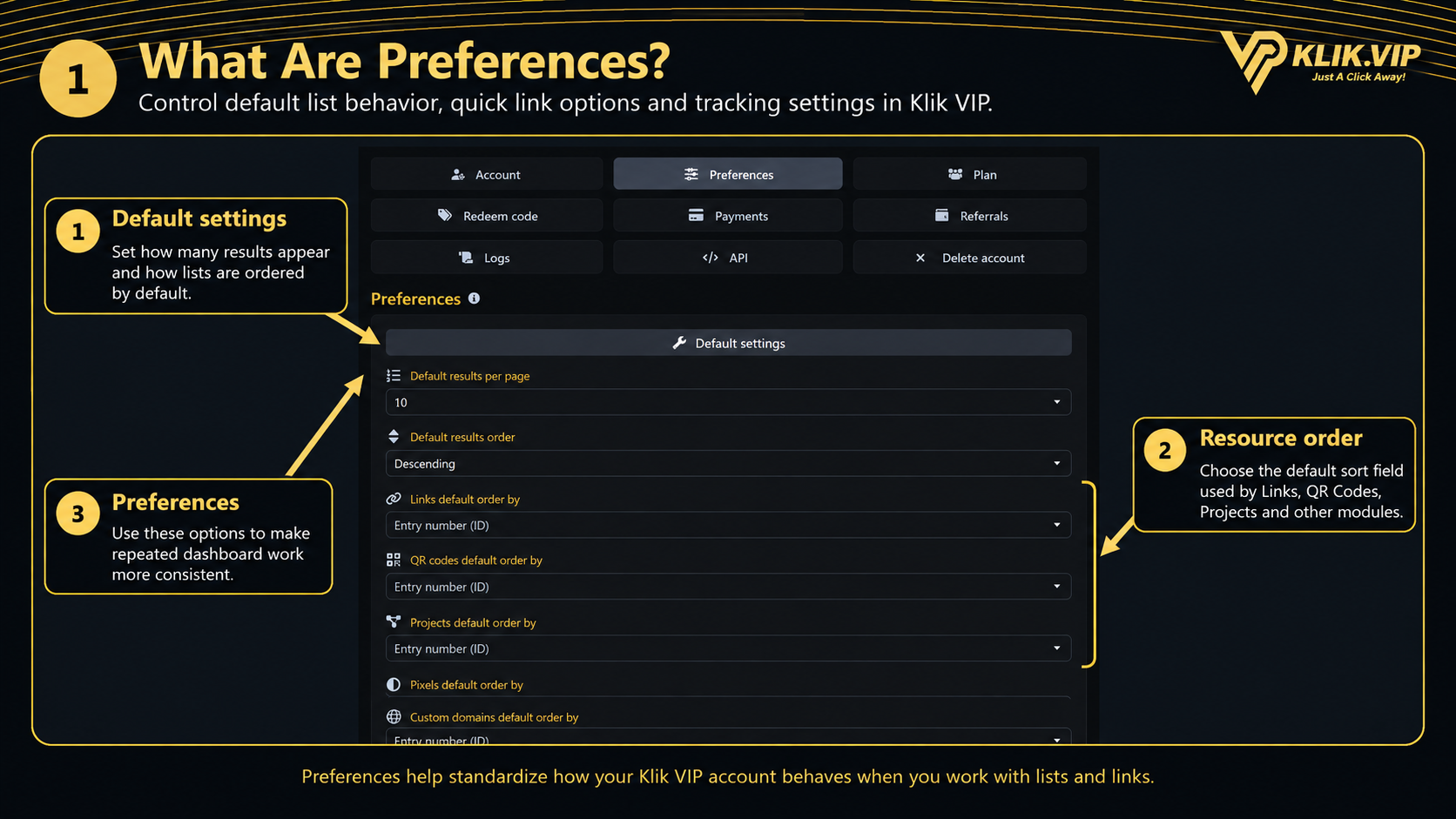
The Preferences page controls several default behaviors across your Klik VIP account. Instead of changing the same display and sorting options repeatedly, you can choose how lists should normally appear whenever you work in the dashboard.
Default list behavior
Choose how many results appear per page and whether results load in ascending or descending order.
Module-specific ordering
Choose the field used to sort individual Klik VIP resources by default.
Quick link options
Enable automatic link copying and automatic saving while editing links.
Tracking controls
Control crawler tracking and exclude selected IP addresses from statistics.
1. Configure Default Results and Ordering
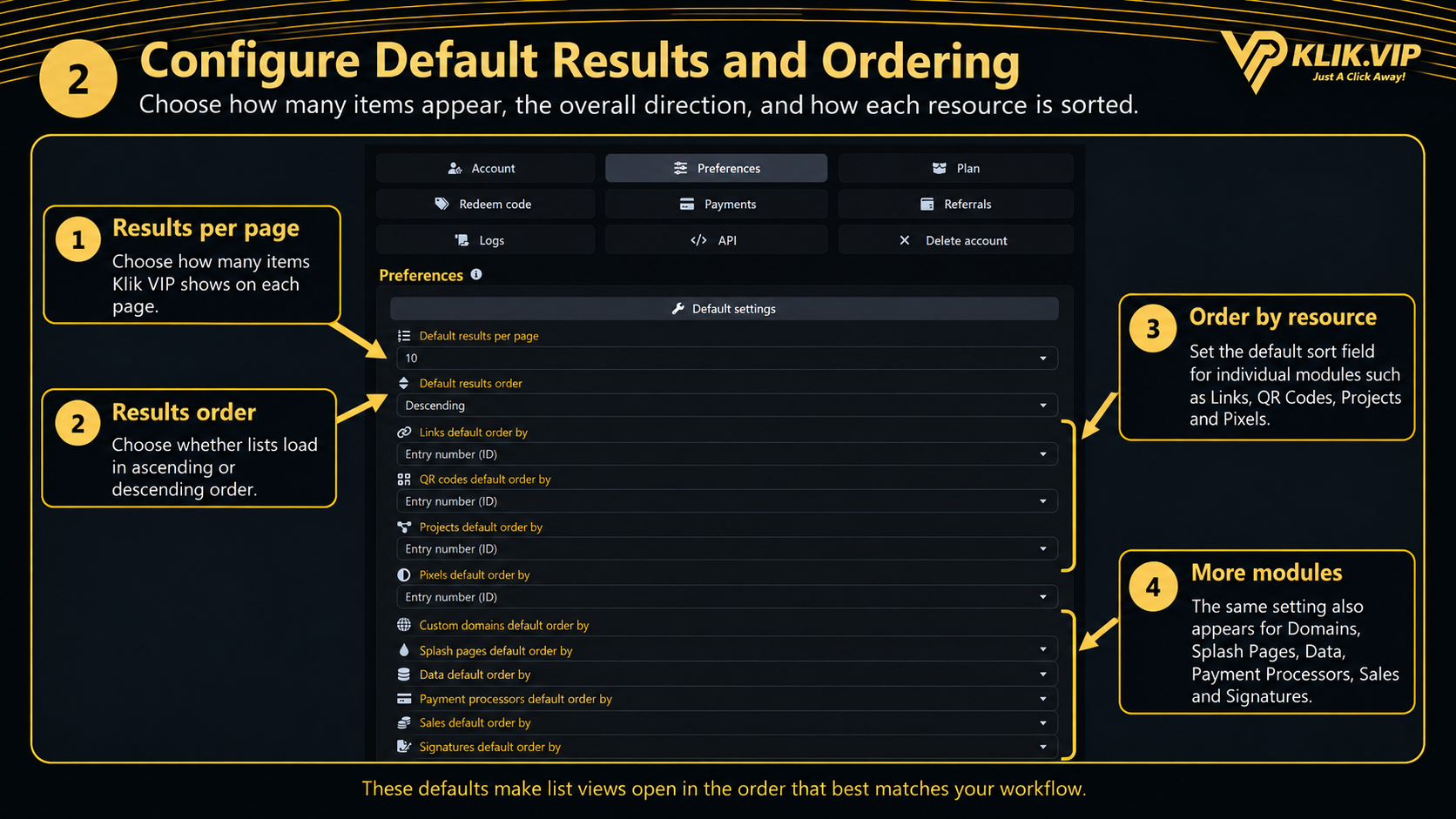
Open Preferences and use the Default settings section to control how lists normally appear.
- Default results per page — choose how many records or items should be shown on each page.
- Default results order — choose whether results should normally appear in ascending or descending order.
- Links default order by — choose the default field used to sort Links.
- QR codes default order by — choose the default field used to sort QR Codes.
- Projects default order by — choose the default field used to sort Projects.
- Pixels default order by — choose the default field used to sort Pixels.
- Custom domains default order by — choose the default field used to sort Custom Domains.
- Splash pages default order by — choose the default field used to sort Splash Pages.
- Data default order by — choose the default field used to sort Data records.
- Payment processors default order by — choose the default field used to sort Payment Processors.
- Sales default order by — choose the default field used to sort Sales.
- Signatures default order by — choose the default field used to sort Signatures.
2. Configure Quick Link Options
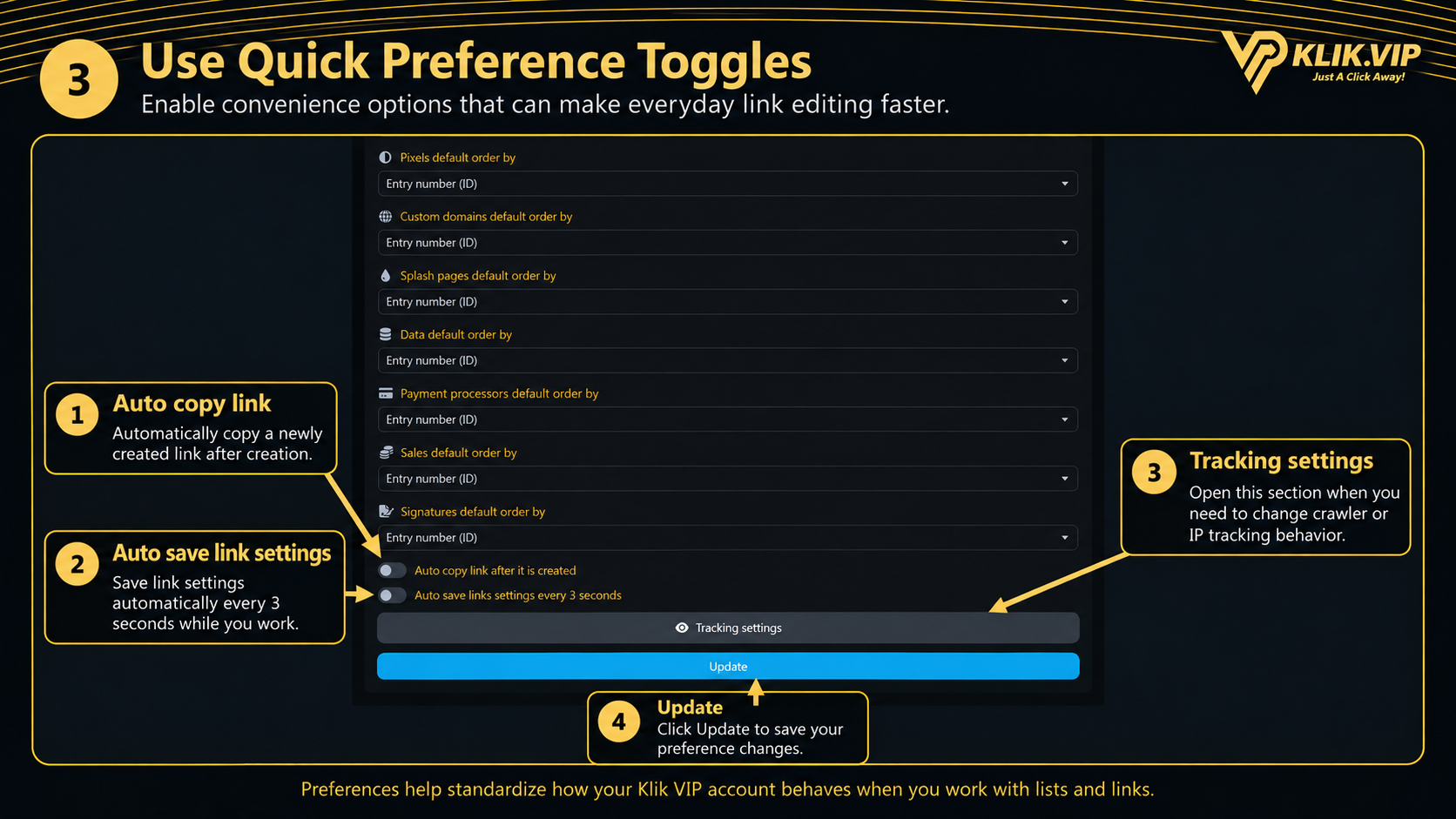
Two convenience toggles are available near the end of the Default settings section.
Auto copy link after it is created
When enabled, Klik VIP automatically copies a newly created link so it is ready to paste elsewhere.
Auto save links settings every 3 seconds
When enabled, Klik VIP periodically saves link settings while you are editing.
After changing the settings, click Update to save your Preferences.
3. Manage Tracking Settings
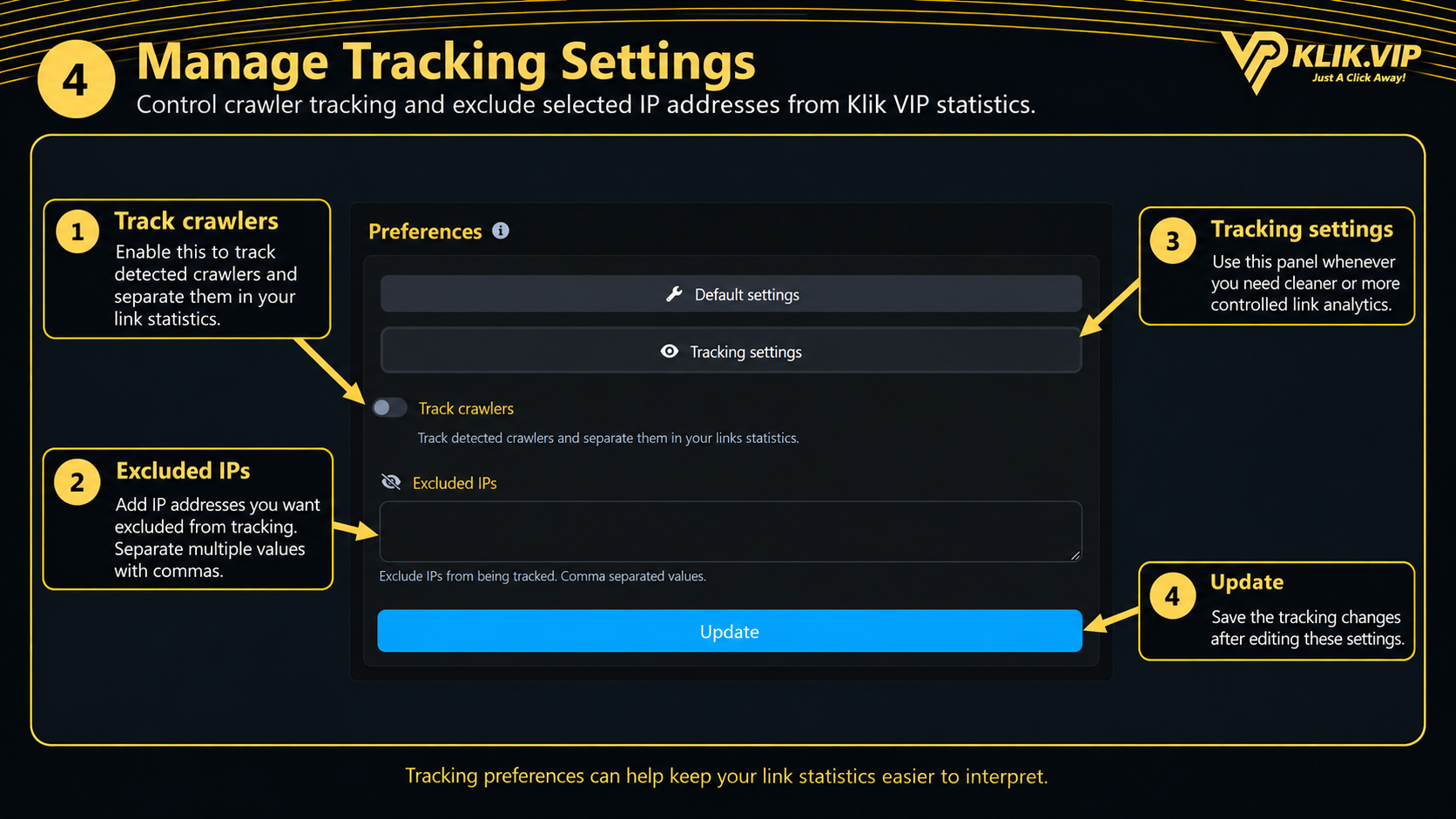
Open Tracking settings when you want to change how crawler traffic and selected IP addresses are treated in Klik VIP statistics.
- Track crawlers — when enabled, Klik VIP tracks detected crawlers and separates them in your link statistics.
- Excluded IPs — add IP addresses that should not be tracked. The field accepts comma-separated values.
- Update — save the tracking changes after editing the settings.
4. Tips & Recommended Setup
- Choose a results-per-page value that gives you enough information without making lists unnecessarily long.
- Use a consistent default results order so new and old entries appear where you expect them.
- Configure module-specific ordering according to the way you normally manage each resource.
- Enable Auto copy if you normally paste a link immediately after creating it.
- Enable Auto save if you prefer Klik VIP to save link settings periodically while you work.
- Use Excluded IPs carefully and separate multiple values with commas.
- Click Update after making changes to either Default settings or Tracking settings.